The Unexpected Enrollment: How Personal Windows Home Devices Slipped into Intune and How You Can Finally Block Them
Introduction
For years, IT administrators have relied on Microsoft Intune’s enrollment restrictions to keep personal Windows devices, especially those running Windows Home editions, out of their managed environments. Yet, despite careful configuration, many organizations have encountered a perplexing scenario: a personally owned Windows Home device, which should have been blocked by platform restrictions, unexpectedly appears in Intune as a managed endpoint.
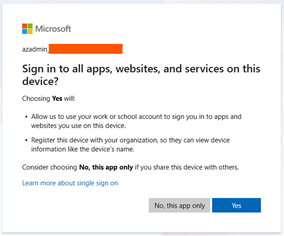
This not only undermines compliance and security postures but also creates confusion and additional cleanup work for IT teams. The root of this problem lies in the complex interplay between Windows device registration, automatic MDM enrollment, and the infamous “Allow my organization to manage my device” prompt.
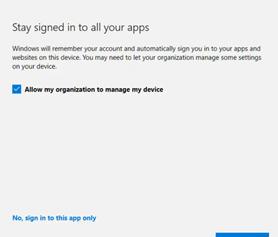
Until recently, there was no reliable, admin-controlled way to prevent this enrollment path, leaving organizations exposed to accidental or even unwanted device management on personal endpoints.
Intune Finally Closes the Windows Home Loophole
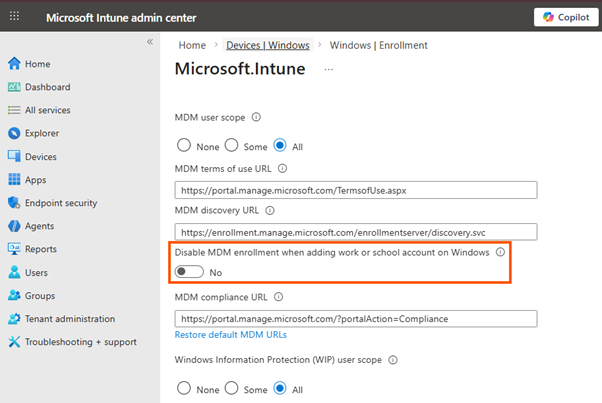
In early 2026, Microsoft introduced a long-awaited setting in Intune: “Disable MDM enrollment when adding work or school account on Windows.“
This feature, now available in public preview, gives IT admins unprecedented control over the enrollment experience, finally closing the loophole that allowed personal Windows Home devices to slip through. This blog post explores a real-world scenario where this loophole was exploited.
Why Personal Windows Home Devices Get Enrolled, Despite Restrictions???
I just had this scenario: an organization has a strict policy to block personally owned Windows devices from enrolling in Intune. They have configured device platform restrictions to block personal Windows enrollment, expecting that only corporate owned devices, registered via Autopilot or hybrid Entra ID join can actually join Intune. Yet, today, a Windows Home device, clearly not corporate-owned, appears in their Intune device inventory as fully managed.
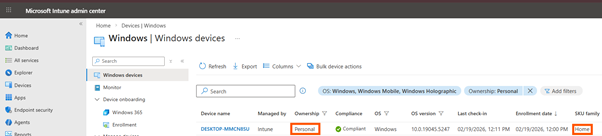
Upon investigation, I discovered that the device was enrolled after the user added their work account to Outlook or Teams on their personal PC. The user was presented with the “Allow my organization to manage my device” prompt and, perhaps unwittingly, consented. No changes to platform restrictions were made, and audit logs show no evidence of policy misconfiguration. Still, the device is now managed, receiving policies and potentially exposing sensitive data to a non-corporate endpoint.
This scenario has been reported by numerous organizations and discussed in community forums and technical blogs. The confusion and frustration it causes are compounded by the lack of clear audit trails or policy change logs indicating how the enrollment was permitted.
The Smoking Gun, ClientCertificate Creation with DeviceEnrollmentType 14
A critical clue in this incident was found in the Intune audit logs. When looking at the audit logs for the affected device, I could find an entry indicating the creation of a ClientCertificate with DeviceEnrollmentType 14. This entry signifies that the device was enrolled via a specific path, typically associated with user-driven, app-initiated enrollment rather than a corporate provisioning method. The audit log provides the following details:
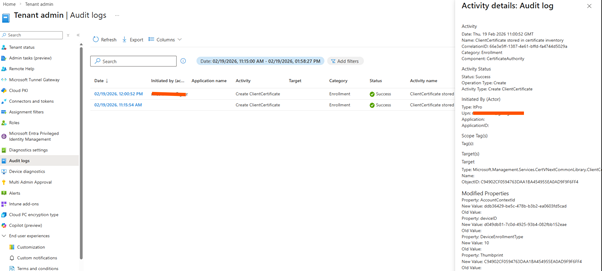
- Activity: Create ClientCertificate
- DeviceEnrollmentType: 14
- Initiated by: User (not an admin or automated process)
- No corresponding platform restriction changes
This log entry confirms that the enrollment was triggered by a user action, most commonly, adding a work or school account through an application (such as Outlook, Teams, or Edge) rather than through the Windows Settings app or a corporate provisioning tool. The absence of any platform restriction changes in the audit trail further rules out administrative error or policy misconfiguration.
The presence of DeviceEnrollmentType 14 is a strong indicator that the enrollment occurred via the “Add work or school account” flow, leveraging automatic MDM enrollment if the user was in scope. This path, as it turns out, was not fully governed by the existing platform restrictions.
How the “Add Work or School Account” Flow Circumvents Restrictions
To understand how a personal Windows Home device can bypass platform restrictions, it’s essential to dissect the various enrollment pathways available in Windows and Intune:
- Corporate Enrollment Methods (Enforced by Platform Restrictions):
- Windows Autopilot: Devices registered via hardware hash and assigned to the organization.
- Group Policy (GPO) or Configuration Manager Co-Management: Devices is joined to on-premises AD and hybrid joined to Entra ID, and GPO is configured to enroll automatically.
- Bulk Provisioning: Devices enrolled using provisioning packages.
- Device Enrollment Manager (DEM) Account: Special accounts for mass enrollment.
- User-Driven Enrollment (Subject to Platform Restrictions):
- Settings App > Accounts > Access work or school > Connect: User manually enrolls device.
- Intune Company Portal App: User-initiated enrollment, typically for BYOD scenarios.
- App-Initiated Enrollment (The Loophole):
- Adding a Work or School Account via Outlook, Teams, or Edge: Triggers the Entra account registration flow, which can prompt the user to allow device management.
- “Allow my organization to manage my device” Prompt: If the user consents, the device is registered and enrolled, even if it is a personal Windows Home device.
The critical issue here is the app-initiated enrollment path, specifically, adding a work or school account through an application is not fully blocked by platform restrictions. If the user was in scope for automatic MDM enrollment, and if the prompt was accepted, the device would be enrolled regardless of its ownership status or Windows edition. This loophole is particularly problematic for organizations aiming to allow Entra registration (for SSO and Conditional Access) without granting full device management rights to personal endpoints.
Platform Restrictions: How They Work, and Their Limitations
Microsoft Intune’s device platform restrictions are designed to block or allow device enrollment based on platform, OS version, manufacturer, and ownership type (personal vs. corporate). For Windows, the restriction to block personally owned devices is intended to prevent BYOD scenarios from resulting in full device management.
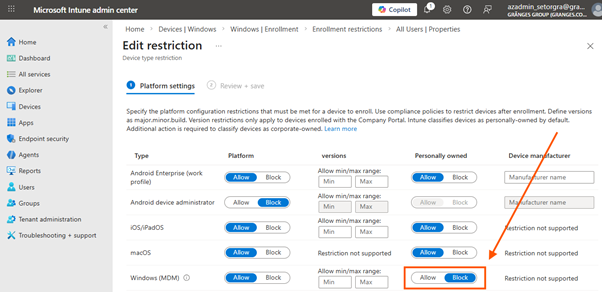
How Platform Restrictions Work:
- When a device attempts to enroll, Intune checks the platform restriction policies assigned to the user or device.
- If the device is identified as personally owned and the policy blocks personal Windows devices, enrollment should be denied.
- Only devices enrolled via authorized corporate methods (Autopilot, GPO, bulk provisioning, DEM) are allowed.
Limitations:
- Enrollment restrictions are not security features. They are a best-effort barrier for non-malicious users and can be bypassed in certain scenarios.
- App-initiated enrollment flows (such as adding a work account in Outlook or Teams) were not fully governed by these restrictions, especially when automatic MDM enrollment was enabled for the user.
- No granular control over the “Allow my organization to manage my device” prompt, admins could not suppress or disable this prompt for users in scope.
As a result, even with platform restrictions in place, personal Windows Home devices could be enrolled if the user followed the right (or wrong) sequence of actions.
Why Enrollments Succeeded Without Platform Change Logs
The unexpected enrollment of a personal Windows Home device, despite platform restrictions, can be attributed to a combination of technical and policy factors:
- Automatic MDM Enrollment Scope: If the user is in scope for automatic MDM enrollment (configured under Devices > Enrollment > Automatic Enrollment in Intune), any device they register with Entra ID is eligible for MDM enrolment, even if it is personal.
- App-Initiated Account Addition: When a user adds their work or school account via an application (not the Settings app), Windows triggers the Entra account registration flow. If the user consents to device management, the device is enrolled.
- Platform Restriction Enforcement Gap: The enforcement of platform restrictions was not comprehensive for the app-initiated enrollment path. The device’s ownership status was not always accurately detected, and the enrollment proceeded if the user was in scope.
- No Policy Change or Audit Log Entry: Since the enrollment was permitted by the existing configuration (automatic MDM enrollment enabled, platform restriction enforcement gap), no policy change or audit log entry was generated to indicate a misconfiguration.
- ClientCertificate Creation with DeviceEnrollmentType 14: The audit log shows the creation of a client certificate with DeviceEnrollmentType 14, confirming that the enrollment was user-driven and initiated via the app flow.
This combination of factors created a blind spot in Intune’s enrollment controls, allowing personal Windows Home devices to be enrolled without any administrative action or policy change.
The Unexpected Windows Home Enrollment Is Over with Intune’s New Control that Blocks It for Good
Recognizing the need for more granular control, Microsoft introduced a new setting in Intune’s automatic enrollment configuration: “Disable MDM enrollment when adding work or school account on Windows.” This setting, now in public preview, directly addresses the loophole described above.
What the Setting Does
- Separates Entra Registration from MDM Enrollment: When enabled, users can add their work or school account to Windows (for SSO and Conditional Access) without triggering automatic MDM enrollment.
- Suppresses the “Allow my organization to manage my device” Prompt: The infamous prompt should no longer be shown during the account-add flow in supported scenarios. (but it seems to still appear in many apps)
- Applies to App-Initiated Account Addition: The setting specifically targets the flow where users add their account via applications like Edge, Teams, or Outlook, not via the Windows Settings app.
- Prevents Enrollment Path Used in the Loophole: The enrollment path that previously allowed personal devices to be enrolled is now blocked.
How to Enable the Setting
The setting has recently popped up in GUI, but if you prefer Graph API, you can do it both ways!
Via Intune Admin Center:
- Go to Devices > Enrollment > Automatic Enrollment.
- Locate the setting: Disable MDM enrollment when adding work or school account on Windows.
- Set to Yes to enable.
Via Graph API
The setting can also be added via Graph API by sending this body to the endpoint with a Patch command:
PATCH https://graph.microsoft.com/beta/policies/mobileDeviceManagementPolicies/0000000a-0000-0000-c000-000000000000

Content-Type: application/json

{

  "isMdmEnrollmentDuringRegistrationDisabled": true

}
This sets the isMdmEnrollmentDuringRegistrationDisabled property to true in the policy.
Scope and Applicability
- Targets users in the MDM auto-enrollment configuration (Some or All).
- Affects Entra registered / Workplace joined devices.
- Primarily impacts the “add account” flow via Edge or native apps (Teams, Outlook).
- Does not affect enrollment via Windows Settings or Company Portal app.
In other words, pretty save to turn on!
Limitations and Exceptions: What the New Setting Does Not Cover
While the new setting is a significant improvement, it is important for IT admins to understand its limitations:
- Does Not Affect Enrollment via Windows Settings: If a user manually enrolls their device via Settings > Accounts > Access work or school > Connect, the setting does not block the enrollment. This where Platform restrictions apply, so make sure to configure that to.
- Does Not Block Company Portal Enrollment: Users can still enroll via the Company Portal app, the setting does not block the enrollment. This where Platform restrictions apply, so make sure to configure that to.
- Does Not Remove Existing Enrollments: Devices already enrolled via the previous loophole are not automatically unenrolled. So make sure to remove them
- Does Not Affect Corporate Enrollment Methods: Autopilot, GPO, bulk provisioning, and DEM account enrollments are unaffected.
- Public Preview Status: As of February 2026, the setting is in public preview. Behaviour may change as Microsoft gathers feedback and addresses edge cases.
Admins should be careful enable a preview feature in production, but my opinion and experience, this is safe to enable.
Conclusion
The unexpected enrollment of personal Windows Home devices into Intune, despite platform restrictions, has been a persistent challenge for IT administrators. The root cause lay in the interplay between automatic MDM enrollment, app-initiated account addition, and the limitations of platform restriction enforcement.
With the introduction of the “Disable MDM enrollment when adding work or school account on Windows” setting, organizations now have a powerful tool to close this loophole. By enabling this setting, IT admins can ensure that personal devices remain outside the managed environment unless explicitly enrolled via supported methods. The user experience is streamlined, accidental enrollments are prevented, and compliance is strengthened.
As with any new feature, careful testing, communication, and ongoing monitoring are essential. By following the recommended actions outlined in this post, IT teams can confidently embrace this new era of device management, one where control, clarity, and compliance go hand in hand.
About The Author