Update Secure Boot Certificate by using Intune Remediation
Blog post has a new update here Update Secure Boot Certificate by using Intune Remediation – Take 2 – Mr T-Bone´s Blog
If you manage Windows devices, there’s a “quiet” platform change you really don’t want to meet at the last minute. The Microsoft Secure Boot certificates that have been broadly embedded in PC firmware since the Windows 8 are now reaching the end of their lifetime. These certificates start to expire in June 2026! This isn’t a normal “renew a TLS cert” exercise it’s a firmware trust chain update that affects how devices validate boot components and receive future boot security fixes.
So what is Secure Boot
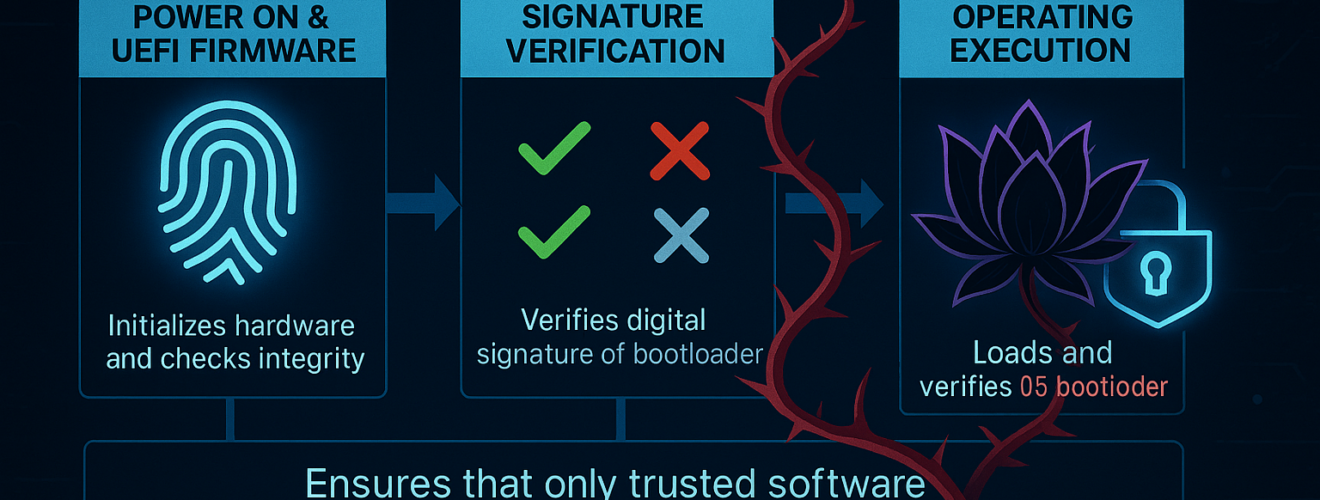
When a computer starts, there’s a short moment before Windows is fully running. That early phase is important, because if malicious software sneaks in there, it can be very hard to detect or remove later. Secure Boot is a security feature in UEFI firmware designed to ensure that only trusted, digitally signed code can run during the earliest stages of startup (before the OS is fully loaded). Its job is simple:
Allow only “approved” software to run during startup!
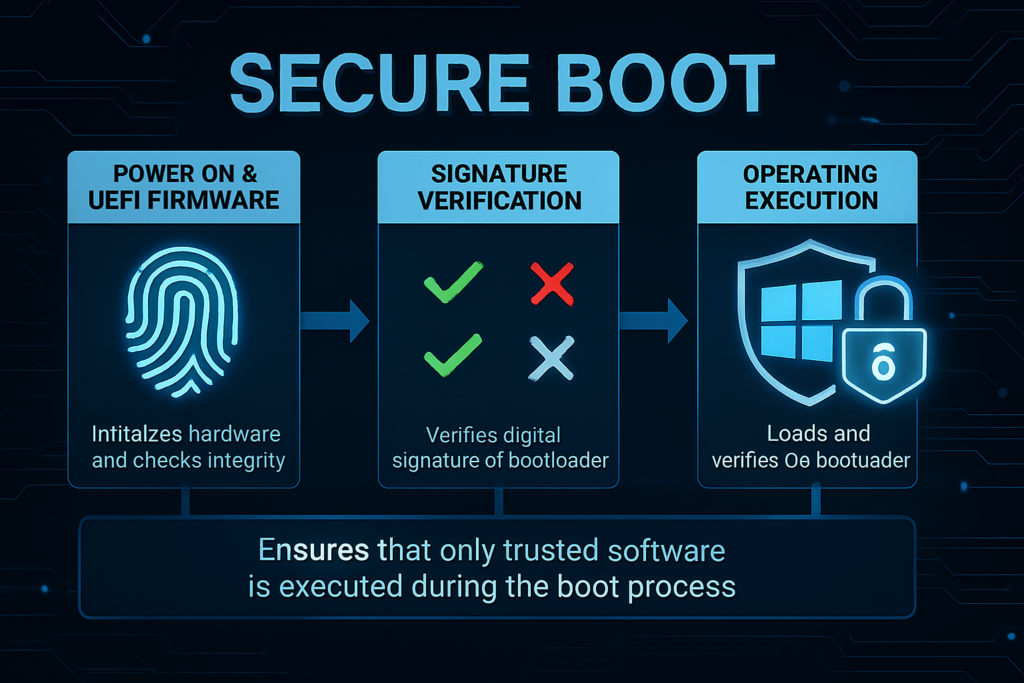
It does that by checking whether the startup components have a trusted digital signature, kind of like a tamper-proof seal. If something has been changed or comes from an untrusted source, Secure Boot can stop it from loading. Microsoft introduced Secure Boot support with Windows 8, as threats that target the startup process (“bootkits”) became more common. Secure Boot relies on a few “lists” and “keys” stored in the UEFI firmware. Secure Boot checks the “allowed” and “blocked” lists to decide what can run at startup, and the special keys control who is allowed to update those lists:
- DB (Allowed Signature Database) – The Allowed List
This is the list of software that is allowed to start before Windows loads.
If you’re on the list, you get in. - DBX (Revoked Signature Database) – The Blocked List
This is the list of software that is known bad or no longer trusted.
If you’re on this list, you’re not getting in, ever. - PK (Platform Key) – The Boss Key
This is the top authority, usually controlled by the device manufacturer (OEM).
This key decides who is allowed to change the rules. - KEK (Key Enrollment Key / Key Exchange Key) – The Manager Key
This key allows approved parties (like Microsoft and the OEM) to update the Allowed and Blocked lists.
This key is used to update the guest list and the banned list.
So what is the “Secure Boot certificate” everyone is talking about?
When people say “Secure Boot certificate,” they’re usually referring to the Microsoft-provided certificate authorities (CAs) stored in firmware (primarily in KEK and DB) that Windows relies on to validate boot components and allow Secure Boot database updates. Microsoft’s ecosystem has used a consistent set of these Microsoft certificates since Windows 8 / Windows Server 2012, and those certificates were issued with long lifetimes, but they were never meant to be permanent.
Why multiple certificates?
Secure Boot uses several different certificates because they each act like a different kind of stamp of approval during startup, and not everything should be trusted in the same way.
- One certificate is basically the admin badge that authorizes updates to Secure Boot’s built‑in “allowed” and “blocked” lists so that only approved parties can change the rules.
- Another certificate is used to approve certain non‑Microsoft startup software. For example, startup components from hardware vendors or other operating systems, so the computer can safely recognize trusted third‑party code.
- A third certificate is specifically there to prove that Windows own startup files are genuine and haven’t been altered.
Microsoft is also improving security by splitting trust into more specific categories, so instead of one broad approval that covers lots of things, there are more targeted approvals. For example, separating trust for third‑party boot software from trust for hardware option components, which reduces risk and gives better control if one category ever turns out to be unsafe.
What expires and when (and what replaces it)
| Date | Original Certificate | Replacement Certificate(s) |
| June 2026 | Microsoft Corporation KEK CA 2011 | Microsoft Corporation KEK 2K CA 2023 |
| June 2026 | Microsoft Corporation UEFI CA 2011 (or third party UEFI CA) | Microsoft Corporation UEFI CA 2023 Microsoft Option ROM UEFI CA 2023 |
| October 2026 | Microsoft Windows Production PCA 2011 | Windows UEFI CA 2023 |
Why must the old Secure Boot certificates be replaced
They will Expire!
The older Microsoft Secure Boot certificates from 2011will start to expire in June 2026. When they expire, devices that still rely on them may stop getting important security updates for the startup process. In other words: if the old certificates aren’t replaced, Microsoft may no longer be able to deliver future security fixes that protect the “early boot” part of Windows which can leave devices less secure and potentially out of compliance.
You will Lose the ability to install Secure Boot security updates!
Microsoft is moving to the new set of certificates (from 2023). Windows updates are preparing devices to trust these new certificates, so Windows can keep receiving boot-related security improvements going forward. This change is being rolled out carefully, because updating Secure Boot settings can sometimes cause compatibility issues on certain devices.
You will be vulnerable (or are vulnerable)!
There are advanced malware attacks that can infect a PC before Windows even starts. These startup attacks are real and hard to detect. If something bad gets in that early, it can be very difficult to spot and remove later. That’s why keeping Secure Boot protection up to date matters it helps protect the device from threats that target the startup process.
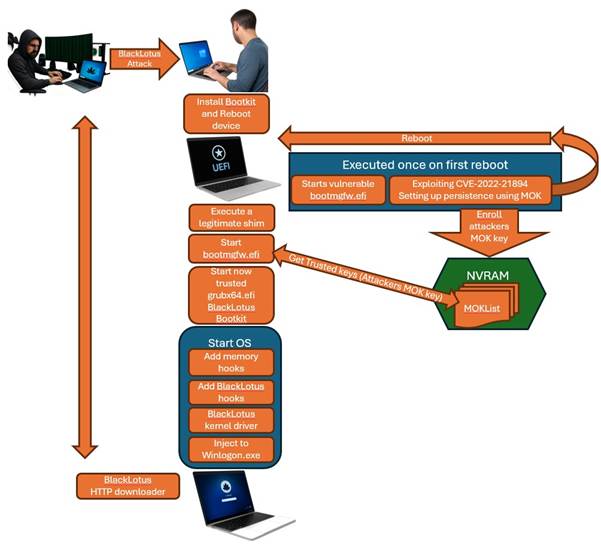
A well-known example of Secure Boot being bypassed is BlackLotus. Researchers reported it as the first bootkit seen in the wild that could get past UEFI Secure Boot. BlackLotus abused a weakness in older bootloader components (tracked as CVE‑2022‑21894) and relied on the fact that vulnerable signed binaries were not yet effectively blocked everywhere via revocation.
What actually happens if you do nothing?
Here’s the nuance many people miss: Your device will continue to boot and work because the currently installed boot path is already trusted toda!
But only in the short term, and you will:
- Lose the ability to install Secure Boot security updates after June 2026.
- Fail to trust third‑party software signed with new certificates after June 2026
- Stop receiving security fixes for Windows Boot Manager by October 2026
In other words: “your devices do not brick at midnight, but will be vulnerable”
Take Action!
1. Detect Secure Boot
One thing that most device admins must do is an inventory to get the whole picture. How many devices out there has not enabled Secure Boot, how many has not updated the certificates. You can run around and manually run the powershell cmdlet Confirm-SecureBootUEFI
But why not run a detection script in Intune remediation? In fact, we might as well do some deeper inventory to get the complete picture! I have created a remediation script, published on Github to detect the current state of your devices.
Detect-SecureBoot.ps1
You can use Compliance This script will simply detect if secure boot is enabled, but also return some more valuable information on the topic:
- SecureBoot: Enabled or Disabled
- FirmwareType UEFI or Legacy Bios or Unknown
- Disk PartitionStyle GPT (UEFI) or MBR (Legacy)
- Manufacturer Device manufacturer
- Model Device model
- BIOSVersion BIOS/UEFI firmware version
- BIOSDate Firmware release date
- TPMPresent True/False
- TPMReady True/False
- TPMEnabled True/False
- TPMVersion 1.2 or 2.0
- IsVirtualMachine Yes/No
- OSBuild Windows build number
Add a remediation script to only detect secure boot to get the report
- Sign in to the Microsoft Intune admin center.
- Select Devices > Scripts and Remediations > Create script package.
- On the Basics page, enter a Name and Description for the script package, and select Next.
- On the Settings page, add only the detection script and leave the remediation script empty.
- Configure the following options:
- Run this script using the logged-on credentials: No
- Enforce script signature check: No (You can of course sign it yourself)
- Run script in 64-bit PowerShell: Yes
- Select Next.
- On the Assignments page, select the groups of devices that you want to assign the script package to, and select Next.
- On the Review + create page, review the settings and select Create.
Intune will now deploy the script and collect info on non compliant devices. You can follow the status by looking at the diagrams for the remediation.
- go to Devices > Scripts and Remediations
- Select Yyour remediation
- Select Device status node
Now you can see all devices that has run and reported the status. - Click on Columns and add Pre-remediation detection output
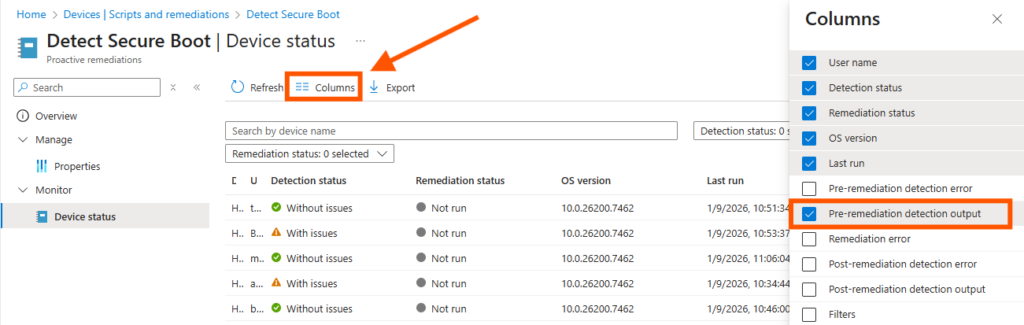
- Now you also have a link on each device with the returned info from the detection script
Click the link on a non compliant device to se the details:
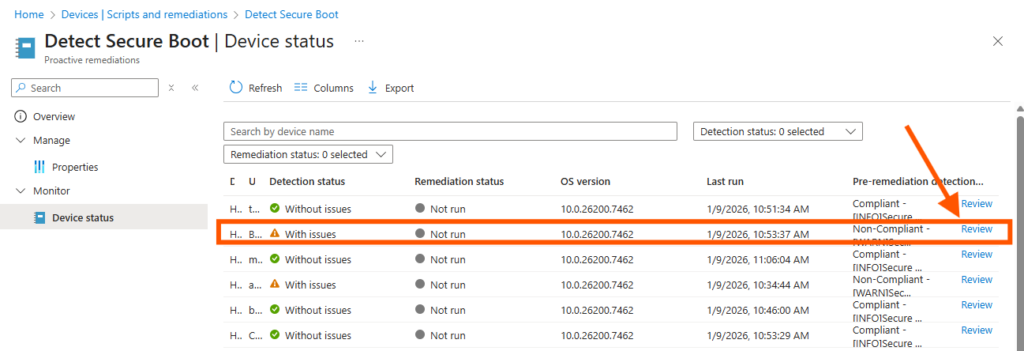
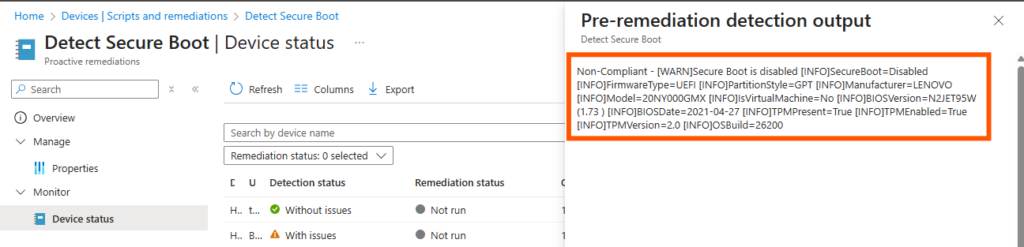
There we go, now we have a report on the Secure Boot state in the environment and we can use the inventory to pinpoint where and why we don´t have it enabled.
Remediate and update Secure Boot Certificates
Now that we have all the facts and statistics on where secure boot is enabled we need to start focus on the new secure boot certificates. It is not possible to update the certificates using Intune remediation. But, we can prepare for it and let the device try to update by them selves.
There are some interesting registry key that we can check for compliance:
HKLM:\SYSTEM\CurrentControlSet\Control\SecureBoot\Servicing
| UEFICA2023Status | Meaning |
| Not present should be: NotStarted | No update triggered or completed |
| Staged should be: InProgress | CA 2023 certificate files have been staged, pending UEFI update on reboot |
| Updated | CA 2023 successfully added to UEFI Secure Boot DB |
| Failed | Update failed (check UEFICA2023Error and UEFICA2023ErrorEvent for details) |
| WindowsUEFICA2023Capable | Meaning |
| 0 | Not in DB |
| 1 | In DB not loaded |
| 2 | In DB rebooted and loaded |
| UEFICA2023Error | The hex Error code |
| UEFICA2023ErrorEvent | The Event ID for error details in Event Viewer |
But only one single registry key to manipulate:
HKLM:\SYSTEM\CurrentControlSet\Control\SecureBoot
| AvailableUpdates | Meaning |
| 0 or not present | No update triggered or completed |
| 0x40(64) | Phase 1 triggered to update and add CA 2023 to DB |
| 0x200(512) | Phase 2 triggered to revoke old CA and enforce new |
| 0x240 (576) should be 0x340 | Both phases triggered |
| 0x5944 | Even better: Update all flags |
So we need some logic here to remediate by setting the AvailableUpdates key only when it should be set, and report it as compliant also when all is prepared:
┌─────────────────────────────────────────────────────────────────────────────┐
│                         Read UEFICA2023Status                               │
└─────────────────────────────────────────────────────────────────────────────┘
                                    │
        ┌───────────────┬───────────┼──────────┬────────────┐
        ▼               ▼           ▼          ▼            ▼
   "Updated"        "Staged"    "Failed"   Not Set        Other
        │               │           │          │            │
        ▼               ▼           ▼          └────┬───────┘
   Check Capable=2   COMPLIANT   Get Error          ▼
        │               │        Details        Check Trigger
   ┌────┴────┐          │           │               │
   ▼         ▼          │           ▼          ┌────┴────┐
 Yes        No          │      NON-COMPLIANT   ▼         ▼
   │         │          │      (Manual fix)   Set     Not Set
   ▼         ▼          │                      │         │
COMPLIANT  NON-COMPLIANT│                      ▼         ▼
(Complete) (Mismatch)   │                 COMPLIANT    Mode
                        │                (PendingReboot) │
                        │                         ┌──────┴────┐
                        │                         ▼           ▼
                        │                      Detect      Remediate
                        │                         │           │
                        │                         ▼           ▼
                        │                   NON-COMPLIANT  Change Regkey
                        │                 (Run diagnostics)   │
                        │                                     ▼
                        │                                  COMPLIANT
                        │                               (PendingReboot)
                        │
                        ▼
                   COMPLIANT
                 (PendingReboot)
So it became a quite complicated remediation script that check multiple different states before basically only remediate by one registry key change. But I did the hard work for you, so you can just download and implement!
Remediation-SecureBootCert.ps1
- Sign in to the Microsoft Intune admin center.
- Select Devices > Scripts and Remediations > Create script package.
- On the Basics page, enter a Name and Description for the script package, and select Next.
- On the Settings page, add the same script both as detection script and remediation script.
I like to combine them in the same script to keep the number of scripts down. - Configure the following options:
- Run this script using the logged-on credentials: No
- Enforce script signature check: No (You can of course sign it yourself)
- Run script in 64-bit PowerShell: Yes
- Select Next.
- On the Assignments page, select the groups of devices that you want to assign the script package to, and select Next.
- On the Review + create page, review the settings and select Create.
Intune will now deploy the script and remediate non compliant devices. You can follow the status by looking at the diagrams for the remediation. Make sure you test this before going to wide deployment. The script sometimes fails due to hardware vendor that has specific custom procedures to update.

Note that this actually is no direct remediation, so the status might be non compliant until the device has installed the updates and rebooted. (or sometimes updated UEFI firmware)
Final words
Secure Boot is one of those “set and forget” protections that quietly does its job until the trust anchors that make it work reach end of life. So now you need to do this to keep your device fleet stable and secure. So act now instead of later, not funny to do this when the boss is knocking on your door due to a massive amount of unreliable or hacked devices.
Make sure to act before June 2026!
About The Author