Cloud Apps support for APPX and MSIX applications (Windows 365 Frontline)
If you tested Windows 365 Cloud Apps early on, you probably had the same reaction I did, the concept is great to stream just the app but then reality hits. A lot of Microsoft’s newer apps are packaged as APPX or MSIX, and Cloud Apps used to be very Win32-focused. That made some obvious candidates… awkward.
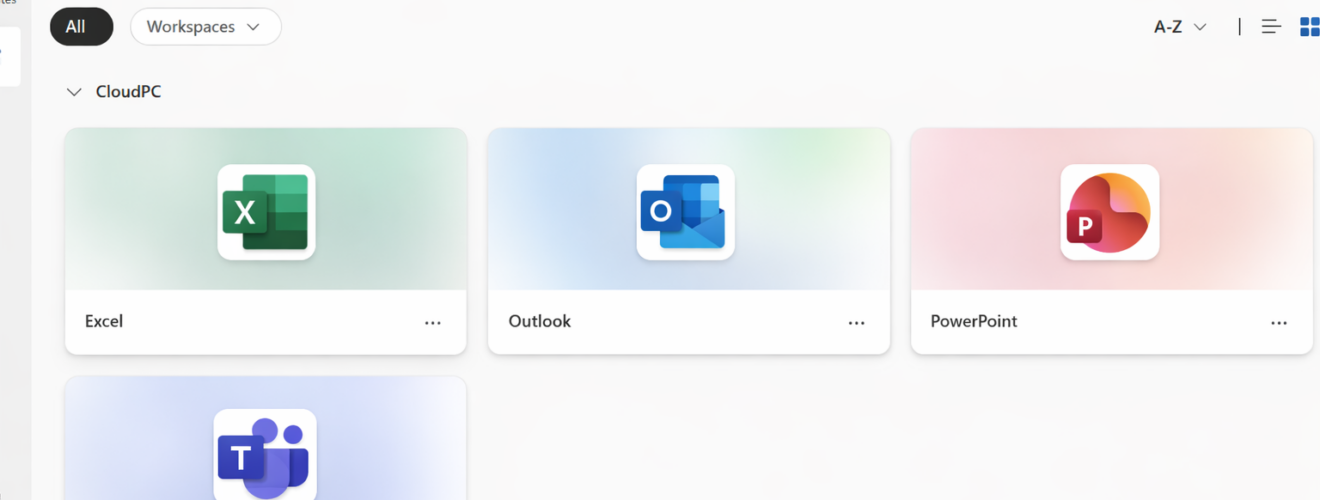
Now, that limitation is finally going away. In the Week of March 23, 2026 update, Microsoft added Cloud Apps support for APPX and MSIX applications. That means you can discover and publish a broader set of applications, including Microsoft Teams and the New Outlook, while keeping the same management workflow.
What are Windows 365 Cloud Apps (really?)
Think RemoteApp, but cloud-native and managed like a Cloud PC. Windows 365 Cloud Apps lets you give users secure access to specific applications hosted on a Cloud PC, without needing to assign a dedicated Cloud PC to each user. Users see and launch only the published apps (via the Windows App client), while IT still manages the underlying Cloud PCs with familiar Windows 365 and Intune controls.
NOTE: This can only be run on a pool of Windows 365 Frontline CloudPC
Why APPX and MSIX support is a bigger deal than it sounds
A lot of “modern” Windows apps are packaged. APPX is the classic UWP/Store style package. MSIX is the newer packaging standard that brings modern install and update behavior to more app types, including Win32 apps. When Cloud Apps only published classic executables, many obvious targets were off the table. With APPX and MSIX support, Cloud Apps becomes much more realistic for day‑to‑day scenarios, especially for Microsoft’s own apps.
What has now changed (March 2026)
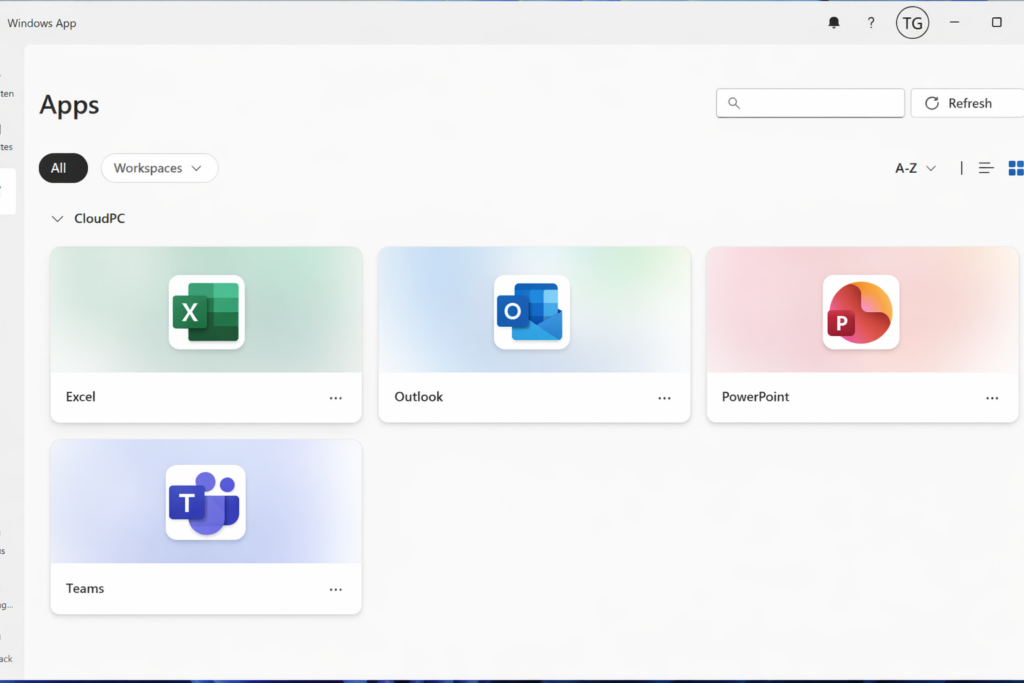
Cloud Apps now supports APPX and MSIX applications in addition to Win32 apps. Microsoft calls out Teams and the new Outlook as examples of what you can now publish.
When should you use Cloud Apps?
Cloud Apps is not “better” than a full Cloud PC, it’s a diffrent way of work. It shines when a full desktop is overkill. If the user only needs one or two apps, app-only streaming reduces the surface area and keeps the experience focused.
- Frontline and shift workers who only need a single line-of-business app
- External users or contractors who should “not” get a full managed desktop
- Publishing modern packaged apps (APPX/MSIX) like Teams or new Outlook as an app-only experience
- Scenarios where you want centralized execution and minimal end-user friction
Prerequisites (the stuff that bites you later)
- Windows 365 Frontline licensing is required because Cloud Apps runs on Frontline Cloud PCs in shared mode.
- Concurrency is limited: active sessions per policy align to the number of Frontline licenses assigned to that policy.
- You manage Cloud Apps in Microsoft Intune (Windows 365 provisioning policies + All Cloud Apps publishing)
Start testing it out!
Pilot with a small group first. Cloud Apps is “simple”, but you still want to validate:
- App discovery (Start Menu entries)
- User experience in Windows App
- What else the app can launch (see the control section below)
How to set it up (step-by-step)
This is the workflow I recommend. It follows the official flow, but with the admin realities spelled out.
1. Decide where the apps come from
You can publish apps that exist on the underlying Cloud PC image. That can be a Microsoft gallery image, or a custom image. If you rely on Intune app deployment, make sure your apps are actually installed and visible in Start Menu on the Cloud PCs.
Cloud Apps discovers apps by scanning the Start Menu. If an app doesn’t create a Start Menu entry, it may not show up for publishing.
2. Create a provisioning policy with “Access only apps“
- Create a new Windows 365 provisioning policy
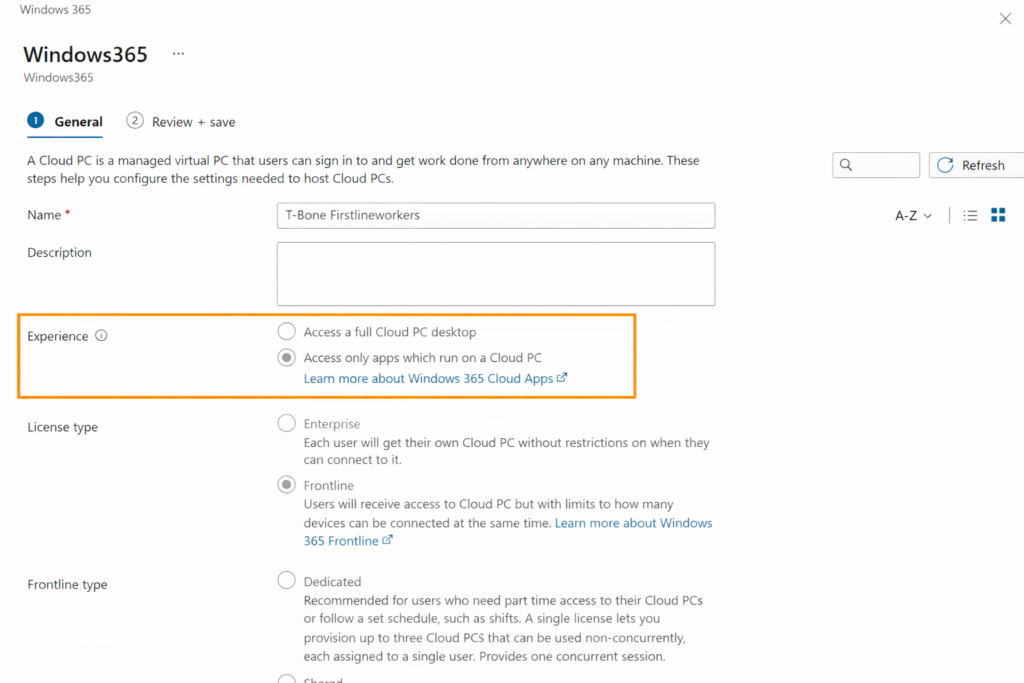
- On the General tab, for Experience, select “Access only apps.” This selection defaults the License type to Frontline and Shared mode.
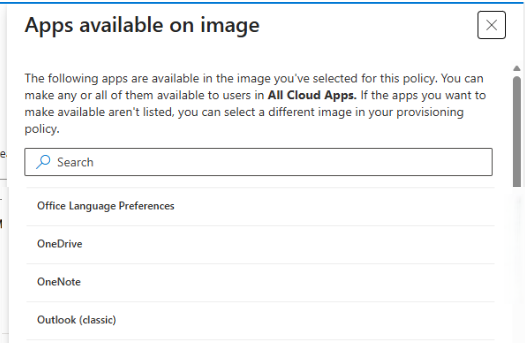
- In the Image tab, you can view the apps available on the image that you can publish after provisioning.
- In the Configuration tab, if you select an Autopilot Device Preparation Policy, then make sure to check the box to “Prevent users from connection to Cloud PC upon installation failure or timeout.” You can also enable User Experience Sync so that app settings and data are saved and applied between user sessions.
3. Let the Cloud App pool provision
After policy creation, the underlying Frontline shared Cloud PCs will provision. Once the first Cloud PC is ready, apps discovered on the Start Menu will appear in All Cloud Apps as “Ready to publish”.
4. Publish the app
- Go to Intune > Devices > Windows 365 > All Cloud Apps.
- From there you can publish, edit, reset, and unpublish apps.
Publishing makes the app available in Windows App to users assigned to the provisioning policy.
5. Validate the end-user experience
Users launch Cloud Apps from the Windows App client. Validate the basics like sign-in flow, performance, clipboard/printing/redirection policies, and whether the app behaves like it’s “local enough” for your users.
Be aware of the Security
One detail that might surprise people it that a published Cloud App can launch other apps that exist on the Cloud PC. If you for example publish Outlook, and the user open a link. Edge will run and show the page even if Edge isn’t published as a Cloud App. If you need strict control over what can run, layer Application Control for Windows on top.
Example scenario: Publish Teams or new Outlook as Cloud Apps
This is the sweet spot for the new APPX/MSIX support. If your organization wants Teams or New Outlook available as a single app experience for frontline or shared-device scenarios, Cloud Apps is now much more viable. You keep apps ‘in the cloud’, while endpoints stay lean.
Conclusion
For me, APPX and MSIX support is the turning point where Cloud Apps goes from “cool idea” to “I can actually use this”. Microsoft is clearly moving more workloads toward packaged apps, and now Windows 365 Cloud Apps can keep up. If you’ve been waiting to publish modern Microsoft apps as app-only experiences, this is your moment.
About The Author