Start working with Security Baseline Mode: Don´t be scared!
When I first heard about Security Baseline Mode, I assumed it was a one‑time setting: flip the switch once and all future recommendations would roll in automatically. Simple, right? But as I started working with it, I realized it’s something quite different, and far more useful. Security Baseline Mode is not a static configuration, it’s a well‑designed interface that makes it easy to enable settings one by one. In many cases, activating these recommendations requires reports, reviews, and explicit approval, ensuring that changes are deliberate and controlled rather than automatic.
Don´t be scared
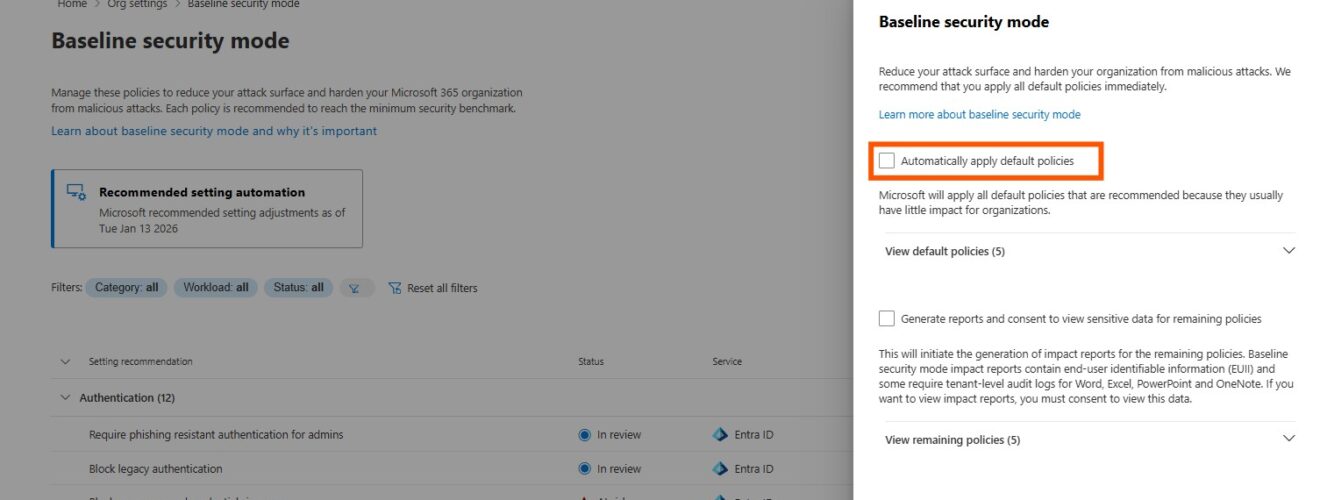
One of the options you’ll see in Security Baseline Mode is “automatically apply default policies” At first glance, that phrase can sound intimidating, as if the system will suddenly enforce a rigid set of rules without your control. In reality, it’s much simpler and safer than it sounds.
What it actually does is apply Microsoft’s recommended baseline settings, the defaults that are considered best practice for most environments. Think of it as a starter kit: instead of manually enabling dozens of individual controls, you can let the baseline apply the most common, broadly accepted policies in one go.
- No surprises: These defaults is well‑tested recommendations designed to strengthen security without breaking everyday workflows.
- Still flexible: You can review, adjust, or override any of the settings later. The baseline just saves you time by giving you a secure foundation.
- Controlled rollout: Applying the default policy doesn’t bypass reporting or approvals. It simply activates the recommended set so you don’t have to start from scratch.
So, don’t be scared! The setting“automatically apply default policies” isn’t about losing control. It’s about gaining a safe, efficient baseline that you can build on with confidence!
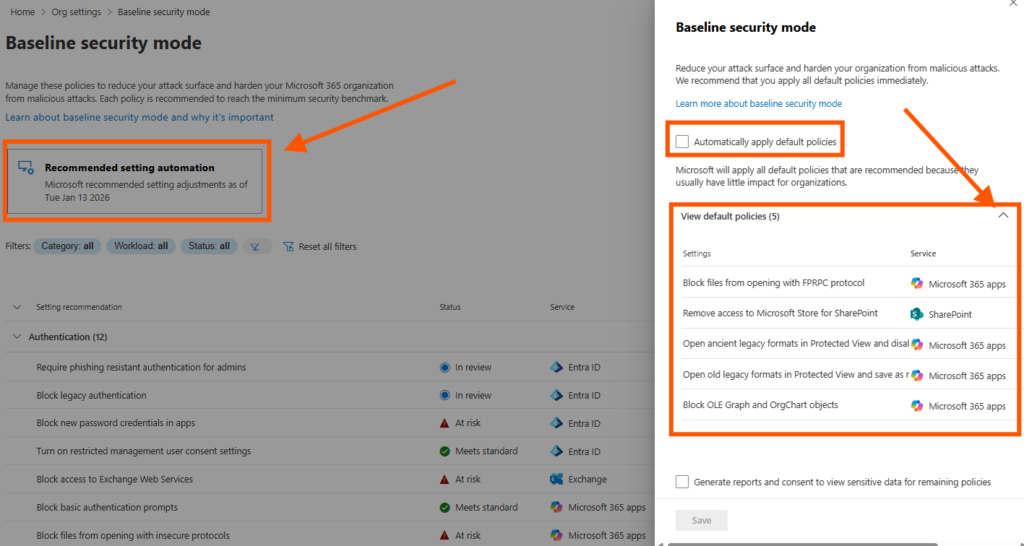
As you can se in the above screenshot, only 5 of all the settings will be applied when i select “automatically apply default policies”
This is a one time process, after the enablement, the option is grayed out. No more policies can be applied this way:
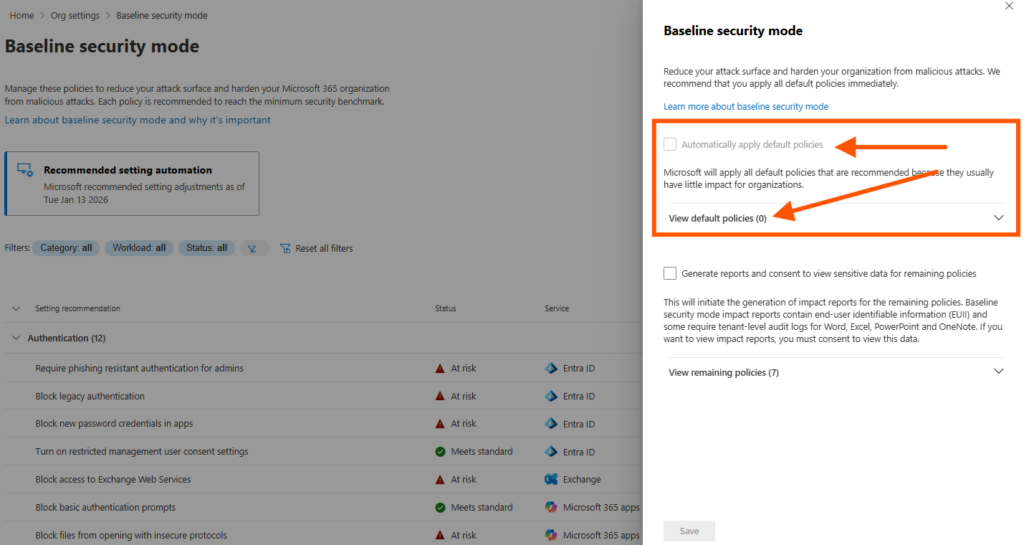
The setting “automatically apply default policies” appears greyed‑out once it has been used. This doesn’t mean it’s gone for good — it will become active again when new recommendations are available. At that point, the option is no longer greyed‑out, and you can re‑apply it to enable the latest baseline settings.
So the “automatically apply default policies” is NOT an automatic “Security Baseline Mode”!
Reporting and approval
Security Baseline Mode isn’t just about flipping switches; it’s about making changes responsibly. Some recommendations can have a wide impact on users, applications, or compliance requirements. That’s why reporting and approval are built in:
- Transparency: Reporting shows exactly which settings are being proposed, so administrators can understand the potential impact before anything changes.
- Control: Approval ensures that sensitive or disruptive policies aren’t applied automatically. Instead, they require a conscious decision from the right stakeholders.
- Compliance: Many organizations need documented evidence of who approved a change and when. Reporting and approval provide that audit trail.
- Safety: By reviewing reports first, you avoid unexpected disruptions and can test policies in smaller groups before rolling them out broadly.
Enable Reporting and Approval
In Security Baseline Mode, you can also enable reporting, and I really recommend enable it!
- Just click on Recommended settings automation and select “Generate reports and consent to view sensitive data for remaining policies”
- Then decide if the reports should be anonymous or with user information, and to enable audit on Microsoft 365 apps.
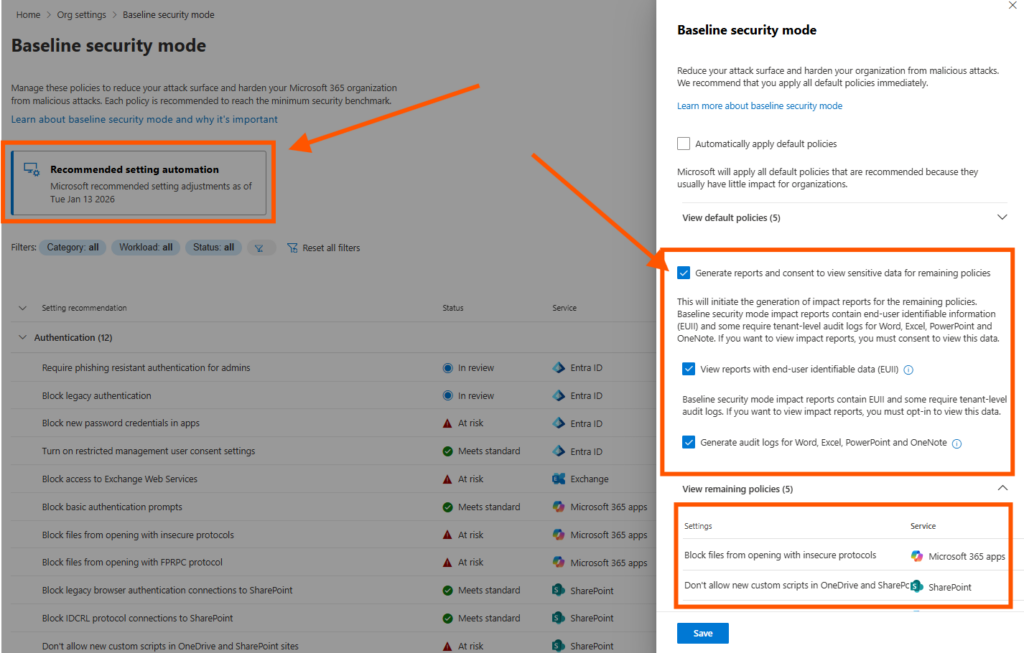
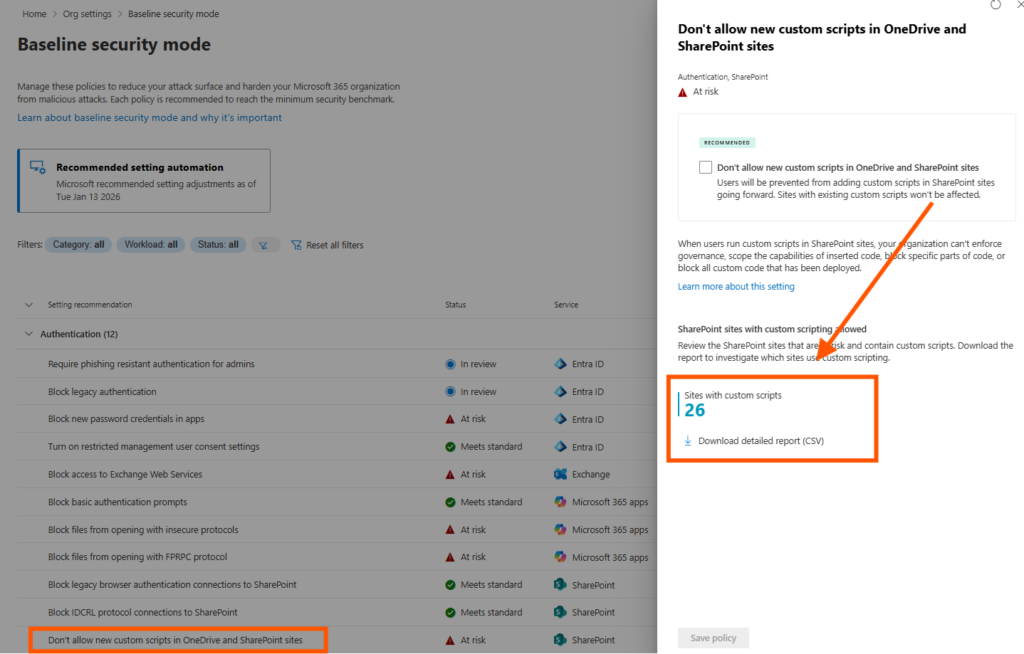
When reporting is enabled, valuable information is displayed to help you decide if this setting will affect or interfere.
Like in my case, this setting for blocking scripts in SharePoint shows me that 26 sites currently use scripts and will be affected if setting is enabled.
Enable individual Security Baseline Mode settings
Yes there is a quick and dirty “automatically apply default policies” that quickly enables all user friendly and harmless settings. But I like the controlled way. You can go through the list your self, and manually change each setting. And this is quite nice and easy.
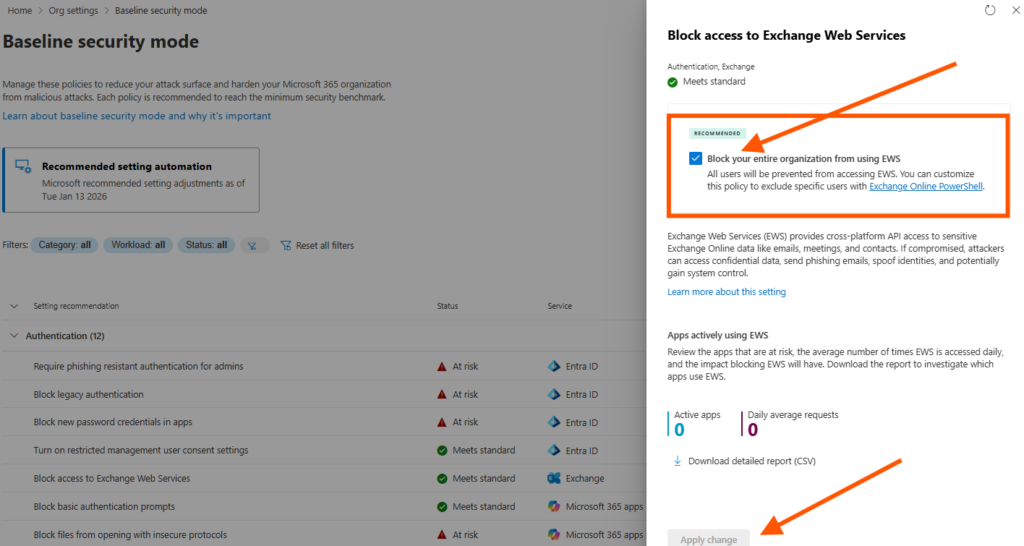
Lets say I want to activate the setting “Block access to Exchange Web Services”. This is normally done with PowerShell command:
Set-OrganizationConfig -EwsEnabled $falseBut now we have a nice GUI to do it, and i can also get some insights with the reporting statistics:
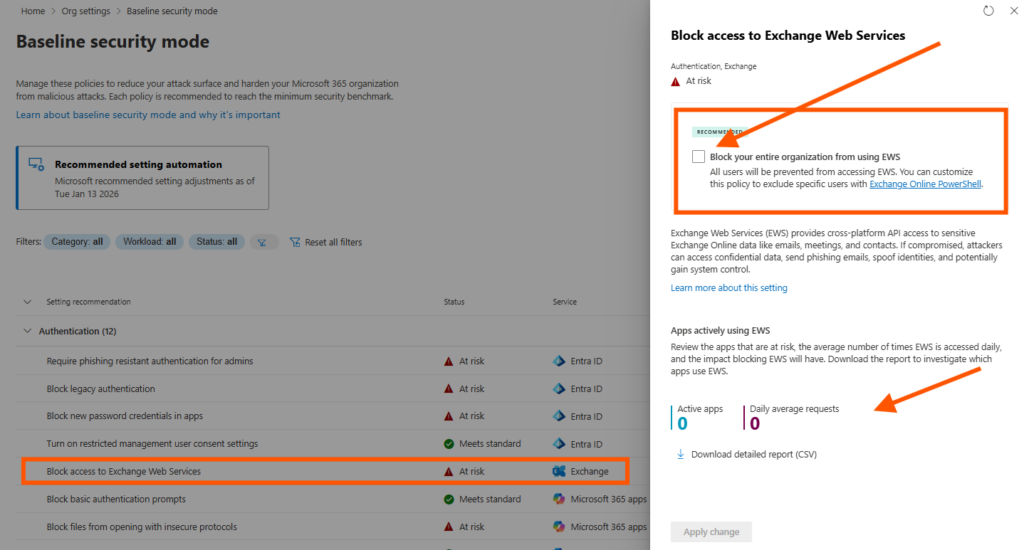
And if something breaks, I don´t need to find out how to revert the change in PowerShell, just unselect and apply setting again, and you are home free.
Conclusion
The new Baseline Security Mode is a major improvement over the old Secure Score approach. With Secure Score, you only saw recommendations, but finding where to actually enable each setting was often a challenge. It required multiple clicks across different portals and reading Microsoft Learn articles before you could locate the right PowerShell command or GUI option.
In contrast, Baseline Security Mode makes the process far simpler and more efficient. Instead of hunting for individual settings, you can now apply a comprehensive set of security controls with just a few clicks, check the box and save. Plus, built-in impact reports allow you to preview changes before applying more intrusive policies, reducing the risk of disruptions.
In short: Baseline Security Mode streamlines security hardening, saves time, and removes complexity, making it far easier to achieve a strong security posture compared to the previous model.
About The Author