Wrap any PowerShell script to Add Remove Programs
What if your PowerShell script behaved like a real application?
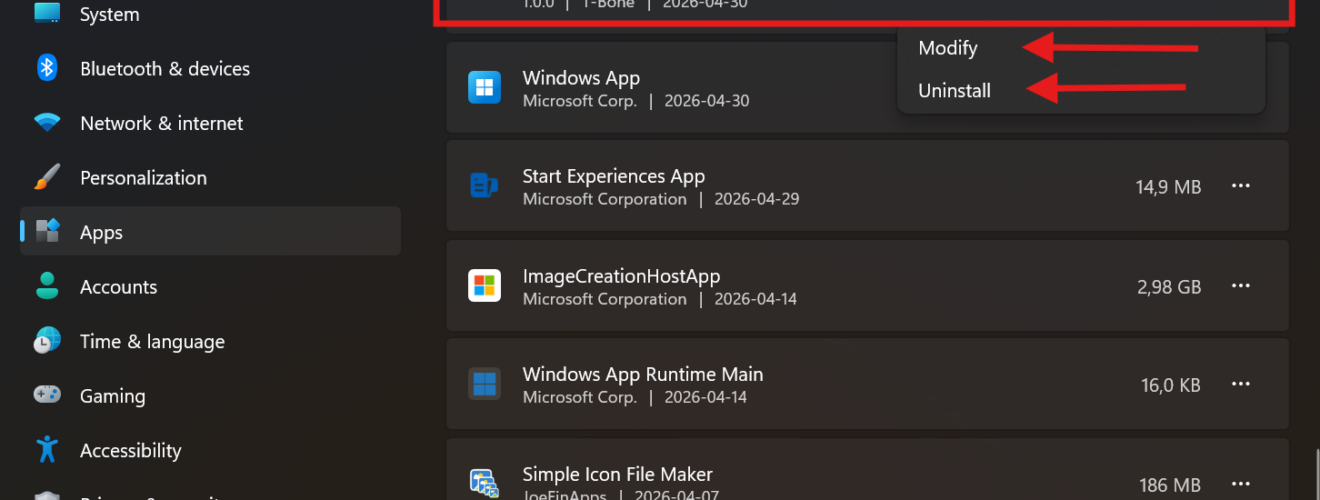
I have just updated my old wrapper so that it lets you package any PowerShell script (plus companion files) so it shows up in Settings → Apps → Installed apps, can be detected and deployed by Intune, and supports repair/reinstall and uninstall like a normal Win32 app. It works as an Intune Win32 app (.intunewin), as Remediations, as Platform scripts, or manually, and it can optionally create Start menu / Desktop shortcuts for end-user self-execution
Why I built this wrapper
Intune is great at deploying apps. But many of us also rely on PowerShell for “app-like” deployments: configuration, enable/disable features, install toolchains, drop files, register scheduled tasks, tweak registry, or deploy line-of-business scripts.
The problem: scripts often end up as “ghost installs”:
- No presence in Add/Remove Programs / Installed apps
- No native repair option
- No clean uninstall entry for service desk or users
- Harder to build consistent Intune detection rules
- Harder to treat scripts as managed software rather than “one-off commands”
I solved that by making a wrapper that turns your script into something that behaves like a Win32 app—including an entry in Settings → Apps, plus uninstall and modify (repair/reinstall) support. If you’ve read my earlier post about getting Always On VPN to show up in Add/Remove Programs, the idea is similar, just generalized so you can wrap any script and files, not just VPN.

What the wrapper does (high level)
This script can:
- Wrap a PowerShell installer script (and optional uninstaller script) into a consistent “app-like” package
- Register in Add/Remove Programs / Installed apps so it looks and behaves like installed software
- Support Install, ReInstall (repair), and UnInstall modes
- Provide Intune-friendly detection (typically registry-based) so deployments report correctly
- Be deployed as:
- Win32 app (.intunewin) (recommended for “app behavior”)
- Remediations (detect + fix loop)
- Platform scripts (run-once scripts)
- Or executed manually for testing and troubleshooting
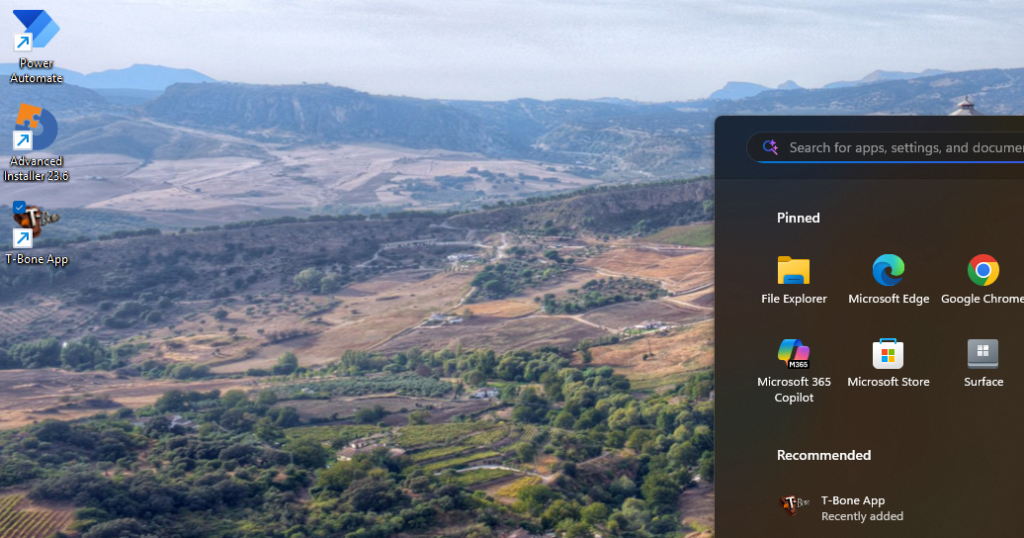
- Optionally create shortcuts in Start menu and/or Desktop to launch a file that the user can run (self-service)
- Log to Event Log, file, and optionally GUI output for debugging
The core idea: Add/Remove Programs is “just” registry + commands
Windows “Installed apps” entries are driven by registry keys where values like DisplayName, DisplayVersion, Publisher, and command lines like UninstallString and ModifyPath define what the Settings app shows and what happens when you click Uninstall or Modify these are found under:
HKLM\SOFTWARE\Microsoft\Windows\CurrentVersion\Uninstall
My wrapper automates that so your script becomes an entry that can be repaired (Modify) and removed (Uninstall) without you building a full MSI
How to use it (step-by-step)
1. Put your payload in a folder
Create a working folder, for example:
MyWrappedApp\
  Intune-Wrapper-ToAddRemovePrograms.ps1
  Install.ps1
  Uninstall.ps1
  Files\
    tool.exe
    config.json
    icon.ico
Your Install.ps1 and Uninstall.ps1 can do anything: copy files, set registry, install dependencies, etc. The wrapper takes care of the “app wrapper layer” around it.
2. Configure naming + versioning + GUID
The wrapper exposes parameters such as:
- InstallType (Install / ReInstall / UnInstall)
- Company
- AppName
- AppVersion
- Script path (Install.ps1 and uninstall.ps1)
- Companion files
- Icon
- Enable/disable ARP behaviors (uninstall/modify)
- etc
All of those are visible at the top of the script and can be set as defaults or passed as arguments at runtime.
#region ---------------------------------------------------[Modifiable Parameters and Defaults]------------------------------------
# Customizations
[CmdletBinding(SupportsShouldProcess)]
param(
    [Parameter(Mandatory = $false,          HelpMessage = "Name of the script action for logging")]
    [string]$ScriptActionName       = "Add Remove Program Wrapper",

    [Parameter(Mandatory = $false,          HelpMessage = 'Specify how to run the script: Install, ReInstall or UnInstall')]
    [validateset("Install", "ReInstall", "UnInstall")]
    [string]$InstallType            = "Install",

    [Parameter(Mandatory = $false,          HelpMessage = "Testmode, same as -WhatIf. Default is false")]
    [bool]$Testmode                 = $false,

# ==========> Add Application to Add Remove Program (Add-AddRemoveProgram) <===========================================
    [Parameter(Mandatory = $false,          HelpMessage = 'Name of the application/script being wrapped')]
    [String]$ARPAppName             = "T-Bone App",

    [Parameter(Mandatory = $false,          HelpMessage = 'GUID of the application/script being wrapped. NOTE: This needs to be unique for each wrapped app')]
    [ValidatePattern('^\{[0-9a-fA-F]{8}-[0-9a-fA-F]{4}-[0-9a-fA-F]{4}-[0-9a-fA-F]{4}-[0-9a-fA-F]{12}\}$')]
    [String]$ARPAppGuid             = "{feedbeef-beef-4dad-beef-b628ccca16e0}",

    [Parameter(Mandatory = $false,          HelpMessage = 'Version of the application. Increment when changing config')]
    [ValidatePattern("^\d+\.\d+\.\d+$")]
    [version]$ARPAppVersion         = "1.0.0",

    [Parameter(Mandatory = $false,          HelpMessage = 'Company name used for naming of folders and registry keys')]
    [String]$ARPAppPublisher        = "T-Bone",

    [Parameter(Mandatory = $false,          HelpMessage = 'Optional Base64-encoded .ico content to use as the icon of the app')]
    [string]$ARPAppIcon             = "",

    [Parameter(Mandatory = $false,          HelpMessage = "Application folder path, if not specified, it will use %ProgramFiles%\ARPPublisher\ARPAppName ")]
    [string]$ARPAppFolder           = "$Env:Programfiles\$ARPAppPublisher\$ARPAppName",

    [Parameter(Mandatory = $false,          HelpMessage = 'Enable an uninstall option in Add Remove Programs, require administrator privileges to uninstall')]
    [bool]$ARPAppEnableUninstall    = $True,

    [Parameter(Mandatory = $false,          HelpMessage = 'Enable a modify option in Add Remove Programs (typically for repair/reinstall), require administrator privileges to modify')]
    [bool]$ARPAppEnableModify       = $True,

    [Parameter(Mandatory = $false,          HelpMessage = 'Optional path to a .ps1 file to use as the installer script')]
    [string]$ARPAppInstallScript    = "",

    [Parameter(Mandatory = $false,          HelpMessage = 'Optional path to a .ps1 file to use as the uninstaller script')]
    [string]$ARPAppUnInstallScript  = "",

    [Parameter(Mandatory = $false,          HelpMessage = 'Optional path to a .ico file to use as the icon of the app')]
    [string]$ARPAppIconPath         = "",

    [Parameter(Mandatory = $false,          HelpMessage = 'If $true, copy every file in the wrapper''s source folder into the app folder (excluding the wrapper itself, the install/uninstall scripts and the icon, which are deployed under standardized names).')]
    [bool]$ARPAppIncludeFolder      = $false,

    [Parameter(Mandatory = $false,          HelpMessage = 'Optional leaf name of a companion file inside the app folder to launch the app (e.g. t-bone.exe). Required for shortcut creation.')]
    [string]$ARPAppUserStartFile    = "",

    [Parameter(Mandatory = $false,          HelpMessage = 'Create an All-Users Desktop shortcut to ARPAppUserStartFile')]
    [bool]$ARPAppShortcutOnDesktop  = $false,

    [Parameter(Mandatory = $false,          HelpMessage = 'Create an All-Users Start Menu shortcut to ARPAppUserStartFile (under Programs\<Publisher>\<AppName>.lnk)')]
    [bool]$ARPAppShortcutInStart    = $false,

    [Parameter(Mandatory = $false,          HelpMessage = 'Force the action, ignoring any prompts or checks')]
    [bool]$ARPAppForce              = $false,
Important: you must set a unique $AppGuid per wrapped app. The script even calls out that it needs to be unique for each wrapped app to avoid collisions.
I have also updated the logging with my really awesome logger function Invoke-TboneLog, this function can:
- Log to GUI
- Log to Disk
- Log to Host (in azure automation and similar platforms)
- Log to Eventlog
Modified by setting these parameters in script or as arguments:
# ==========> Logging (Invoke-TboneLog) <==============================================================================
    [Parameter(Mandatory = $false,          HelpMessage='Name of Log, to set name for Eventlog and Filelog')]
    [string]$LogName                = "",

    [Parameter(Mandatory = $false,          HelpMessage='Show output in console during execution')]
    [bool]$LogToGUI                 = $true,

    [Parameter(Mandatory = $false,          HelpMessage='Write complete log array to Windows Event when script ends')]
    [bool]$LogToEventlog            = $true,

    [Parameter(Mandatory = $false,          HelpMessage='EventLog IDs as hashtable: @{Info=11001; Warn=11002; Error=11003}')]
    [hashtable]$LogEventIds         = @{Info=11001; Warn=11002; Error=11003},

    [Parameter(Mandatory = $false,          HelpMessage='Return complete log array as Host output when script ends (Good for Intune Remediations)')]
    [bool]$LogToHost                = $false,

    [Parameter(Mandatory = $false,          HelpMessage='Write complete log array to Disk when script ends')]
    [bool]$LogToDisk                = $false,

    [Parameter(Mandatory = $false,          HelpMessage='Path where Disk logs are saved (if LogToDisk is enabled)')]
    [string]$LogToDiskPath          = "$env:TEMP",

    [Parameter(Mandatory = $false,          HelpMessage = "Enable verbose logging. Default is false")]
    [bool]$LogVerboseEnabled        = $true
)
#endregion
3. Test locally (Install / Repair / Uninstall)
Run elevated PowerShell in the folder:
Install
.\Wrap-PSScriptToAddRemovePrograms.ps1 `
  -InstallType Install `
  -Company "Coligo" `
  -AppName "My Scripted Tool" `
  -AppVersion "1.0" `
  -InstallerScriptPath ".\Install.ps1" `
  -UninstallerScriptPath ".\Uninstall.ps1"
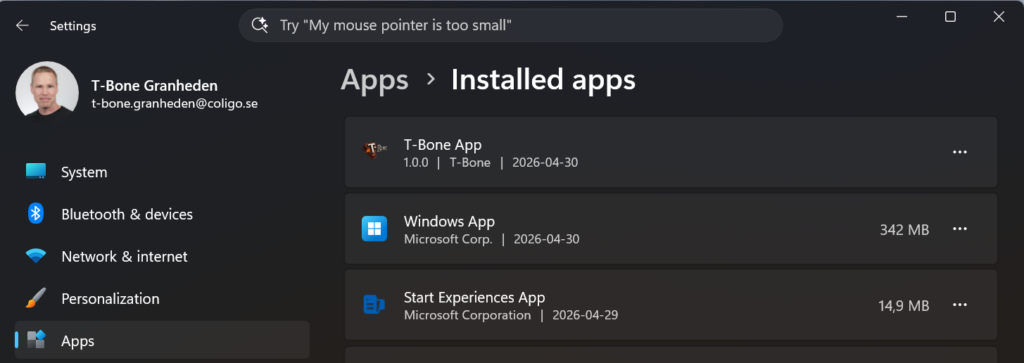
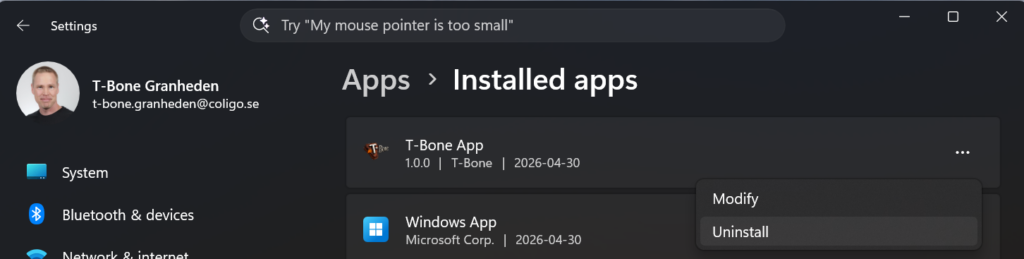
After install, you should see it show up under Settings → Apps → Installed apps
Repair / Reinstall (Modify)
Manually delete the ICO file in the program files directory for the app, if you want to test the recovery
.\Wrap-PSScriptToAddRemovePrograms.ps1 `
  -InstallType ReInstall `
  -Company "Coligo" `
  -AppName "My Scripted Tool" `
  -AppVersion "1.0" `
  -InstallerScriptPath ".\Install.ps1"
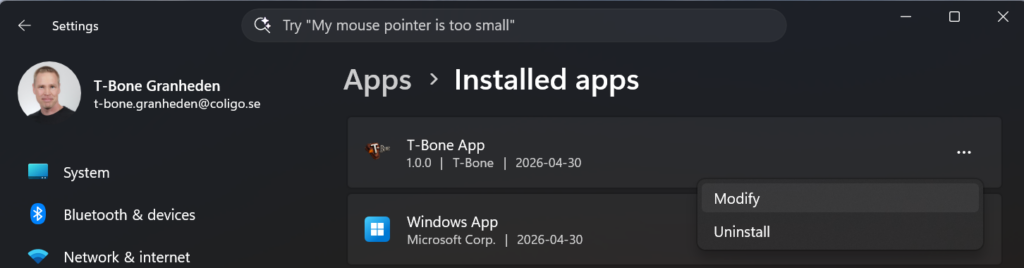
After reinstall, you should still see it show up under Settings → Apps → Installed apps and the ICO is recreated. You can also try the Modify option in Add Remove Programs
Uninstall
.\Wrap-PSScriptToAddRemovePrograms.ps1 `
  -InstallType UnInstall `
  -Company "Coligo" `
  -AppName "My Scripted Tool" `
  -AppVersion "1.0" `
  -UninstallerScriptPath ".\Uninstall.ps1"
After uninstall, you should not see it under Settings → Apps → Installed apps and all files are removed from the program files directory. Also try the Uninstall in Add Remove Programs.
Deploy with Intune (three ways)
Option A (recommended): Win32 app (.intunewin)
If you want the most “application-like” behavior (install command + uninstall command + detection + status reporting), package it as a Win32 app and upload the .intunewin file. Microsoft documents the end-to-end Win32 app flow in Intune, including prerequisites and the upload workflow.
Install command example
powershell.exe -NoProfile -ExecutionPolicy Bypass -File ".\Wrap-PSScriptToAddRemovePrograms.ps1" -InstallType InstallUninstall command example
powershell.exe -NoProfile -ExecutionPolicy Bypass -File ".\Wrap-PSScriptToAddRemovePrograms.ps1" -InstallType UnInstallRepair (Modify) command
If you want to expose repair from Company Portal / Installed apps, your Modify path typically maps to ReInstall mode. The wrapper supports ReInstall explicitly.
Detection rule tip
Intune Win32 apps support detection rules (MSI, file, registry, or script).
Since the wrapper writes an uninstall entry, a common pattern is registry detection under the uninstall key for your $AppGuid. This aligns naturally with how “Installed apps” is represented in Windows.
NOTE: When detect on MSI GUID the AppGUID needs to be converted. this is done native in the script. MSI GUID use a special pattern to convert the App Guid to a MSI GUID:
- Group 1 (8 hex): split into bytes (2 hex each), reverse byte order, then swap nibbles inside each byte
- Group 2 (4 hex): same as group 1 (reverse byte order + swap nibbles)
- Group 3 (4 hex): same as group 1 (reverse byte order + swap nibbles)
- Group 4 (4 hex): swap nibbles inside each byte only (no byte-order reverse)
- Group 5 (12 hex): unchanged
An the result can look like this:
{FEEDBEEF-BEEF-BEEF-BEEF-FEEDBEEF0002}becomes{FEEBDEEF-FEEB-FEEB-EBFE-FEEDBEEF0002}
You can use this code snippet to convert your own App GUIDS:
$AppGuid = "{FEEDBEEF-BEEF-BEEF-BEEF-FEEDBEEF0002}"

$g = $AppGuid.Trim('{}') -split '-'
$swap = { param($s) ((0..($s.Length/2-1) | % { $s.Substring($_*2,2) }) | % { $_[1]+$_[0] }) -join '' }
$rev  = { param($s) ((0..($s.Length/2-1) | % { $s.Substring($_*2,2) })[($s.Length/2-1)..0] | % { $_[1]+$_[0] }) -join '' }
$MsiGuid = "{0}-{1}-{2}-{3}-{4}" -f (&$rev $g[0]), (&$rev $g[1]), (&$rev $g[2]), (&$swap $g[3]), $g[4]
$MsiGuid
Option B: Platform scripts (run once)
Platform scripts are great for one-time tasks, but they run under the Intune Management Extension with “run once unless changed” behavior, and they have specific retry/time-out behavior.
If you still want the end result to look like a proper installed app (with uninstall/repair), you can simply deploy the wrapper itself as the platform script. You’ll get:
- A run-once execution model from Intune
- But an application-like footprint in Windows Installed apps from the wrapper
Option C: Remediations (detect + fix loop)
Intune Remediations are built as a detection script + remediation script. The remediation only runs when the detection script indicates an issue.
NOTE: Right now, the wrapper does not support Remediation by default. a detect script needs to be added to detect Regkeys, and then run the wrapper as remediation.
A nice pattern is:
- Detection script checks if your uninstall key/version exists
- Remediation script runs the wrapper in Install (or ReInstall) mode
This turns your wrapped “app” into a self-healing configuration that can re-apply itself when drift occurs—without inventing a whole new packaging approach
End-user self-service: shortcuts to “run a tool”
One feature I like in real enterprises: giving users a safe entry point to run something you control.
The wrapper can optionally populate Start menu and/or Desktop shortcuts that point to a file you deploy—so the user gets a supported “button” for a tool.
Examples where this is useful:
- Launch a “repair my VPN” script
- Start a troubleshooting tool
- Run a log collector
- Trigger a “reset Teams cache” workflow
- Start a company-specific helper app bundled with the script
(And because the wrapper creates an Installed apps entry, the tool is also easy to inventory and support.)
When to use this wrapper (real-world scenarios)
I reach for this pattern when I want one or more of these:
- A script that must be treated as “installed software”
- A clean uninstall path for service desk and automation
- A repair option that re-applies configuration
- Simple, stable Intune detection
- Optional end-user launcher (shortcut) for safe self-service
It started for me in the Always On VPN world, where “Modify” = “repair” is gold for support. But it generalizes well to almost any PowerShell-driven deployment.
Notes / gotchas
- Keep your AppGuid unique per app. Treat it like a product code.
- Prefer registry-based detection when using this wrapper, since Installed apps itself is registry-driven.
- If you deploy via Remediations, design your detection exit codes carefully
- If you deploy as Platform scripts, remember: they run once unless changed and have IME retry behavior.
Get it / contribute
GitHub: Intune/Wrap-ScriptToAddRemovePrograms.ps1 at master · Mr-Tbone/Intune
About The Author