My new Surface Laptop 7th Edition with Intel and Copilot
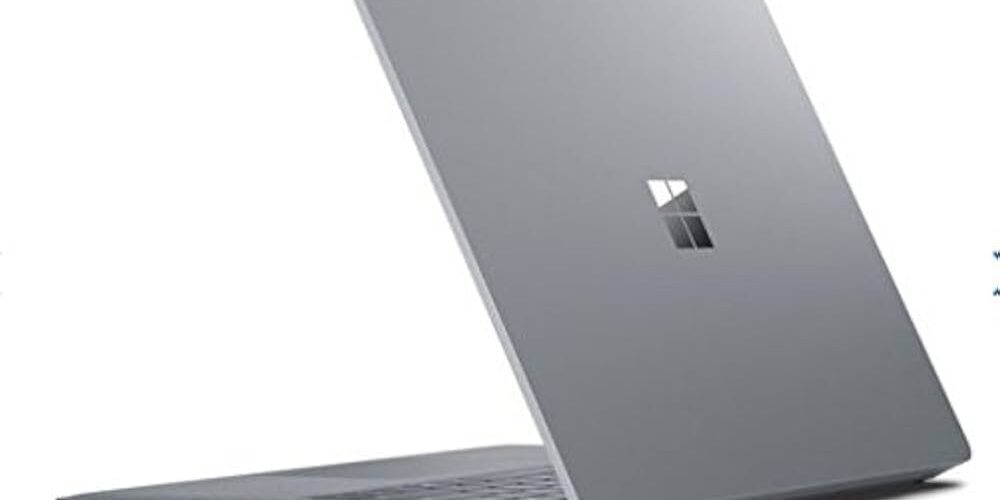
A week ago I got my new Surface Laptop 7, I think it is the first Intel based surface with Copilot+. It is built on Intel Core Ultra (Series 2) with a dedicated Intel AI Boost NPU. So excited to share my first impressions of the device. So far I´m really impressed.
Tech specs
The device is pretty good equipped, selected a top model with the smaller screen:
- System Model: Surface Laptop for Business 7th Edition with Intel
- CPU: Intel Core Ultra 7 processor 268V
- NPU: Intel AI Boost with 48 TOPS
- GPU: Intel Arc
- Memory: 32 GB LPDDR5x
- Storage: 1TB Gen 4 SSD
- Display:13.8″ 2304×1536
- Ports: 2x USB4/TB4, 1x USB‑A 3.2 Gen 2, 1x 3.5 mm audio, 1x Surface Connect
- Wireless:Wi‑Fi 7 Intel BE201
- Bluetooth: 5.4
- Security: Pluton, TPM 2.0
- Camera: Intel LNL Surface Studio Full HD and WHFB Face login support
The chassis sticks with the signature minimalist Surface look. One thing I prioritize is the weight given all my travelling between customers and events:
- Length: 11.85 inch (301 mm)
- Width: 8.67 inch (220 mm)
- Height: 0.69 inch (17.5 mm)
- Weight: 2.97 lbs (1.35 kg)
Why I Chose My Laptop: Key Factors Behind the Decision
When it was time to pick a new laptop, I focused on the practical details that actually matter in my day‑to‑day work. After comparing several models, a few key factors ultimately shaped my decision.
- Ports: I needed 2x USB‑C ports. I’m constantly switching between chargers, docks, and peripherals, and having two fully capable USB‑C connections gives me the flexibility I rely on. It’s a small detail, but one that makes a huge difference when you’re always on the move.
- Copilot+: I really wanted to test new AI features, ensuring I’m ready for the next wave of AI‑powered workflows. Future‑proofing matters, and this laptop gives me that headroom.
- CPU: Another major factor was the processor choice, finally an Intel with Copilot+! I specifically prefered an Intel CPU, simply because I’m not a fan of the current Snapdragon experience. Compatibility, stability, and predictable performance are essential for my workload, and Intel still delivers that for me.
- Sustainability: Carbon footprint also played a role. I appreciate when a device is built with repairability, longevity, and environmental impact in mind. Choosing a laptop that aligns with those values feels like the right long‑term investment. And I know that Microsoft is committed to sustainability in the development of their laptops.
- Weight: Since I’m constantly traveling between customers and events, I need something that won’t slow me down. A lightweight device makes a noticeable difference when you’re carrying it every day.
In the end, this laptop struck the perfect balance between performance, portability, sustainability, and future‑readiness, exactly what I need for the way I work.
First Impression
My first impression of the Surface Laptop is overwhelmingly positive. The moment I picked it up, it struck me how well‑built and refined it feels. There’s a real sense of quality in the materials and the overall construction, nothing creaks, nothing flexes, and everything feels intentional. The weight is another thing that stood out right away. It’s light enough to carry effortlessly throughout the day, yet still solid enough to feel premium. That balance is hard to get right, but Microsoft absolutely nailed it here. I also appreciate the dual USB‑C ports, which instantly make the device more practical for real‑world use. Whether I’m charging, docking, or connecting peripherals, having two fully capable ports gives me the flexibility I need without compromises. Performance‑wise, the laptop feels quiet and fast. It handles everyday tasks smoothly, stays responsive, and does it all without the constant fan noise you get from many other devices. It’s the kind of machine that just gets out of the way and lets you work.
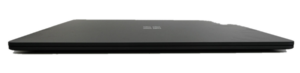
Overall, so damn sleek! The Surface Laptop really made a strong first impression, premium, lightweight, thoughtfully designed, and surprisingly powerful for its size.
Out‑Of‑Box Experience and Windows Autopilot device preparation
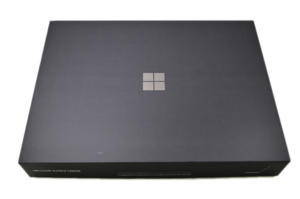
I absolutely love unboxing a new piece of tech. There’s something special about that first moment when you lift the lid and everything is perfectly arranged, untouched. And then there’s the sound and feel of peeling off the protective plastic, so crisp, clean, and incredibly satisfying! It’s one of those small rituals that makes the whole experience of getting a new device even more exciting.
But when it came to the Windows Autopilot device preparation, It took me some time to figure out the exact way of adding the device. When you add a device in corporate device identifiers, you need to add a csv with make, model and serialnumber.like this example from Mslearn:
Microsoft,surface 5,01234567890123
Lenovo,thinkpad t14,02234567890123
The label on the box should be able to tell us the information we need:
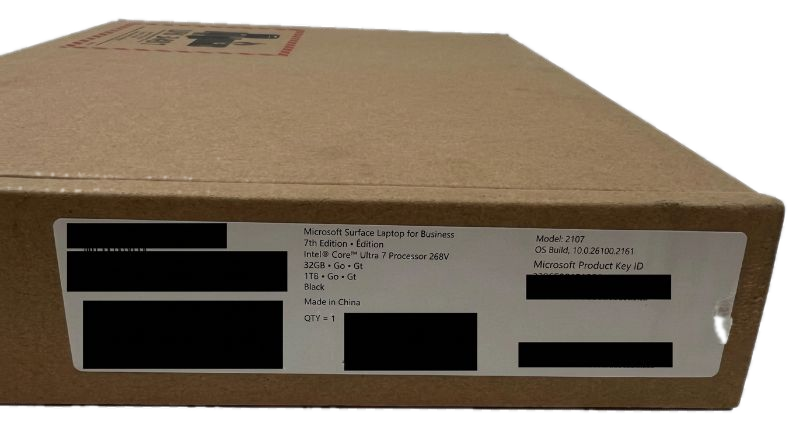
- Make: This is easy: Microsoft! Or is it? No it was “Microsoft Corporation”. Sometimes it is the short “Microsoft” and sometimes the longer “Microsoft Corporation”. This one needs to be double checked on all vendors. Very confusing that it just say “Microsoft” on the label.
- Model: This is where it is a bit trickier. I tried “Surface Laptop for Business”, “Surface Laptop for Business 7th Edition” but no success. The correct one was “Surface Laptop for Business 7th Edition with Intel” Not that obvious.
- Serialnumber: This was actually the easiest part. visible on the box and simple to enter.
I actually needed to boot it up and run PowerShell to find it out, just boot and at the first screen press Shift + f10 to get the cmd and then run:
powershell
Get-ComputerInfo | Select-Object CsManufacturer, CsModel

CsManufacturer        CsModel
--------------        -------
Microsoft Corporation Surface Laptop for Business 7th Edition with Intel
After adding it to corporate device identifiers, the enrollment was smooth and fast.
Copilot+
This is actually the very first Copilot+ PC i own. I’ve been following the development of these AI‑powered devices for a while, but there’s something special about actually sitting down with one and seeing what it can do in real time. It feels a bit like opening the door to a new way of working, faster, more intuitive, and a lot more playful than I expected. To ease into it, I started by testing some of the simpler features. Nothing too advanced, just the everyday things you’d normally do on a new machine. But even those small tasks felt different when the AI is built directly into the device.
Here are a few of the things I tried:
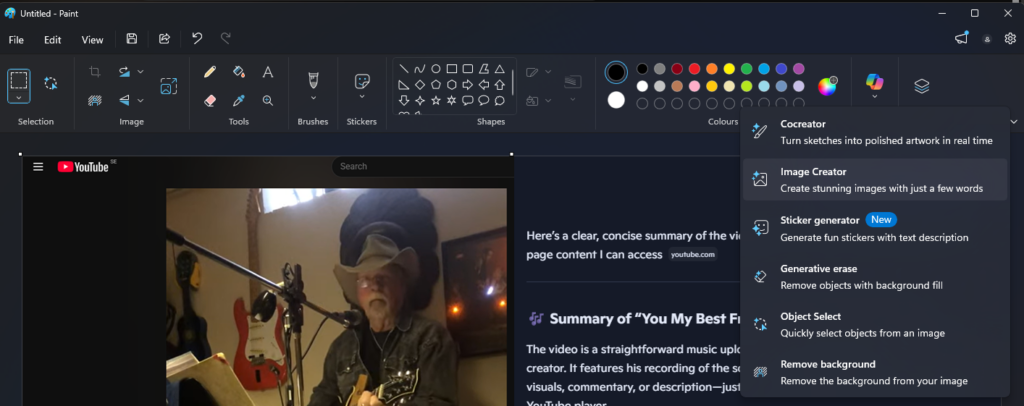
Summaries on demand, available for example in Youtube. Very fast, only a few seconds and then you have a summary of the video.

Natural language search on the device, asking for files, settings, or information without digging through menus.
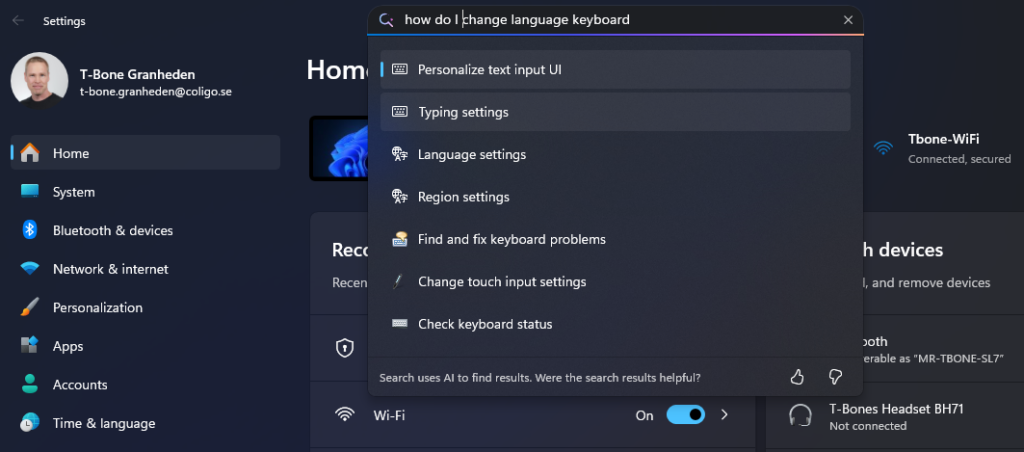
Image assistance in Paint, describing an idea and getting suggestions, variations, or edits instantly.
Real‑time language help — translating, rewriting, or simplifying text directly in the flow of work.
Really simple and fast enhancements. I was looking forward on Live Translations. But it doesn´t seem to work yet.😢
Conclusion after a week
A really sleek and light device that scream quality. Really satisfied with it! I will get back with more tests with Copilot+
About The Author