Finally: A Supported Method to Inspect HKLM on Intune‑Managed Devices

For as long as I have worked with Windows management, the registry has been the place where the truth hides. Not the pretty truth you see in a portal, the real one, which build of that line-of-business app is actually installed, whether the agent someone deployed three years ago is still running, what the vendor´s installer wrote into HKLM\SOFTWARE\T-Bone when they decided to be creative. And for just as long, my answer to “can I see it in Intune?” has been the same tired one “No, write a script”. A proactive remediation here, a Win32 app detection rule there, a custom compliance script when I felt brave. It worked. It also created a small graveyard of PowerShell that nobody wanted to own.
That era is now ending. Intune can inventory registry data natively, through the Properties catalog, and store it per device in Device Inventory. I have been testing it in my lab and in a couple of customer tenants, and this post is my deep dive: what it really does, where it breaks, how I would design it for a real environment, and what I am not decommissioning just yet.
Why this matters more than it looks
On paper this is a small feature: “you can collect some registry values”. In practice it changes three things that have annoyed me for years.
- It removes code from the critical path. Every remediation script you deploy to read a value is a scheduled task, an execution context, a 64-bit vs 32-bit trap, a logging strategy, and something that needs a version bump. Inventory is declarative. You state what you want to know, the platform brings it back.
- It makes the data queryable instead of ephemeral. A detection script tells you pass or fail on one device at one moment. Inventory gives you a stored property you can look at later, per device, without re-running anything.
- It gives you an answer when the device is not cooperating. Scripts need the device online and healthy right now. Inventory gives you the last known state, which is usually exactly what you need when you are trying to work out why a machine is behaving badly.
That said, keep expectations calibrated. This is inventory, not live query. If you need an answer this second, that is still Device Query territory. I come back to that later.
How the plumbing actually works
The feature is not a separate product, it is a new property category inside the Properties catalog profile type, which is the same mechanism you already use for BIOS version, TPM state, disk, memory and the rest.
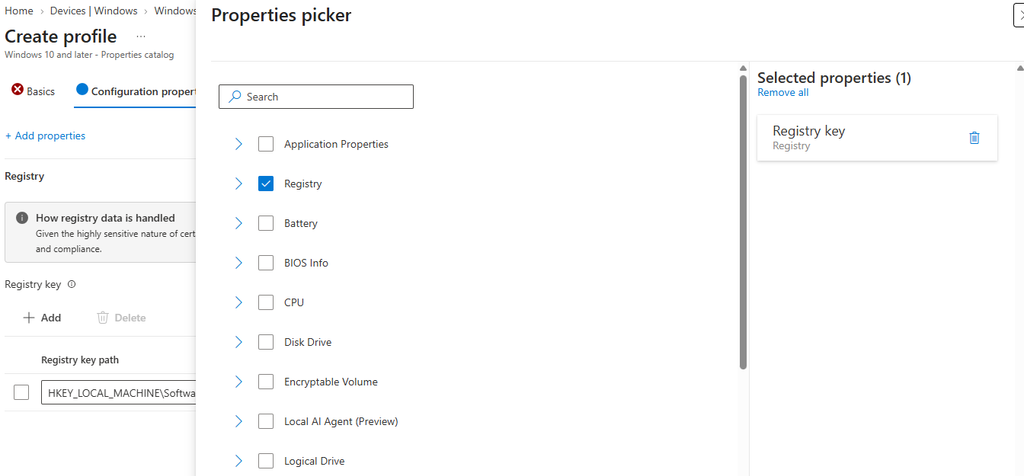
This is how you do it:
- Sign in to the Microsoft Intune admin center.
- Select Devices > Configuration.
- Click +Create and select New Policy
- On the Select platform, choose Windows 10 and later
- On the Select profile type, Choose Properties Catalog
- Set a suitable Name for the configuration, click Next
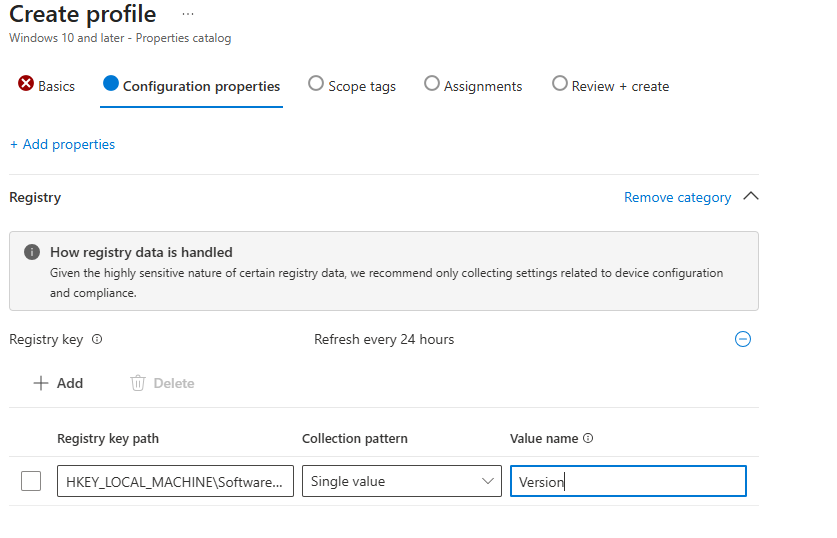
- Click +Add Properties and select the checkbox for Registry and click Select
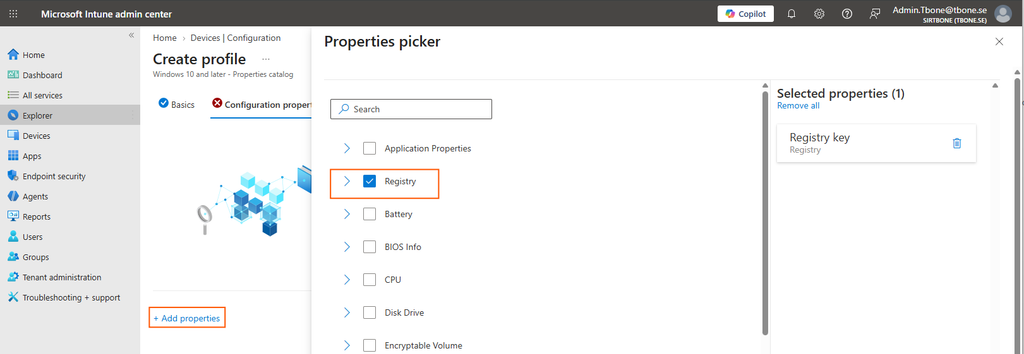
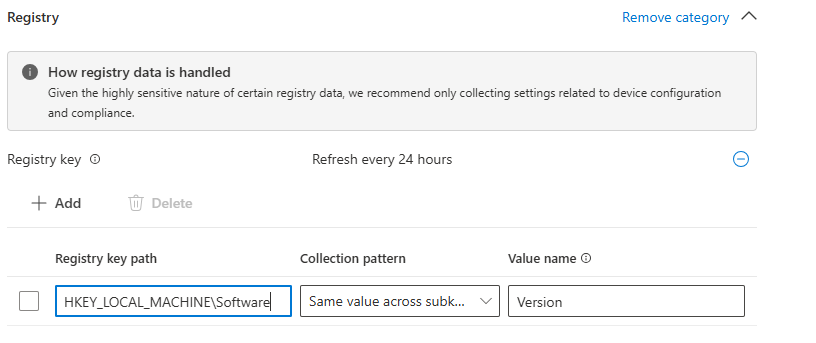
- Click +Add to add a registry key to collect
- Enter the Registry key path and the type of collection, Single value, All Values under key or Same Values across subkeys
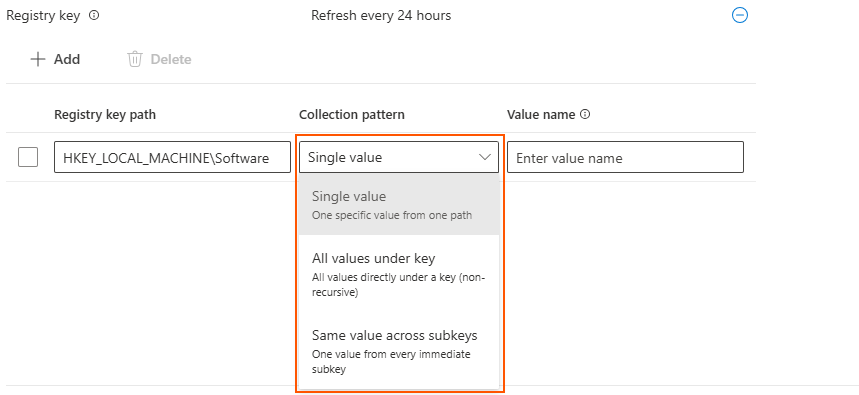
- When all keys are added, select Next
- Set the scope tag if used, select Next
- Assign the registry properties catalog collection to the target
“But hey… nothing is collected yet? F5 F5 F5!!! Why is nothing happening?!”
Take a breath. Step away from the keyboard. The agent is not powered by your refresh key.
- Initial collection can take up to 24 hours. Yes, really. This is not Device Query. Deploying at 09:00 and hammering F5 until 09:20 will not bend space‑time. The data arrives when it arrives.
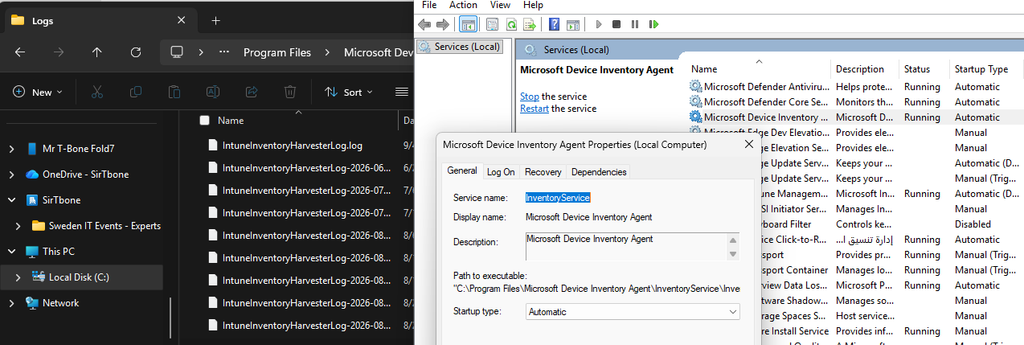
- Service up and running. You can always check if the service Microsoft Device Inventory Agent, if it is running if you suspect issues.
- Client logs live in
C:\Program Files\Microsoft Device Inventory Agent\Logs. That’s your first stop when the key you’re absolutely convinced should be there… isn’t.
The three collection patterns, and how to choose
This is the part I think most posts skim over, and it is the part that decides whether your design scales or eats your quota. You get three ways to point at data, all of them under HKEY_LOCAL_MACHINE:
| Pattern | What it returns | When I use it |
|---|---|---|
| Single value | One named value under one key | You know exactly what you want. Version stamps, feature flags, install markers. This is the surgical option and the one you should default to. |
| All values directly under a key | Every value in that one key, non-recursive | The vendor writes an unpredictable set of values, or you want the whole configuration block of one app in one shot. Watch the volume. |
| Same value across subkeys | One named value, read from each immediate subkey | The pattern that makes uninstall-style structures usable: a parent key with one child per item, each child carrying the same field. |
Note the word non-recursive and the words immediate subkeys. There is no “give me everything under this tree” option, and honestly, thank goodness. Deep recursion against HKLM\SOFTWARE would be a self-inflicted denial of service.
The third pattern is the interesting one. It turns a fan-out structure into something table-shaped, which is exactly what you want when your internal packaging tool writes one subkey per deployed package. Each collected item lands with the fields you would expect: the full key path, the value name, the value type, and the data itself.
Assume this tree exists on the device:
HKLM\SOFTWARE\T-Bone
    │   value            = "root-level"
    │   Version          = "3.0.0"
    │
    ├── MapDrives
    │       value        = "3.0.0"
    │       Version      = "3.0.0"
    │       InstallDate  = "2026-06-05"
    │
    ├── MapPrinters
    │       value        = "3.0.0"
    │
    ├── SecureBootUpdate
    │       Version      = "2.1"
    │
    └── Wrapper
            value        = "1.4.2"
            └── Legacy
                    Version = "0.9"
What your configuration collects:
| Item | Collected? | Why |
|---|---|---|
| MapDrives\Version = “3.0.0” | ✅ | Immediate subkey, name matches |
| SecureBootUpdate\Version = “2.1” | ✅ | Immediate subkey, name matches |
MapDrives\value / InstallDate | ❌ | Same key, wrong value name — the method takes one name only |
MapPrinters | ❌ | No Version present; skipped silently |
Wrapper | ❌ | Has value, not Version |
| Wrapper\Legacy\Version = “0.9” | ❌ | Two levels down — out of reach from this entry |
| T-Bone\Version = “3.0.0” | ❌ | Parent’s own value |
So you’d get two rows back, each carrying the full key path, the value name, the type, and the data.
The limits, and why they should shape your design
The first release ships with guardrails. I actually like them, because they force discipline, but you need to design around them from day one:
| Limit | Value | What it means in practice |
|---|---|---|
| Hive scope | HKEY_LOCAL_MACHINE only | No per-user data. HKCU, and therefore anything user-scoped, is out of reach for now. |
| Value size | 6 KB per registry value | Fine for versions, flags and paths. Not a place to stash serialized configuration blobs. |
| Keys per device | 100 registry keys | This is the one that bites at scale. It is a device budget, not a per-profile budget. |
| Recursion | None | Only the key you name, its values, or its immediate subkeys. |
That 100-key ceiling is the design constraint. If three different teams each build their own Properties catalog profile and each grabs “just twenty keys, it is nothing”, you are two thirds spent before anyone has thought about it.
How I handle it: treat registry inventory as a governed, shared resource, exactly like you would treat compliance policy or a naming standard.
- One owner for the registry inventory design, with a documented list of collected keys and why each one exists.
- A naming standard so a profile explains itself in the list view. I use something like
WIN-PropCat-Registry-<Purpose>-<Scope>, for exampleWIN-PropCat-Registry-AppInventory-All. - A review cadence. Every key should have a business question attached to it. If the question is gone, the key goes with it.
- Prefer a single value over a whole-key sweep whenever you actually know the value name.
The sensitivity filter: useful, but not your security model
There is built-in detection logic that tries to spot values that look like secrets: credentials, tokens, certificate material, that family of things. If a value trips that detection, it is simply not collected. I have two things to say about this.
- One: it is genuinely good that it exists. Registry inventory could otherwise become the world´s most convenient credential harvester, and defaults matter.
- Two: do not treat it as a boundary. Heuristics catch what looks suspicious. They do not know that
HKLM\SOFTWARE\Contoso\Setup\LastConfighappens to contain a connection string your integration team pasted there in 2019.
So the real control stays where it always was, with you:
- Choose keys deliberately. Never point at a key “to see what is in it” in production. Explore in a lab, then collect the specific value.
- Understand who can read it. Collected registry data is visible through existing Device Inventory permissions. Anyone who can read managed devices can read what you collect. That is an access model you should consciously accept, not discover.
- Document it for the privacy and security people before they ask. Registry contents can carry configuration detail that never appeared in an inventory system before. Getting ahead of that conversation costs an hour. Getting behind it costs a project.
- If a value is missing, ask whether it was filtered. A silently dropped value looks identical to a value that does not exist. This is the number one confusing behaviour I hit while testing.
A few practical notes
- Remember that selecting properties in some categories automatically brings required companion properties along. That is expected, not a bug.
- To stop collecting, you remove the collection at category level, meaning you remove every property in that category from the profile.
- If you delete the profile entirely, the last collected data remains visible in Device Inventory for a while (roughly four weeks) before it ages out. Handy for a rollback, and something to mention when someone asks “is the data gone immediately?”.
Inventory or Device Query? A decision table
I get this question in every workshop, so here is how I split it.
| I need to… | Use |
|---|---|
| Know a value for every device, over time, without touching the fleet | Registry inventory (Properties catalog) |
| Answer “what does this one machine look like right now” during a support call | Device Query on a single device |
| Run an ad-hoc question across many devices against already-collected data | Device Query for multiple devices |
| Explore an unknown registry tree before deciding what to collect | Device Query on a lab device, then collect the specific value |
| Read something outside HKLM, or bigger than 6 KB, or deeply recursive | Still a script, sorry |
| Not just read the value but also fix it | Remediation |
The pattern I recommend: explore with Device Query, standardize with inventory, act with remediation. Those three are complementary, not competing, and the mistake I see is teams picking one and forcing it to do all three jobs.
Migrating off your scripts, without breaking anything
Do not delete anything on day one. This is how I sequence it.
- Inventory your inventory. List every remediation, detection script and custom compliance rule whose only job is to read a registry value. Most environments have more than they expect.
- Classify. Read-only under HKLM, small values, no recursion? Candidate for migration. Anything that writes, or reads HKCU, or parses a large blob? Stays a script.
- Run both in parallel. Deploy the Properties catalog profile alongside the existing script for a couple of weeks and compare. You are looking for values that are silently absent, which usually means the sensitivity filter or a wrong pattern choice.
- Cut over per use case, not all at once. Pick the noisiest script first, the one that generates support tickets. Prove the win, then move on.
- Retire and document. When a script goes, note in your change log which inventory key replaced it. Future-you will want the map.
Gotchas from my testing: The short list I wish I had before I started:
- Patience is a configuration setting. Up to 24 hours for first collection. Plan pilots accordingly.
- A missing value is ambiguous. It might not exist, it might be filtered, or your pattern might be wrong. Check the agent logs before assuming.
- The 100-key budget is per device. Multiple profiles hitting the same device share the same ceiling.
- HKLM only. Every user-scoped idea you have will hit this wall. Write them down for later, do not try to work around it.
- Removal is category-level. Stopping collection means clearing the whole category from the profile, which surprises people who expect to untick a single value.
- Naming discipline pays immediately. Properties catalog profiles look identical in the list view. Without a standard you will be opening profiles one by one within a month.
- Automation is possible, but verify against your tenant. Properties catalog profiles live in the settings-catalog family of configuration policies, so you can create and export them programmatically through Graph. My advice is to build one profile in the portal, export it, and use that exported structure as the template rather than hand-writing setting identifiers from memory, because those identifiers evolve as the feature grows.
About The Author