DFCI on Surface: Intune Reaches Below Windows, and One Checkbox Combo Can Cost You an SSD
Somewhere in almost every environment I walk into, there is a spreadsheet in Excel. It is called something like BIOS_passwords_FINAL_v3.xlsx, it lives in a folder that three people have access to, and at least one of those people left the company in 2021. Everybody knows it is bad. Nobody wants to be the one who touches it.
That spreadsheet exists because we spent a decade getting really good at managing Windows from the cloud, Autopilot, Intune, cloud-native everything, and then we stopped at the boot screen. Below Windows it was still the old world: a technician, a USB stick, a volume-up button and a password someone typed in by hand. DFCI closes that gap. It has done so for a while now. And I keep being surprised by how many Surface fleets either have not turned it on at all, or have turned it on in a way that makes me quietly nervous on their behalf.
So this is the post I wish somebody had handed me: what DFCI really does on Surface, the prerequisite that kills nine out of ten first attempts, the two settings that can genuinely put a device beyond recovery, and how I sequence a rollout so I actually sleep at night.
What DFCI actually is
Device Firmware Configuration Interface is a profile type in Intune that sends management commands all the way down into the Surface UEFI. Microsoft describes it as extending the modern management stack down to the hardware level, and for once the marketing sentence is accurate. You get zero-touch provisioning, no more BIOS passwords, and control over boot options and built-in peripherals.
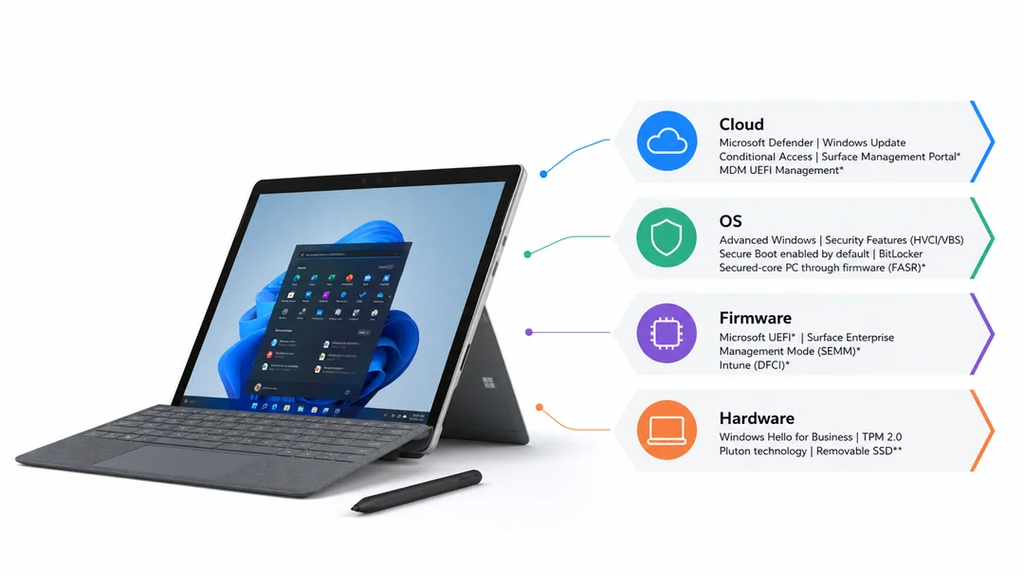
In practice that means you can remotely turn off hardware and stop the user from turning it back on. Need cameras dead in a secure area? Disable them in the firmware. Do not want anyone booting from a USB stick? Same place.The important word here is firmware. This is not a Windows setting that a clever user can work around by booting something else. The device simply does not have a camera anymore, as far as anything running on it is concerned.
The prerequisite that trips up almost everyone
Before you open Intune, read this part twice, because this is where most first attempts die.
External attestation
First, DFCI requires that the device is registered with Windows Autopilot, but it has to be the right kind of registration. Devices that were manually or self-registered, for example imported from a CSV file, are not allowed to use DFCI. By design, DFCI management requires external attestation of the device´s commercial acquisition via a Microsoft CSP partner or Surface registration.
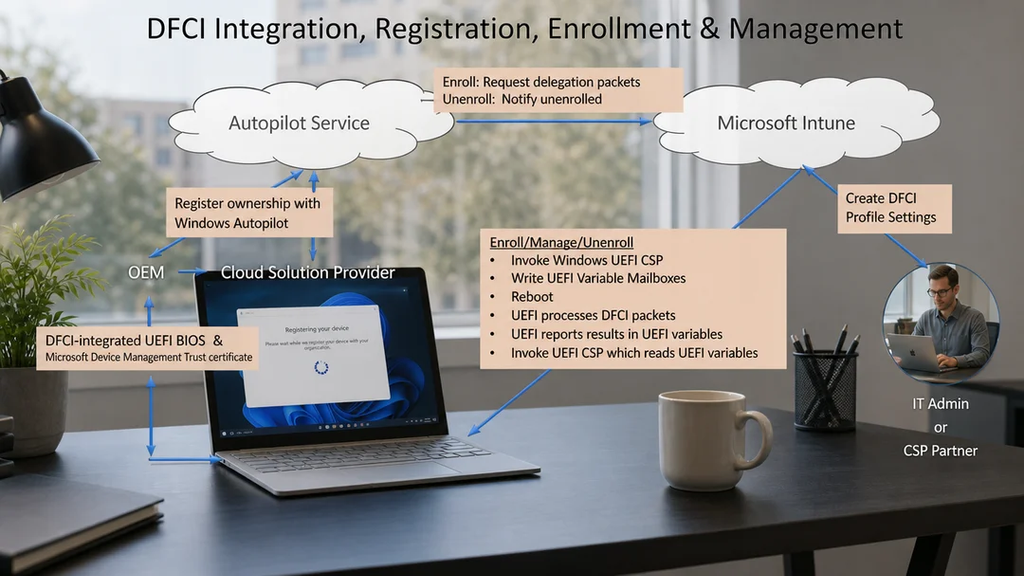
Read that again if you are the person who has been happily harvesting hardware hashes with a PowerShell script for the last three years. Those devices are in Autopilot. They are managed. They are compliant. And they will never take a DFCI profile.
Commercial SKU
There is a second gate: the eligible device list is commercial SKUs unless the table explicitly says otherwise. Microsoft sells a Surface Pro and a Surface Pro for Business. Same lid, same screen, near enough the same name. Different products in the eligibility table. The device knows which one it is through a value called the System SKU, and that is what you need to check:
| Device | System SKU |
|---|---|
| Surface Laptop 7th Edition 13.8″ Snapdragon, Consumer | Surface_Laptop_7th_Edition_2036 |
| Surface Laptop 7th Edition 13.8″ Snapdragon, Commercial | Surface_Laptop_7th_Edition_For_Business_2036 |
Same marketing name. One string apart. Only one of them can take a DFCI profile. The full mapping is here: Surface System SKU reference. Bookmark it. “We bought Surface Laptop 8” is not an answer to “is this eligible?”, the SKU is.
Operating system
And the third gate is Windows 11, or Windows 10 version 1809 or later. That one is rarely a problem in 2026. If all three are not true, nothing happens. No error that explains itself, no warning banner. Just a profile that sits there looking successful while the UEFI ignores it completely.
Creating the DFCI profile
Nothing exotic here, but for completeness:
- Sign in at intune.microsoft.com
- Select Devices > Configuration profiles > Create profile
- Under Platform, select Windows 10 and later
- Under Profile type, select Templates > Device Firmware Configuration Interface
- Select Create, give it a name that explains itself, and configure your settings
- Assign it, and reboot the device
Note step 6. DFCI settings land on an Intune check-in and are applied through the firmware, which means a reboot is part of the deal. Deploying at 09:00 and then staring at a running device wondering why the camera still works is not a troubleshooting technique. Restart it.
And a naming convention, because you will end up with more than one of these and the list view is unforgiving. I use something like WIN-DFCI-<Purpose>-Scope. for example WIN-DFCI-Lockdown-Camera. A profile should explain itself without anyone having to open it.
The one setting you cannot skip
There are plenty of toggles in this profile, and it is tempting to treat them as a menu you pick from. Start with this one instead, because it is not a feature, it is the whole reason DFCI exists.
Allow local user to change UEFI (BIOS) settings decides whether the person holding the device can walk into the firmware and undo your work. Microsoft is unusually direct about it: blocking users from changing UEFI settings is critically important to many customers and a primary reason to use DFCI. Leave it alone, and the local user can change any UEFI setting Intune does not manage. Hence the recommendation: set it to None.
Think about what that means in practice. You can disable cameras, block boot from USB and turn off the radios, watch every device report Succeeded, and still have achieved nothing durable. Anyone who knows the volume-up trick can walk into the UEFI menu and flip back everything you did not explicitly manage. Your policy becomes a suggestion.
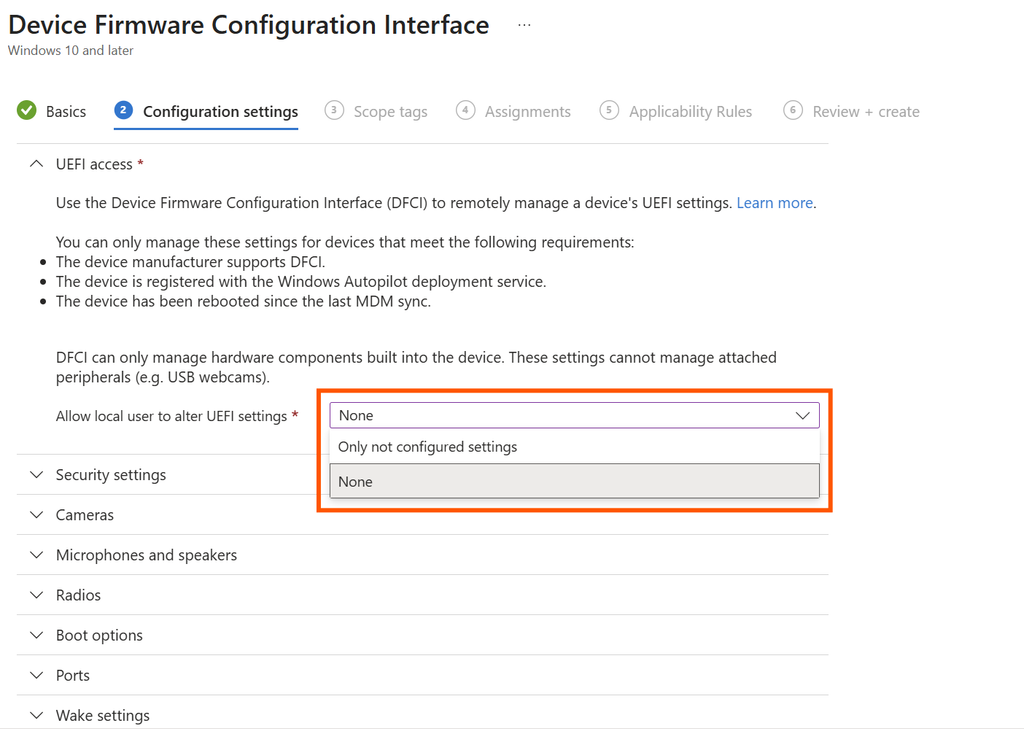
Set it to None and the menu still opens, but every setting in it is greyed out. That one row is also what finally kills the BIOS password spreadsheet. Everything else is a refinement on top of it.
| Setting | What it does | My take |
|---|---|---|
| Allow local user to change UEFI (BIOS) settings | None = user cannot change any UEFI setting, including ones you never configured. Only not configured settings = user can change everything you did not explicitly set | Set it to None. This is the whole point |
The rest of the settings
Now the ones I get asked about most, and the ones that carry real consequences.
| Setting | What it does | My take |
|---|---|---|
| Cameras (or Front / Rear / IR individually) | Kills built-in cameras at firmware level. USB cameras are unaffected | Great for secure areas, useless as a general privacy control since USB webcams still work |
| Microphones and speakers | Kills on-board audio. Again, USB peripherals are unaffected | Same story |
| Radios (Bluetooth, Wi-Fi, NFC) or granular Bluetooth / Wi-Fi / WWAN | Turns the built-in radios off | Read the warning below before you touch this |
| Boot from external media (USB, SD) | Blocks booting from USB sticks and other non-hard-drive storage | Read the warning below before you touch this |
| USB type A | Disables USB-A data connections. Laptop Go 2 and later only | Read the warning below. Seriously |
| Simultaneous multithreading | Turns SMT (Intel hyperthreading) on or off in the UEFI layer | Niche. Only if a specific workload or a security requirement demands it |
| Wake-on-LAN / Wake-on-Power | Whether the device can be woken remotely, or started when connected to power | Laptop Go 2 and later only. Useful in lab and kiosk scenarios |
Two behaviors in that table catch people out.
Not configured is not the same as disabled. For almost every setting here, leaving it alone means the hardware is enabled. DFCI does not default to locked down. If you want it off, you have to say so.
Do not configure both the category and the granular version. If you set the Radios (Bluetooth, Wi-Fi, NFC, etc.) category and the individual Bluetooth and Wi-Fi settings, those can conflict with each other. Pick one level and stay there.
The warning of the combinations that can cost you an SSD or even a laptop
This is the section I would like you to read out loud to whoever is going to build the profile.
If you disable Boot from external media and USB type A, and the device then becomes unbootable for any reason, you cannot recover it without replacing the SSD. You will not be able to boot from external media, you will not be able to PXE boot, and you will not be able to perform a DFCI refresh from the network.
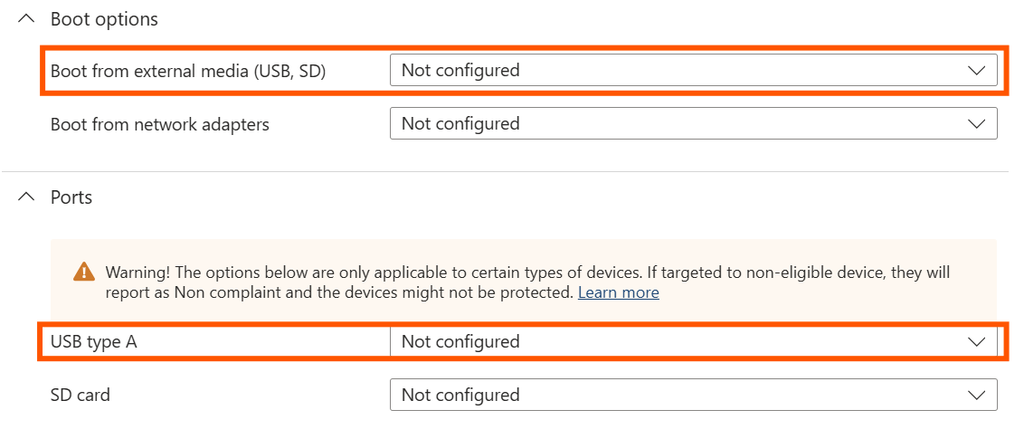
That is not a hypothetical. That is the documented outcome, and the reason it happens is almost poetic: you have carefully removed every door into the device, and then Windows falls over and you are standing outside your own house.
So my rule is simple, and I have never regretted it: never disable both on the same device. Pick the threat you are actually defending against. If it is data exfiltration, there are better controls higher up the stack, and Defender and Intune device control will do a more nuanced job than a firmware switch. If it is unauthorised boot media, disable boot from external media and leave USB-A alone.
There is a smaller sibling of this trap in the radios section: disabling the radios should only be done on devices with a wired Ethernet connection. A Surface with no Wi-Fi and no Ethernet adapter has no way to phone home, which means no way to receive the policy that undoes what you just did.
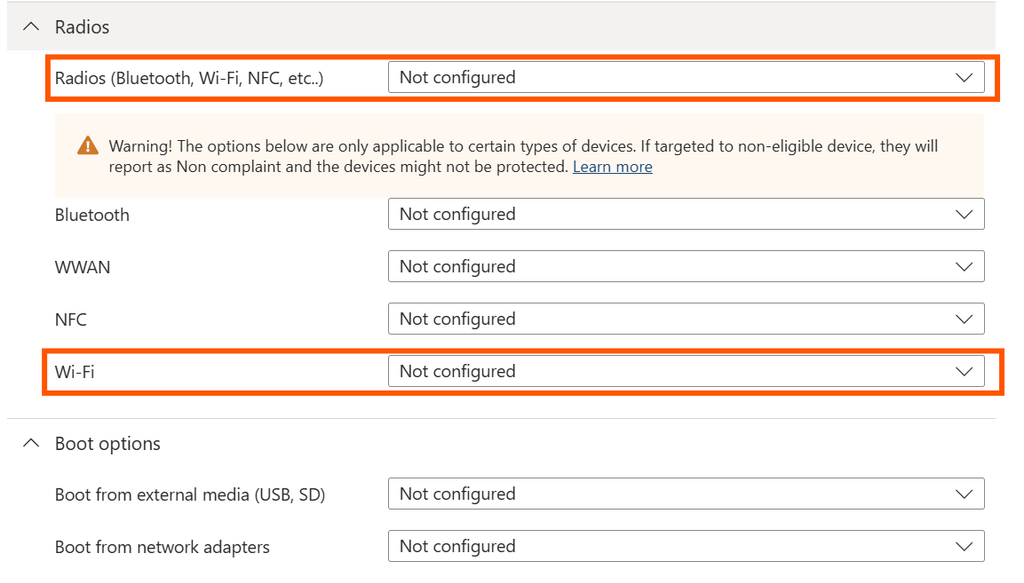
The pattern in both cases is the same. Ask yourself: after this policy applies, how does the device reach me if it goes wrong? If you cannot answer that in one sentence, do not assign the profile.
Settings that exist in Intune but do nothing on Surface
Worth knowing before you spend an afternoon troubleshooting. The DFCI profile in Intune contains settings that do not currently apply to Surface devices: CPU and IO virtualization, Disable boot from network adapters, Windows Platform Binary Table (WPBT), NFC, and SD card.
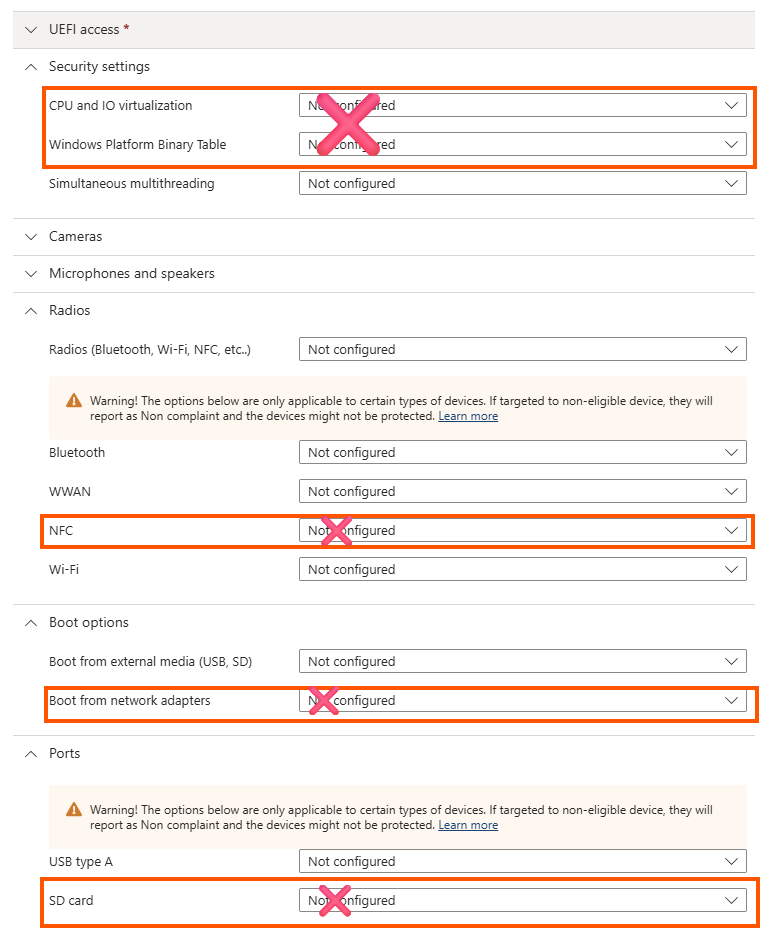
They are in the UI. You can configure them. Nothing will happen. This is not your deployment being broken, this is the profile being generic across OEMs.
Verifying on the device
I always verify on real hardware before assigning to anything bigger than my pilot ring, because seeing it with your own eyes is different from reading “Succeeded” in a report.
- Press and hold the volume-up button on your Surface and, at the same time, press and release the power button
- When you see the Surface logo, release volume-up
- The UEFI menu appears within a few seconds
- Select Devices
What you want to see: the settings you configured reflecting your policy, and the whole menu greyed out because Allow local user to change UEFI settings is set to None. If on-board audio shows as off, your Microphones and speakers policy landed.
If the menu is still fully editable, you have a prerequisite problem, not a settings problem. Go back to the Autopilot registration question.
Getting back out again
This is the half of DFCI nobody plans for, until a device is sold to a reseller and the panic call arrives. One thing decides how this goes: the order you do it in. Same end result, but either five minutes from a browser tab, or standing next to the device with a specific adapter in your hand.
Deleting the profile does nothing
Deleting the DFCI profile does not remove the settings or re-enable the UEFI menus. Neither does removing the device from the assigned group. The device stays exactly as locked as it was yesterday. That is the opposite of how the rest of Intune behaves, which is why it catches people out. Worse, you have now thrown away the only instrument that can release the device. Do not delete the profile. Edit it.
The normal way out
As long as the device is still enrolled and still has its Autopilot record, you unlock it from the admin center. No adapter, no physical access.
- Open your DFCI profile: Devices > Manage devices > Configuration
- Set Allow local user to change UEFI (BIOS) settings to Only not configured settings
- Set the other settings to the state the device should leave in, typically Enabled
- Save, let the device check in, and reboot to enforce
Steps 1-4 are what unlock the menus, but It is not enough by itself, you also need to wipe
- Wipe the device
- Move it to the group with your new DFCI and Autopilot profiles, and reboot to rerun setup.
Not configured does not mean “back to normal”
Setting something to Not configured does not reset it. The value stays as it was, Intune just stops managing it. Disabled the cameras? They are still disabled. The menu is unlocked, so a human could turn them back on by hand, but nothing reverted on its own. If the device is going to a reseller or a new user, you want the hardware actually working, which means Enabled, explicitly.
| What you set | The value | The menu |
|---|---|---|
| Left as Disabled | Stays disabled | Locked |
| Changed to Not configured | Stays disabled | Unlocked |
| Changed to Enabled | Works again | Unlocked |
If you already did it in the wrong order
You wiped and deleted the Autopilot record before unlocking. The menus stay locked and Intune can no longer reach the device. Now it is physical:
- Connect wired internet with a Surface-branded Ethernet adapter
- Open the UEFI menu (hold volume-up, press and release power)
- Select Management > Configure > Refresh from Network
It has to be the Surface-branded adapter. Keep one in a drawer with a known owner and put it in the offboarding runbook. And note that recovery unlocks the menus but leaves every setting at the values from your old profile, so somebody still has to fix them by hand. Which is the entire argument for doing it in the right order.
Should I use DFCI for this? A decision table
I get this question a lot in advisory sessions, so here is how I split it.
| I need to… | Use |
|---|---|
| Stop users from changing UEFI settings at all | DFCI: Allow local user to change UEFI settings = None |
| Kill the built-in camera in a secure facility | DFCI: Cameras (or Front / Rear / IR individually) and accept USB cameras still work |
| Stop boot from USB media | DFCI: Boot from external media, and leave USB-A enabled |
| Control which USB storage devices users can attach | Not DFCI:. Device control in Intune / Defender |
| Retire BIOS passwords across the fleet | DFCI: Allow local user to change UEFI (BIOS) settings. This is the headline use case |
| Manage firmware versions rather than firmware settings | Not DFCI: Driver and firmware update management |
| Get visibility into warranty, support cases and device health for Surface | Not DFCI: The Surface Management Portal in Intune |
| Do any of this on a CSV-imported Autopilot device | Nothing: Fix the registration path first |
That last row is not a joke, and it is the most common answer I give!
How I actually roll this out
Nothing clever. Just the order that has never burned me.
- Confirm the registration path first. Before a single profile exists, verify that the devices you are targeting came in through an OEM or CSP registration. If they did not, everything below is wasted effort.
- Build a pilot ring that represents the fleet. One Intel, one Snapdragon, one older generation, one brand new. Setting support genuinely varies by model, and the Snapdragon and Intel variants of the same marketing name do not always behave identically.
- Start with the least destructive setting. My first profile in any new tenant sets exactly one thing:
Allow local user to change UEFI settings= None. Deploy it, reboot, verify in the UEFI. That alone retires the password spreadsheet, and it cannot lock you out of anything. - Add hardware restrictions one category at a time. Cameras. Verify. Then audio. Verify. Resist the urge to configure twelve settings and assign in one go, because when something does not apply you will have no idea which one it was.
- Audit your assignment logic before it grows. Dynamic groups based on model names, static groups filled by hand, filters. This is where a device ends up with a profile nobody intended to give it.
- Write the exit procedure before you need it. Retire, delete the Autopilot record, Surface Ethernet adapter, Refresh from Network. Put it in the runbook next to the adapter.
- Never disable Boot from external media and USB type A together. I am repeating it deliberately. That is the one that costs hardware.
Closing thought
DFCI is not a new feature and it is not a flashy one. There is no announcement blog, no preview banner, no AI in the name. It is a quiet, boring, extremely useful capability that removes an entire class of manual work from your environment, and it has been sitting in the Templates list the whole time.
What makes it interesting in 2026 is the combination: the newest Surface Pro and Surface Laptop families are on the eligible list, more organizations are fully cloud-native, and the “we will just send a technician” answer is getting less acceptable every year.
My honest recommendation: go and set that single UEFI-lock setting on your pilot ring this week. Do not build the perfect profile. Build the one that deletes the password spreadsheet. The rest can follow at whatever pace your change process enjoys.
And keep a Surface Ethernet adapter in a drawer. You will need it exactly once, and on that day you will be very glad it is there.
About The Author