Central Accept Of “Continue To Sign In” Dialog, Now A Supported Way With Intune
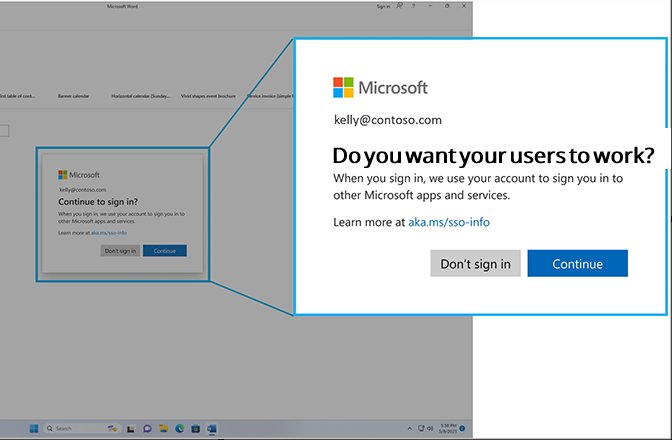
Follow up to: Central Accept Of “Continue to Sign In” Dialog Deployed With Intune
Back in June 2025 I wrote about the “Continue to sign in” dialog that hit all of us in the EEA, and how to get rid of it centrally with Intune. That post has been a popular one, which told you an unsupported way to disable the prompt by using Vivetool. Not just unsupported, very unstable and unpredictable to!
That post is now obsolete! Microsoft has finally shipped a real, supported admin control for the SSO prompt. One single simple registry policy, documented by Microsoft, no hacks, no feature flags, no guessing which value the next Windows build will move. So this is the follow up: stop using my old method, use this one instead. Same end result, but supported, and it will survive the next Windows update.
My opinion has not changed one bit though: single sign-on in a managed environment is an organizational decision, not an end user decision!
Background
To comply with the Digital Markets Act, Microsoft changed the Windows sign-in experience in the European Economic Area. Signing in to Windows no longer automatically signs you in to other Microsoft apps and services. Instead, Windows asks the user whether the same credentials may be used for additional apps and services, the now famous “Continue to sign in” dialog.
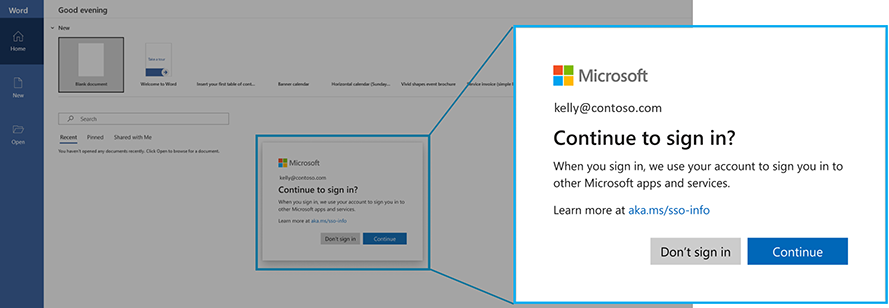
The prompt appears the first time the user opens an app that wants to sign in with the Windows account. If the user accepts, it never comes back. If the user clicks the wrong thing, or never gets the prompt at all, you get a non functional user environment that could gen numerous problems:
- Office apps that ask for username and password on a device that is already Entra joined
- “Unlicensed product” warnings on users who very much have a license
- Company Portal, Teams and Outlook behaving differently on the same device
- A first day experience after Autopilot that makes your shiny zero touch deployment look broken
For a personal device this is a fair and reasonable choice to give the user. For a corporate device, that is enrolled in Intune, joined to the company tenant, protected by Conditional Access and MFA, and where the user signs in with an account the company owns, it is a support ticket generator!
Why The Old Method Should Be Retired
My June 2025 solution worked, but it was a workaround. It reached into things that were never meant to be managed by us, it had to be re-applied per user, and it was one Windows update away from breaking. Every workaround like that has an expiry date. This one has now expired. If you have my old solution deployed:
- Deploy the new registry policy below.
- Let it apply and verify on a pilot group.
- Remove the old assignment, then retire the old package.
Do not run both. There is no benefit and you only keep a fragile component alive in your tenant for no reason.
The New Supported Setting
Starting with the July 2026 monthly security update for Windows 11, Microsoft supports a registry policy that automatically accepts the SSO permission on managed devices, so the user never sees the prompt at all.
| Registry path | HKLM\SOFTWARE\Policies\Microsoft\Windows\AAD |
| Value name | AutoAcceptSsoPermission |
| Type | REG_DWORD |
| Data | 1 |
That is it. That is the whole thing. One value, in the Policies hive, under HKLM, which means it is device wide and applies to every user on the device. No per user logic, no scheduled task, no logon script. Microsoft documents it here: Admin control for SSO prompts in Windows.
Requirements
- Windows 11 version 24H2 or 25H2 with the July 2026 security update (KB5101650) or later
- The device must be organization managed, Intune, Group Policy or Configuration Manager. It does nothing on a personal, unmanaged PC
- The account must be a Microsoft Entra work or school account. Personal Microsoft accounts (MSA) still get the prompt, and there is no admin control for that
One nice detail: the value is safe to pre-deploy. On a device that has not received KB5101650 yet, it simply sits in the registry and does nothing, and then starts working the moment the update lands. So there is no reason to build build-number detection logic into your deployment, just push it everywhere.
What It Does Not Do
This is important, because I have already seen people misunderstand this setting and get nervous about it.
AutoAcceptSsoPermission only answers the SSO permission prompt!
It does not:
- Bypass MFA
- Bypass Conditional Access
- Bypass app specific consent
- Change anything for personal Microsoft accounts
- Give any app access it would not otherwise have
You are not weakening security. You are answering a consent dialog on behalf of the organization, for accounts and devices the organization already owns and controls.
Deploy With Intune – Remediation
As of writing there is no Settings Catalog setting for this yet, so we deploy the registry value ourselves. For your existing fleet, a remediation is the right tool – it applies, it self-heals, and you get reporting on compliance.
Detection script:
$ErrorActionPreference = "SilentlyContinue"
$RegPath   = "HKLM:\SOFTWARE\Policies\Microsoft\Windows\AAD"
$ValueName = "AutoAcceptSsoPermission"
$Expected  = 1

try {
    $Current = Get-ItemProperty -Path $RegPath -Name $ValueName -ErrorAction Stop |
               Select-Object -ExpandProperty $ValueName

    if ($Current -eq $Expected) {
        Write-Output "Compliant: $ValueName = $Current"
        exit 0
    }

    Write-Output "NonCompliant: $ValueName = $Current (expected $Expected)"
    exit 1
}
catch {
    Write-Output "NonCompliant: $ValueName is not configured under $RegPath"
    exit 1
}
Remediation script:
$ErrorActionPreference = "Stop"
$RegPath   = "HKLM:\SOFTWARE\Policies\Microsoft\Windows\AAD"
$ValueName = "AutoAcceptSsoPermission"
$Value     = 1

try {
    if (-not (Test-Path $RegPath)) {
        New-Item -Path $RegPath -Force | Out-Null
    }

    New-ItemProperty -Path $RegPath -Name $ValueName -Value $Value -PropertyType DWord -Force | Out-Null

    $Current = (Get-ItemProperty -Path $RegPath -Name $ValueName).$ValueName
    if ($Current -eq $Value) {
        Write-Output "Remediated: $ValueName set to $Value under $RegPath"
        exit 0
    }

    Write-Output "Failed: $ValueName is $Current after write (expected $Value)"
    exit 1
}
catch {
    Write-Output "Failed: $($_.Exception.Message)"
    exit 1
}
Create the package in Intune:
Go to Devices > Scripts and remediations > Create, and use these settings:
| Setting | Value |
|---|---|
| Detection script file | Detect-AutoAcceptSsoPermission.ps1 |
| Remediation script file | Remediate-AutoAcceptSsoPermission.ps1 |
| Run this script using the logged-on credentials | No (It is a HKLM key) |
| Enforce script signature check | No (Or sign the script before deploying) |
| Run script in 64-bit PowerShell | Yes (Usually the best!) |
The value lives in HKLM, so the script must run as System. If you set “logged-on credentials” to Yes it will fail on every device. Assign it to all managed Windows devices with the default daily schedule.
Deploy With Intune – Win32 App For Autopilot
A remediation is perfect for devices that are already in production, but it has one blind spot: remediations run on a schedule after enrollment is finished. On a fresh Autopilot device the first user reaches the desktop long before the first remediation cycle runs – and that first sign-in is exactly when the prompt does the damage.
So for Autopilot, package the same registry value as a required Win32 app and add it to the Enrollment Status Page as a blocking app. The ESP then installs it during the device setup phase, before the user ever gets to the desktop.
Install command:
reg.exe add "HKLM\SOFTWARE\Policies\Microsoft\Windows\AAD" /v AutoAcceptSsoPermission /t REG_DWORD /d 1 /f
Uninstall command:
reg.exe delete "HKLM\SOFTWARE\Policies\Microsoft\Windows\AAD" /v AutoAcceptSsoPermission /f
Detection rule:
| Setting | Value |
|---|---|
| Rule type | Registry |
| Key path | HKEY_LOCAL_MACHINE\SOFTWARE\Policies\Microsoft\Windows\AAD |
| Value name | AutoAcceptSsoPermission |
| Detection method | Integer comparison |
| Operator | Equals |
| Value | 1 |
Install behavior: System, 64-bit, and assign as Required to your Autopilot device group. Then add it to the ESP blocking app list.
Remediation for the fleet, Win32 app for Autopilot. Together they cover both ends, and the user never meets the dialog.
Verification
Check the value on a device:
Get-ItemProperty -Path "HKLM:\SOFTWARE\Policies\Microsoft\Windows\AAD" -Name AutoAcceptSsoPermission
And confirm the device is actually on a build that supports it:
[System.Environment]::OSVersion.Version
You want 26100.8875 or higher on 24H2, or 26200.8875 or higher on 25H2.
The real test is of course the user experience: wipe a test device, run it through Autopilot, sign in, open Word and Company Portal – and see nothing. No dialog, no password prompt, no unlicensed product banner. Just a signed-in device, the way it was before all this started.
My Opinion
I said it in the last post and I will say it again, because nothing has changed except the method:
The organization should be the one deciding whether the user gets SSO or not!
I fully support giving people control over their own credentials on their own devices. That is a good thing, and the prompt makes sense on a personal PC with a personal Microsoft account. But a corporate device is not a personal device. The company owns the device, owns the tenant, owns the identity, pays for the license, and is legally responsible for how that identity is used. Asking the user to consent to the company using the company account on the company computer is not user empowerment, it is just a dialog box in the way of someone trying to do their job.
Worse, it is a dialog that fails silently. A user who clicks the wrong button does not get an error, they get a slowly degrading experience that ends up in the service desk queue, where nobody can reproduce it.
So I am genuinely happy that Microsoft listened here. Not because the prompt is gone, it is still there for everybody who should have it, but because the decision has been put back where it belongs: with the organization that owns the device. That is exactly the right design.
About The Author