Updated My Script To “Cleanup Entra ID Devices”, Faster and better logging
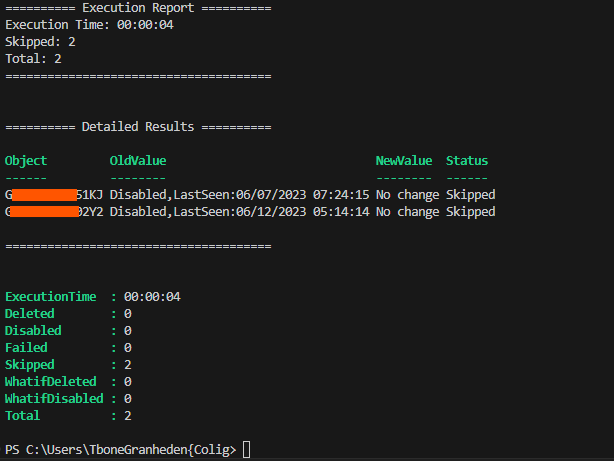
I discovered that there are some users out there using my script to cleanup Entra ID devices.I have now updated the script completely to use my new functions that are better and quicker and better reporting.
Updates in version 2.0::
- Up to 4x faster execution – Added graph batching for disable and delete devices
- More resilient error handling Updated with the same functions from my latest GitHub – Intune-Set-PrimaryUsers.ps1
- Cleaner reporting and logging Nice fast logging function
This update isn’t just an incremental improvement, it’s a fundamental shift in logic, how the script interacts with Graph and how logging and reporting works.
👉 Grab the new version here: Invoke-CleanupStaleEntraIDDevices.ps1
Why Cleanup old objects in Entra ID?
- Security Considerations:
Inactive or obsolete devices can pose security vulnerabilities.
If not properly managed or removed, these devices might still have access to your organization’s network and resources, potentially falling into the wrong hands.
- Clutter Reduction and Accuracy:
Cleaning up inactive devices reduces clutter and enhances inventory accuracy.
They can skew device compliance reporting with old and inaccurate status.
- Cost Savings:
In environments where licenses are device-based, removing inactive devices frees up unused licenses.
This leads to cost savings and efficient license utilization.
Configure Intune Device Cleanup Rule
In Intune you can set cleanup rule to remove stale objects after a number of days. Now you can also have multiple rules.
- Navigate to the Devices blade in the Microsoft Intune admin center
- Scroll down and select the node Device clean-up rules
- Enable the cleanup rule to delete devices that have not checked in for a specified number of days (between 30 and 270 days)
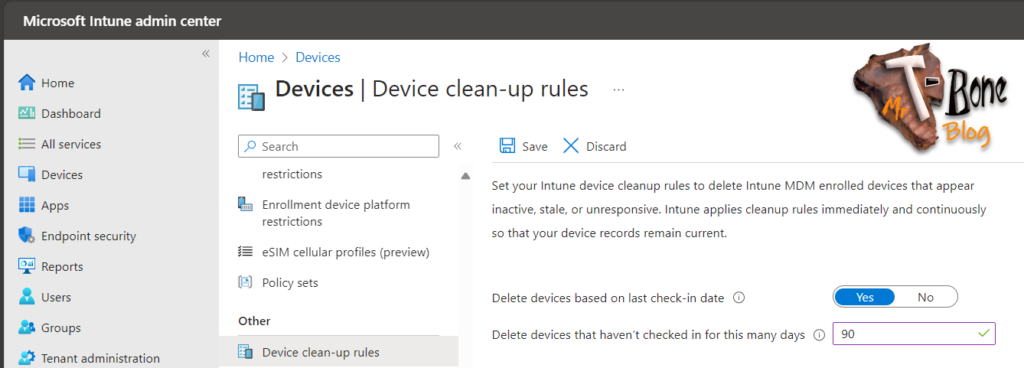
Note: a short period of 30 days might be to short in some environment. I usually keep the default 90-day threshold to maintain a good device accuracy.
Why have i written this script?
Because that above Intune cleanup does not cleanup Entra ID!
To address this gap, I have created this script to efficiently clean up stale devices in your Microsoft Entra ID environment.
Detect Stale Devices
- A stale device is one that has been registered with Microsoft Entra ID but hasn’t accessed any cloud apps within a specific timeframe.
- The key property for detecting stale devices is the ApproximateLastLogonTimestamp (also known as the activity timestamp).
- If the delta between the current time and the activity timestamp exceeds your defined timeframe for active devices, the device is considered stale.
Activity Timestamp is updated when
- Intune managed devices with an active sync schedule
- Conditional Access policies requiring managed devices or approved client apps.
- Active Windows 10/11 that are either Microsoft Entra joined or Microsoft Entra hybrid joined.
What’s New in Version 2.0
Here’s a breakdown of some improvements:
Performance
- Batch queries for devices disable or delete
- Execution time reduced by up to 200% in large tenants
Error Handling
- Reused functions from Intune-Set-IntunePrimaryUsers that have better stability and error handling
- Smarter error handler for Graph errors
- Clearer error messages with actionable context
Reporting
- New Logging function that makes the logging more intelligent. You can log to GUI, Disk or even Event log (does not work in azure automation)
- Detail report now in better table view for Azure Automation
Compatibility
- Supports both Windows PowerShell 5.1 and PowerShell 7.x and Azure Automation
- Requires only the Microsoft.Graph.Authentication module
How to customize the script
Script Parameters
First you need to customize the defaults in parameters to suit your environment. One important thing is to update the $DeviceDisableThreshold and $DeviceDeleteThreshold with the timespan of devices to delete. Make sure to run in $testmore = $true to verify correct devices is being removed.
#region ---------------------------------------------------[Modifiable Parameters and Defaults]------------------------------------
# Customizations
[CmdletBinding(SupportsShouldProcess)]
param(
    [Parameter(Mandatory = $false,          HelpMessage = "Name of the script action for logging. Default is 'Entra ID Cleanup Stale Devices'")]
    [string]$ScriptActionName       = "Entra ID Cleanup Stale Devices",

    [Parameter(Mandatory = $false,          HelpMessage = "Number of inactive days to determine a stale device to disable. Default is 90 days")]
    [ValidateRange(1,365)]
    [int]$DeviceDisableThreshold    = 90,

    [Parameter(Mandatory = $false,          HelpMessage = "Number of inactive days to determine a stale device to delete. Default is 120 days")]
    [ValidateRange(1,365)]
    [int]$DeviceDeleteThreshold     = 120,

    [Parameter(Mandatory = $false,          HelpMessage = "Return report with statistics on how many changed objects. Default is true")]
    [bool]$ReturnReport             = $true,

    [Parameter(Mandatory = $false,          HelpMessage = "Include detailed device changes in the report. Default is true")]
    [bool]$DetailedReport           = $true,

    [Parameter(Mandatory = $false,          HelpMessage = "Save report to disk. Default is false")]
    [bool]$ReportToDisk             = $false,

    [Parameter(Mandatory = $false,          HelpMessage = "Path where to save the report. Default is TEMP directory for Azure Automation compatibility")]
    [string]$ReportPath             = "$env:TEMP",

    [Parameter(Mandatory = $false,          HelpMessage = "Enable verbose logging. Default is false")]
    [bool]$VerboseLogging           = $false,

    [Parameter(Mandatory = $false,          HelpMessage = "Wait time in milliseconds between throttled requests. Default is 1000")]
    [ValidateRange(100,5000)]
    [int]$WaitTime                  = 1000,

    [Parameter(Mandatory = $false,          HelpMessage = "Maximum number of retry attempts for failed requests. Default is 3")]
    [ValidateRange(1,10)]
    [int]$MaxRetry                  = 3,

    [Parameter(Mandatory = $false,          HelpMessage = "Maximum number of items to process in a single batch. Default is 20")]
    [ValidateRange(1,20)]
    [int]$BatchSize                  = 20,

    [Parameter(Mandatory = $false,          HelpMessage = "Testmode, same as -WhatIf. Default is false")]
    [bool]$Testmode                 = $false
    )
#endregion
New Logging function
The more logging the less performance! But although logging is excessive and makes execution time longer. We sometimes need to troubleshoot. I have been poking around with a logging function “Invoke-TboneLog” for a while now. And I have added it to this script. This function can write to GUI, Disk or Eventlog. But, it is completely optional. The function just proxy all write- functions and return the text with colour code and more info:

If removed, the script is using correct write- functions throughout the script. Just remove the lines with the function call for “Invoke-TboneLog” to skip using it.
New Reporting function
I have also added a generic reporting function to use for scripts making changes. it support summary and detailed report and makes a nice output both in gui or in azure automation.
Azure Automation Verbose Logging
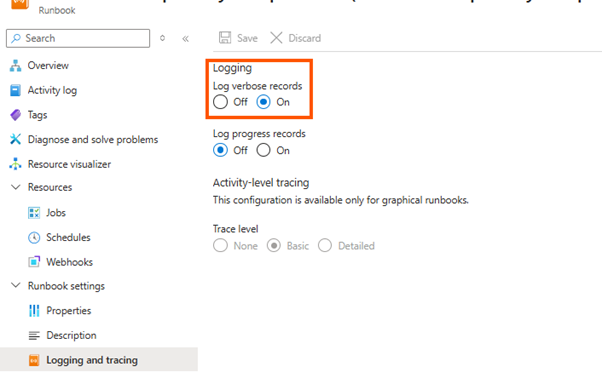
Verbose logging can be enabled in my script, and supported by my logging function. But in Azure Automation, it also needs to be enabled in the Runbook:
How to Get Started
- 👉 Grab the new version here: Invoke-CleanupStaleEntraIDDevices.ps1
- To setup Azure Automation, Have a look at the old post Set Intune Primary User with Azure Automation
- Assign the required Graph API permissions:
- Device.readwrite.all
- Run in Test Mode first: .Intune-Set-PrimaryUsers.ps1 -TestMode $true
- Review the output, then run in production mode.
So, go ahead and test it out and report issues on Github.
About The Author