Merry Scripting Christmas from Mr T-Bone

Christmas is here again. Last night, a soft layer of snow covered everything, turning the world outside into a bright, white wonderland. The snow sparkles in the morning light, making everything look calm and beautiful. The cold air feels fresh and peaceful, reminding us that this season is not just about winter, it’s also about warmth, joy, and the simple beauty around us.
Even during the holidays, a tech nerd like me finds time for their favorite hobby. Between relaxing and enjoying Christmas lights, they open Visual Studio Code, make a quick change to a PowerShell script, and upload it to GitHub. It’s not just about coding, it’s about keeping things organized and improving little by little. Even when life is busy, there’s always a moment to update and share
My gift to you

I’ve just updated my popular Intune scripts that work with the primary user of a device. Now, all three scripts are not only updated but also optimized for better speed and performance. To make future improvements easier, I’ve built a shared core of functions and a common structure. This means I can enhance all three scripts at the same time, keeping them consistent and reliable. If you’re managing Intune devices, these updates will help you save time and simplify your workflow.
- Set-IntunePrimaryUsers
- Add-IntuneScopeTagsBasedOnPrimaryUser
- 🥩Add-IntuneDeviceToGroupBasedOnPrimaryUser🥩(The newest addition)
Why should you use these scripts?
Managing devices in Intune can be challenging because some key features are missing out of the box in Intune. For example:
- Intune does not automatically set the Primary User for a device.
This is critical for reporting, targeting policies, and ensuring the right person gets the right apps and configurations. - There’s no built-in way to assign Scope Tags based on device location or ownership.
Scope Tags help you delegate administration and keep environments secure, but doing this manually is time-consuming and error-prone. - Dynamic grouping based on location or Primary User is not supported.
Without this, you can’t easily apply policies or apps to the right set of devices.
(Autopilot and Device preparation does support dynamic group adding’s. But I have many customers that need this also for existing devices)
That’s why I created these three scripts:
- Set-IntunePrimaryUsers
Automatically assigns the correct Primary User to each device. - Add-IntuneScopeTagsBasedOnPrimaryUser
Applies Scope Tags dynamically based on where the device belongs. - Add-IntuneDeviceToGroupBasedOnPrimaryUser
Adds devices to the right Azure AD groups based on Primary User, enabling location-based or role-based targeting.
What is the Primary User in Intune?
The Primary User is the person mapped to a device as its main licensed user. This link between user and device is critical for Intune’s user-centric management model.
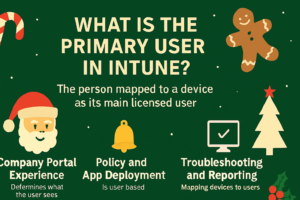
- Company Portal Experience
- The Primary User determines what the user sees in the Company Portal app and website.
- If the correct Primary User is set, the user can install apps, view device details, and perform self-service actions like rename, reset, or retire the device.
- If no Primary User is assigned, the device is treated as a Shared Device, and self-service actions are disabled.
- Policy and App Deployment
- Many Intune policies and app assignments are user-based. If the Primary User is wrong, apps and configurations may not apply correctly.
- Troubleshooting and Reporting
- Mapping devices to users makes it easier for admins to troubleshoot issues and generate accurate reports in Endpoint Manager and Azure portal
- Licensing and Compliance
- The Primary User must have an Intune license. This ensures compliance and proper functionality for device management
Schedule them in Azure Automation
Running these scripts manually works, but scheduling them in Azure Automation makes your environment self-maintaining. Here’s why:
- Consistency: No more missed updates or manual errors.
- Scalability: Handles hundreds or thousands of devices automatically.
- Security & Delegation: Scope Tags and group memberships stay accurate without human intervention.
- Better User Experience: Primary users always get the right apps and policies.
Version handling of my scripts
I’ve finally taken a crash course in version control on GitHub! Now I understand how to update my PowerShell scripts while keeping track of every change with proper change notes. This means I can manage updates in a structured way and make sure everything stays aligned and consistent. I’ll do my best to keep all scripts updated and follow best practices going forward.
Bug fixes and improvements
I’ve updated all three scripts with improvements to their functions, focusing mainly on better error handling and managing error codes when sending requests to Microsoft Graph. These changes make the scripts more stable and improve overall performance. All three scripts now share the same base code and common functions, which makes future updates easier and ensures consistency across the board.
Parameters for all used functions
I’ve added full support for certificate‑based and app‑based authentication when connecting to Microsoft Graph. The script now includes all relevant parameters for Invoke-ConnectMgGraph, so you can choose the method that fits your environment, whether you prefer certificates or an app registration. I also improved how parameters are shown and used in the script. Each parameter now clearly indicates which function it belongs to. This makes the script easier to read, understand, and manage.
#region ---------------------------------------------------[Modifiable Parameters and Defaults]------------------------------------
# Customizations
[CmdletBinding(SupportsShouldProcess)]
param(
    [Parameter(Mandatory = $false,          HelpMessage = "Name of the script action for logging. Default is 'Intune Primary User'")]
    [string]$ScriptActionName       = "Intune Set Scope Tags based on Primary User",

    [Parameter(Mandatory = $false,          HelpMessage = "Device operatingsystems to process ('All', 'Windows', 'Android', 'iOS', 'macOS'). Default is 'Windows'")]
    [ValidateSet('All', 'Windows', 'Android', 'iOS', 'macOS')]
    [string[]]$OperatingSystems     = @('Windows'),

    [Parameter(Mandatory = $false,          HelpMessage = "Attribute to use for the mapping. Default is 'Country'")]
    [string]$MappingAttribute       = "Country",

    [Parameter(Mandatory = $false,          HelpMessage = "Filter Intune only managed devices (true) or also include Co-managed devices (false). Default is true")]
    [bool]$IntuneOnly               = $true,

    [Parameter(Mandatory = $false,          HelpMessage = "Filter to only include devicenames that starts with specific strings like ('Tbone', 'Desktop'). Default is blank")]
    [string[]]$IncludedDeviceNames  = @(),

    [Parameter(Mandatory = $false,          HelpMessage = "Filter to exclude devicenames that starts with specific strings like ('Tbone', 'Desktop'). Default is blank")]
    [string[]]$ExcludedDeviceNames  = @(),

    [Parameter(Mandatory = $false,          HelpMessage = "Testmode, same as -WhatIf. Default is false")]
    [bool]$Testmode                 = $false,
    # ---------------------------------- Authentication (Invoke-ConnectMgGraph) Leave blank if use Interactive or Managed Identity-------------------------
    [Parameter(                             HelpMessage = "Entra ID Tenant ID (directory ID) (required for Client Secret or Certificate authentication)")]
    [ValidateNotNullOrEmpty()]
    [string]$AuthTenantId,

    [Parameter(                             HelpMessage = "Entra ID Application ID (ClientID) (required for Client Secret or Certificate authentication)")]
    [ValidateNotNullOrEmpty()]
    [string]$AuthClientId,

    [Parameter(                             HelpMessage = "Client Secret as SecureString for app-only authentication (require also ClientId and TenantId)")]
    [ValidateNotNull()]
    [SecureString]$AuthClientSecret,

    [Parameter(                             HelpMessage = "Certificate thumbprint for certificate-based authentication (if certificate is stored in CurrentUser or LocalMachine store)")]
    [ValidateNotNullOrEmpty()]
    [string]$AuthCertThumbprint,

    [Parameter(                             HelpMessage = "Certificate subject name for certificate-based authentication (if certificate is stored in CurrentUser or LocalMachine store)")]
    [ValidateNotNullOrEmpty()]
    [string]$AuthCertName,

    [Parameter(                             HelpMessage = "File path to certificate (.pfx or .cer) for certificate-based authentication (if certificate is stored as a file)")]
    [ValidateNotNullOrEmpty()]
    [string]$AuthCertPath,

    [Parameter(                             HelpMessage = "Password for certificate file as SecureString (required if certificate is stored as a file and password-protected)")]
    [SecureString]$AuthCertPassword,
# ---------------------------------- Logging (Invoke-TboneLog)-------------------------------------------------------
    [Parameter(Mandatory = $false,          HelpMessage='Show output in console during execution')]
    [bool]$LogToGUI                 = $true,
................
Reporting function
I’ve improved the reporting function, Invoke-ScriptReport, so it can dynamically add different actions and details. It now uses a small inline helper that writes each line to the report and, at the same time, tracks statistics on how many objects were processed per action. This makes reports easier to read and gives you a quick summary of what happened during the run.
# Initialize hashtable and helper for reporting (used by invoke-scriptreport)
[hashtable]$ReportResults = @{}
[scriptblock]$addReport = {param($Target,$OldValue,$NewValue,$Action,$Details)
    if(-not $ReportResults.ContainsKey($Action)){$ReportResults[$Action]=[System.Collections.ArrayList]::new()}
    $null=$ReportResults[$Action].Add([PSCustomObject]@{Target=$Target;OldValue=$OldValue;NewValue=$NewValue;Action=$Action;Details=$Details})}
The reporting function now offers flexible output options.You can choose to display full details for every action, useful in azure automation, or just show a summary at the end. In addition, the report can be saved to disk for later review or auditing. Example report output:
Target         OldValue                                     NewValue              Action               Details
------         --------                                     --------              ------               -------
TBONE-AAD9468  Intune All Devices FR                        Intune All Devices SE Success-AddedRemoved Added to correct group and removed from incorrect groups
Tbone-PF1J6Z5M Intune All Devices DE, Intune All Devices SE Intune All Devices FR Success-Removed      Removed from incorrect groups

═══════════════════════════════════════════════════════════
  Intune Set Scope Tags based on Primary User
═══════════════════════════════════════════════════════════
  Start:    2025-12-23 10:38:01
  End:      2025-12-23 10:38:08
  Duration: 00:00:07
───────────────────────────────────────────────────────────
  Summary
    Success-AddedRemoved          :      1 (   50%)
    Success-Removed               :      1 (   50%)
    Total Objects                 :      2
Wrapping It Up
Managing Intune effectively means filling the gaps that Microsoft hasn’t solved yet. Setting the Primary User, applying Scope Tags, and dynamically grouping devices are essential for accurate policy targeting, better user experience, and secure delegation. That’s why I built these three scripts, and this is why scheduling them in Azure Automation is the smart move. Once set up, they keep your environment clean, consistent, and hands-free.
Ready to simplify your Intune management?
Download the scripts, schedule them, and let automation do the heavy lifting. Your users get the right apps and policies, and you get peace of mind.
About The Author