
Remember BIOS_passwords_FINAL_v3.xlsx from my DFCI post? It has a cousin in Active Directory. It is a GPO called something like WSUS Settings – DO NOT TOUCH, it is linked to the root of the domain, and the person who created it left the company long before anyone had heard of Windows Autopatch.
Then we move the devices to Intune. We build update rings, we enroll the devices in Autopatch, we create beautiful policies with deferrals, deadlines and grace periods. And the device keeps doing exactly what that old GPO tells it to do. Because when it comes to Windows Update, Group Policy has always beaten MDM. Simple as that.
Now Microsoft has given us two things that make our life easier🎉🎉
- Granular controls for multiple updates in Windows Autopatch. Announced on the Windows IT Pro Blog on November 12. One quality update policy now handles Windows quality updates, .NET Framework updates and quick machine recovery updates, with an approval method per update type and new reports to go with it
- IgnoreWindowsUpdateGroupPolicies. A new setting in the Update policy CSP that arrived much more quietly with a Windows 11 update this summer, and that the Autopatch documentation now recommends for handling Group Policy conflicts
The first one gives you more control. The second one makes sure Windows actually listens. In this post I go through both, and then I dig into the question I asked myself the minute I read about the new setting: does it also take care of the keys that ConfigMgr writes, and the ones somebody set by hand?
One quality update policy, three kinds of updates
Until now, update rings gave your devices the monthly security update, and that was more or less it. Preview releases and out-of-band fixes were something you handled on the side, and letting a hand-picked group of devices get a specific update early was not exactly a one-click job.
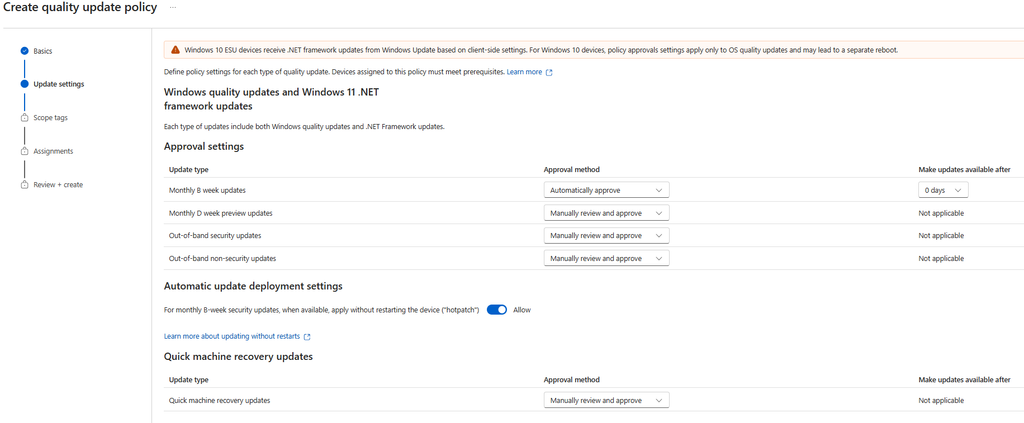
The Windows quality update policy in Intune now covers three update types, and you decide how each one is approved:
| Update type | What it is | Approval |
|---|---|---|
| Windows quality updates | The monthly cumulative updates | Automatic or manual. Microsoft recommends automatic for security updates |
| .NET Framework updates | Supported .NET Framework updates for Windows 11 | Follows the Windows quality update settings by default, but can be handled on its own |
| Quick machine recovery updates | Fixes Microsoft delivers to devices that can’t start | Manual by default. Automatic, with an optional deferral, if you want it |
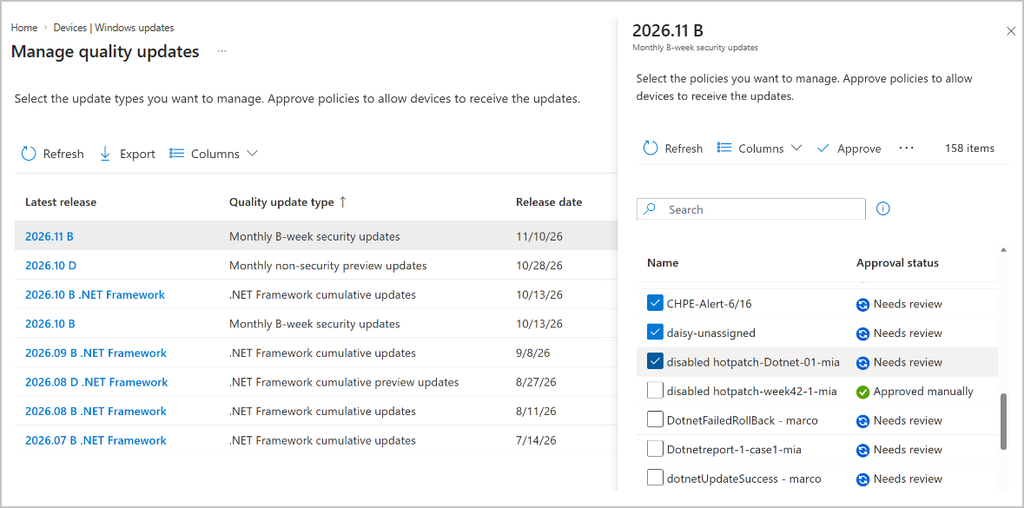
If you already use Windows Autopatch, you find the policy in the Intune admin center under Devices > Manage updates > Windows updates > Quality updates. The top section of the policy covers Windows quality updates and .NET Framework updates together, with the approval method and when the updates are offered. Quick machine recovery has its own section right below.
Automatic or manual approval
| Automatic approval | Manual approval | |
|---|---|---|
| Use it for | Security updates. This is Microsoft’s recommendation | Optional updates, or when your change control says so |
| Timing | Offered after the deferral you set in Make updates available after (0–30 days) | Offered as soon as you approve. No deferral |
| Your manual windows update effort | None. That is the whole point | Manually check Needs review under Manage updates |
You can mix both methods in the same policy. A setup I like is automatic approval for the monthly security update and .NET, and a conscious decision about quick machine recovery (more about that in a minute).
.NET Framework: together by default, separate when needed
By default your approval settings apply to both Windows quality updates and .NET Framework updates, and shipping .NET in the same update cycle as the Windows update is now the default. That means fewer interruptions and fewer restarts for the users, and I like that a lot. If you need to, you can still review, approve and pause .NET Framework updates on their own under Manage updates. Pausing one type does not pause the other.
Quick machine recovery: the fix for the day nobody wants
Quick machine recovery is what kicks in when a device fails to start two times in a row. The device boots into the Windows Recovery Environment (WinRE), and if Microsoft has a fix for the problem, the device downloads and applies it. You can now manage those fixes in the same quality update policy, and approve, pause and resume them just like other quality updates. The default approval method is manual.
My take: whatever you choose for quick machine recovery, make it a decision and not a default. If you keep manual approval, put a line in your incident runbook that says: approve the quick machine recovery fix in Intune. The day you need it, nobody will have time to look for the button.
The part I want you to read twice: deferrals are replaced, not added
If you already have update rings or Autopatch groups, you don’t have to start over. The quality update policy works together with them. But the quality update policy now decides when a device takes each update:
- Automatic approval: the deferral in the quality update policy replaces the deferral in your ring or Autopatch group. It is not added on top
- Manual approval: no deferral at all. You approve, the devices get it
- Deadlines and grace periods still come from your ring or Autopatch group, just like before
Example: your ring defers quality updates 7 days and your quality update policy defers 3 days. Your devices get the update 3 days after release. Not 10.
So if you want to keep your gradual rollout and get approvals, create one quality update policy per ring, with the same deferral and the same assignment as the ring. Rings with 0, 2 and 7 days of deferral means three quality update policies with 0, 2 and 7 days.
And a small tip from Microsoft that is easy to miss: if you created a quality update policy for hotpatch before approvals showed up in your tenant, open it, review the approval settings and save it.
New reports: where do my devices actually stand?
There are two Autopatch quality update reports for devices in quality update policies, and the data refreshes every four hours. Go to Reports > Windows Autopatch > Windows quality updates and select Reports.
Start with the Quality update status report. Two new columns matter most with the new controls:
- Target release: the latest approved quality update. For devices in update rings, that is the latest B-week release
- Target release available: the date by which the device must install the update
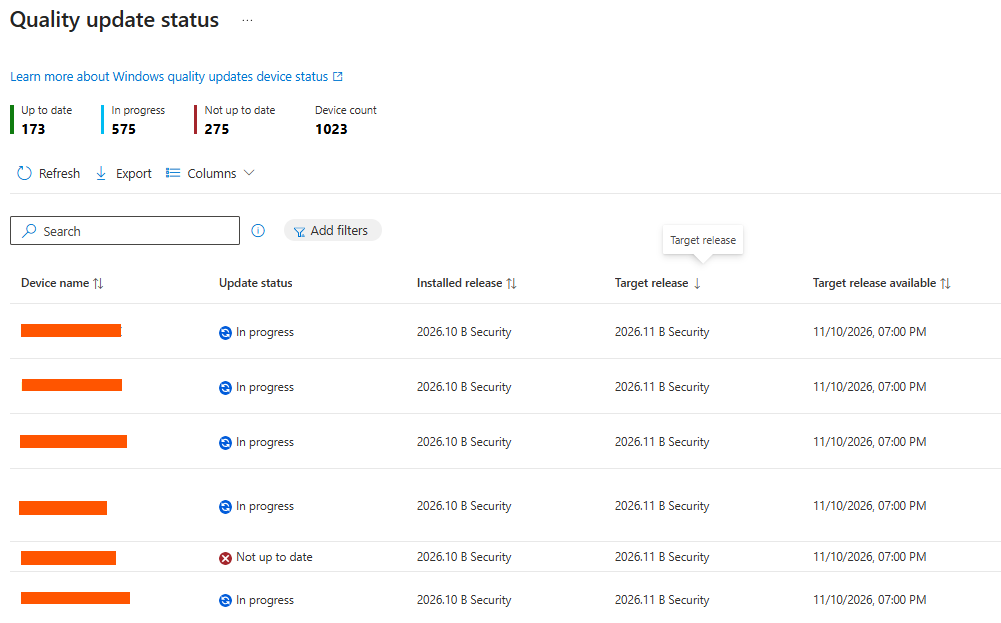
For devices that are in both an update ring and a quality update policy, the date is calculated like this:
| Approval method | Target release available |
|---|---|
| Automatic | Release date + quality update policy deferral + deadline days |
| Manual | Approval date + deadline days |
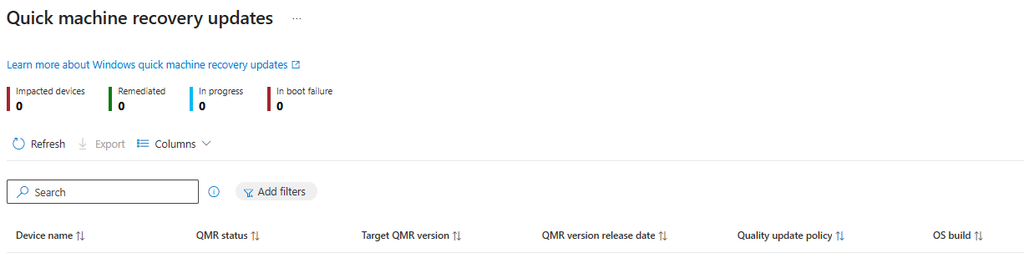
The new Quick machine recovery updates report shows devices that had a boot failure, with a recovery status (In boot failure, In progress or Remediated), the fix version and the policy that deployed it. It stays empty until something boot-critical happens. This is the one report in Intune I hope stays empty forever:
No more GPO history (for windows updates)!
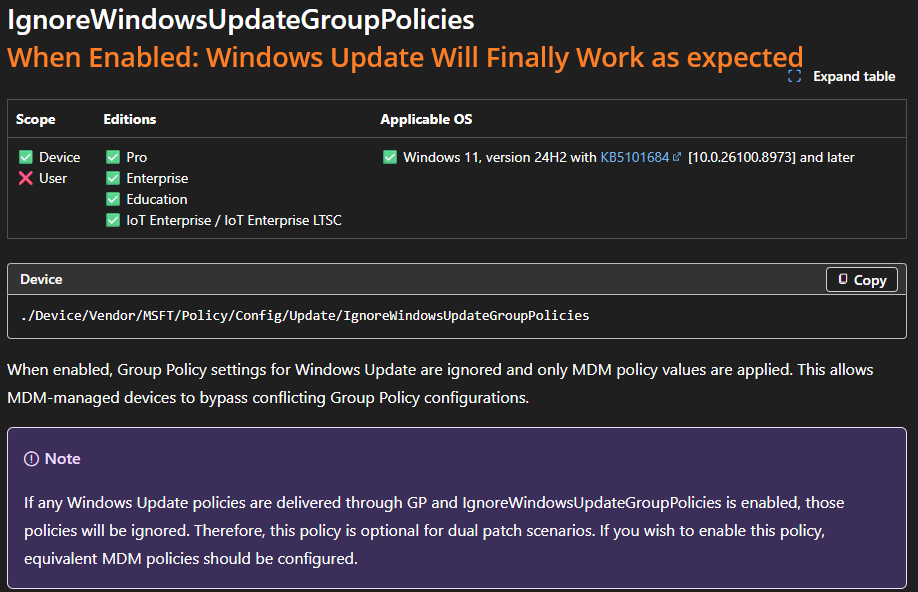
IgnoreWindowsUpdateGroupPolicies is a new device setting in the Update policy CSP. Set it to 1, and Windows Update ignores the Group Policy settings for Windows Update and applies only the MDM values. This is awesome!
Why this setting exists
Here is the uncomfortable part. All those shiny new controls live in MDM. And for Windows Update, MDM has always been the little brother. The Autopatch documentation says it without blushing: Group Policy and other policy managers can take precedence over MDM, and for quality updates a device can even become ineligible for Autopatch management if something modifies the Windows Update policy keys.
The classic workaround, MDMWinsOverGP, never really solved this for updates. For years its documentation said it didn’t apply to the Update CSP at all, and today Microsoft is crystal clear: don’t use it to control update policy conflicts, because it “may not produce reliable update policy precedence”.
So until now, the only real fix was to hunt down every source and remove it. Microsoft even warns that other services can write the keys back after you have deleted them. Whack-a-mole, in other words.
But hey, didn’t MDMWinsOverGP fix that?
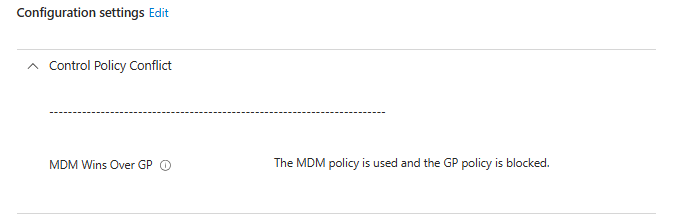
No. That is a common mistake. MDMWinsOverGP only wins when Intune sets the exact same setting as the GPO. Everything else in the old GPO still applies, and not every GPO setting even has an Intune version. And for Windows Update, Microsoft says it may not reliably decide which policy wins. That is why Microsoft now tells us to use IgnoreWindowsUpdateGroupPolicies for update conflicts instead.
| MDMWinsOverGP | IgnoreWindowsUpdateGroupPolicies | |
|---|---|---|
| Scope | Policy CSP settings that have a Group Policy equivalent | Windows Update only |
| How | Per setting. Group Policy is blocked where an equivalent MDM setting is configured | All or nothing. Group Policy for Windows Update is ignored |
| Where it acts | On the Group Policy side | In Windows Update’s own policy handling |
| Settings that only exist in a GPO | Still apply | Ignored too, so configure them in Intune |
| Microsoft’s advice for update conflicts | keep it but add IgnoreWindowsUpdateGroupPolicies for Windows Update | Recommended in the Autopatch documentation |
| Minimum OS | Windows 10 1803 | Windows 11 24H2 with KB5101684 |
My take: this is not an “MDM wins”, it is an “ignore”. MDMWinsOverGP lets Group Policy keep the settings MDM doesn’t touch. IgnoreWindowsUpdateGroupPolicies throws all Windows Update Group Policy out. That is exactly what you want on an Autopatch device, but it also means that every Windows Update setting you still need must exist in Intune before you flip the switch. Microsoft says the same thing: if you enable it, configure the equivalent MDM policies.
Does it also ignore ConfigMgr keys and keys set by hand?
This was my first question. The documentation only talks about Group Policy settings for Windows Update. It doesn’t mention Configuration Manager, LGPO in the golden image or that .reg file somebody imported back in 2019. So I followed the registry.
Here is the thing: Windows Update has no idea who wrote a value. Domain GPOs, local policy, ConfigMgr, scripts and that .reg file all end up in exactly the same place:
HKLM\SOFTWARE\Policies\Microsoft\Windows\WindowsUpdate
HKLM\SOFTWARE\Policies\Microsoft\Windows\WindowsUpdate\AU
It is also the list of usual suspects in Microsoft’s Autopatch conflicting configurations article: Active Directory Group Policy, Configuration Manager client settings, manual registry updates and local Group Policy applied during imaging.
| Source | How it lands on the device | Ignored when the setting is 1? |
|---|---|---|
| Domain GPO | Group Policy, in the policy branch | Yes. This is what the setting is for |
| Local Group Policy / LGPO in the image | Local Group Policy, same branch | Yes. It is Group Policy |
| ConfigMgr client settings (Software Updates) | Written as local policy, shows up as Local Group Policy in RSoP | Yes, for Windows Update’s decisions. Read the dual patch warning below |
| Scripts, .reg files, RMM and patch tools, manual edits | Written straight into the same branch | Yes, by the same logic: same key, same reader. Test it in your lab |
| Intune and Autopatch | MDM, under PolicyManager\current\device\Update | No. These are the values that win |
Why I am fairly confident about this:
- ConfigMgr writes Group Policy. Microsoft’s own Autopatch troubleshooting says that Windows Update policies labelled Local Group Policy in RSoP were applied during imaging or by Configuration Manager. Same branch, same reader
- Windows already treats manual keys as Group Policy. There is numerous reports on Intune-only devices that show automatic updates as turned off by Group Policy. One of the root causes is other patch management tools that has been, or is active, writing the registry keys. Windows didn’t care who wrote it. To Windows Update, it was Group Policy
- The new setting acts in Windows Update, not in the Group Policy engine. Windows Update skips its Group Policy reader and simply do not read them.
So yes. In practice the setting also neutralizes keys written by ConfigMgr and keys set by hand, as long as they live in the Windows Update policy branch. And that is where all the usual troublemakers live: WUServer, UseWUServer, NoAutoUpdate, DoNotConnectToWindowsUpdateInternetLocations, DisableWindowsUpdateAccess and the scan source values.
Is it written in black and white by Microsoft? No. Microsoft says Group Policy, so test it in your lab before you promise anything to your CISO. I show you how further down.
Three things to know before you celebrate
1. It ignores, it doesn’t clean. Nothing in the documentation says the values are removed. They stay in the registry, and Windows Update just stops listening to them. Anything that reads the raw registry (your scripts, your inventory, maybe even readiness checks) can still see them. And if the setting is ever removed, for example when a device leaves Intune, the old values are back in business. Keep cleaning up the source.
2. It is all or nothing. Every Windows Update setting from Group Policy is ignored, including the ones you actually wanted: active hours, restart behavior, a WSUS server for drivers. Configure what you need in Intune first, then flip the switch.
3. Dual patch devices need extra love. Many co-managed environments still let ConfigMgr deliver third-party updates through WSUS while Windows updates come from Intune. ConfigMgr points Windows Update to the software update point through local policy, so that pointer is ignored too when the setting is on. Microsoft calls the setting optional for dual patch scenarios, and says that if you enable it you should configure the equivalent MDM policies. In practice:
- Leave the setting off for those devices, or
- Deliver the WSUS address (
UpdateServiceUrl) and all four scan source values (SetPolicyDrivenUpdateSourceFor*) from Intune, and test that your third-party updates still flow
Summary
The new Autopatch controls give us what we have been asking for: approvals per update type, .NET in the same cycle as Windows, and a say in quick machine recovery. IgnoreWindowsUpdateGroupPolicies gives us something just as important: a Windows Update that listens to Intune instead of a GPO from 2014.
And yes, as far as I can see it also silences the keys ConfigMgr writes and the ones somebody set by hand, because to Windows Update they are all just Group Policy. Just remember that ignoring is not the same as cleaning.
Now go and find that GPO. You know the one. 😀