Secure Boot, Take 3: The Last 2011 Certificate Expires on Monday
In January I wrote the blog “Update Secure Boot Certificate by using Intune Remediation“. Four weeks later I had to publish “Update Secure Boot Certificate by using intune remediation Take 2“, because I had written the wrong status values and the wrong registry value, both in the blog and in the script. As I put it back then: I did mistakes! Simple as that.
Since then, two of the three old Microsoft Secure Boot certificates have expired. The KEK CA 2011 went on June 24 and the UEFI CA 2011 on June 27. On Monday, October 19, the last one goes: the Microsoft Windows Production PCA 2011, the certificate that signs the Windows boot loader.
Here is the uncomfortable part. On Monday, nothing happens!
- No blue screens
- No boot loops
- No tickets
And that is exactly the problem. A device that never got the new certificates keeps working perfectly, while it quietly loses the ability to get new protection for the earliest part of startup. It reminds me of a DFCI profile that sits there looking successful while the firmware ignores it. Silence is not the same as success.
So this is Take 3 will explain what really happens on Monday, how to see where your fleet stands, how my scripts compare with what Microsoft offers today, and the devices that will still need a human runner to fix them.
What expires, and when
| Certificate | Expires | Replaced by | What it signs |
| Microsoft Corporation KEK CA 2011 | June 24, 2026 | Microsoft Corporation KEK 2K CA 2023 | Updates to the DB and DBX |
| Microsoft UEFI CA 2011 | June 27, 2026 | Microsoft UEFI CA 2023 and Microsoft Option ROM UEFI CA 2023 | Third-party boot loaders, EFI apps and option ROMs |
| Microsoft Windows Production PCA 2011 | October 19, 2026 | Windows UEFI CA 2023 | The Windows boot loader |
An expired certificate can’t sign anything new. From now on, new DB and DBX updates are signed with the new KEK, and new Windows boot managers are signed with Windows UEFI CA 2023. A device that doesn’t trust the new certificates simply can’t take them.
What actually happens on Monday (and what doesn’t)
Microsoft is refreshingly clear about this:
- The device keeps starting and working normally
- Standard Windows updates keep installing
- The device can no longer receive new protection for the early boot process. That means updates to Windows Boot Manager, the Secure Boot databases and revocation lists, and mitigations for newly discovered boot-level vulnerabilities
Microsoft also warns that it can affect scenarios that rely on Secure Boot trust, such as BitLocker hardening and third-party boot loaders. And here is one line I want you to read it twice:
Secure Boot should not be disabled to work around certificate expiration. A device with Secure Boot turned off doesn’t get the new certificates at all, and it stays open to bootkits.
My take: the expiry is not a cliff, it’s a slope. Every boot-level vulnerability found after Monday is a fix that devices on the old chain will never get. Remember BlackLotus, the bootkit that got past Secure Boot? That’s the kind of attack we’re talking about. The good news: it’s not too late. Microsoft’s FAQ confirms that the updates can still be applied after the old certificates have expired, as long as the device can boot Windows and install updates. Monday is a deadline for your attention, not a point of no return.
Check where your fleet stands
There are three ways to see where you stand. Pick the one your licensing allows.
Option 1: The Secure Boot status report
If your devices are managed by Windows Autopatch, this is the fastest view:
- Sign in to the Intune admin center
- Go to Reports > Windows Autopatch > Windows quality updates
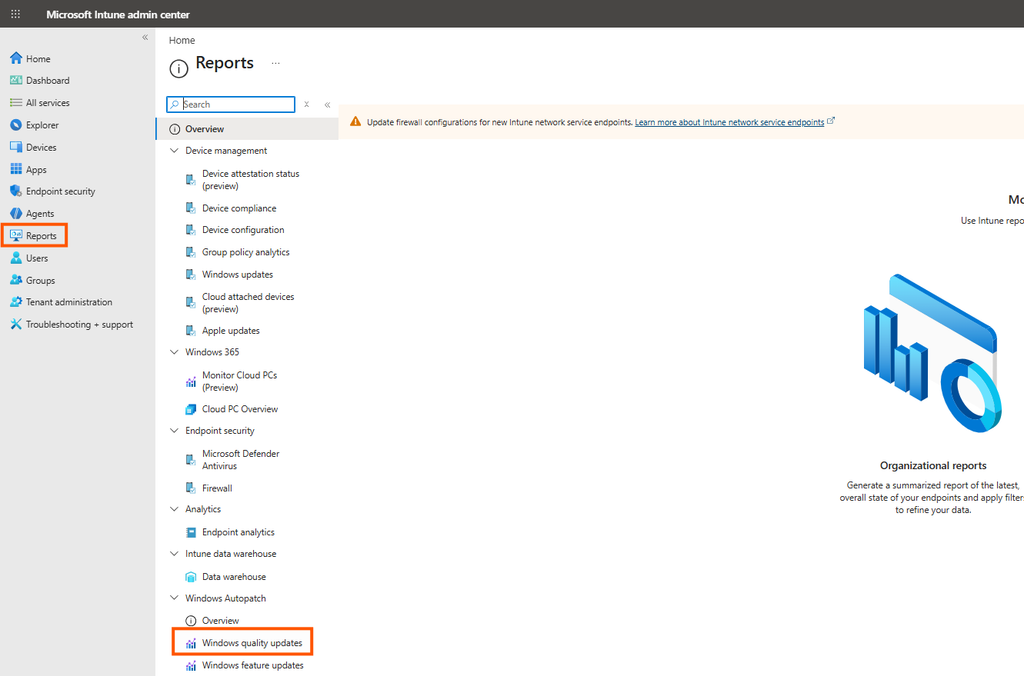
- Select the Reports tab
- Select Secure Boot status
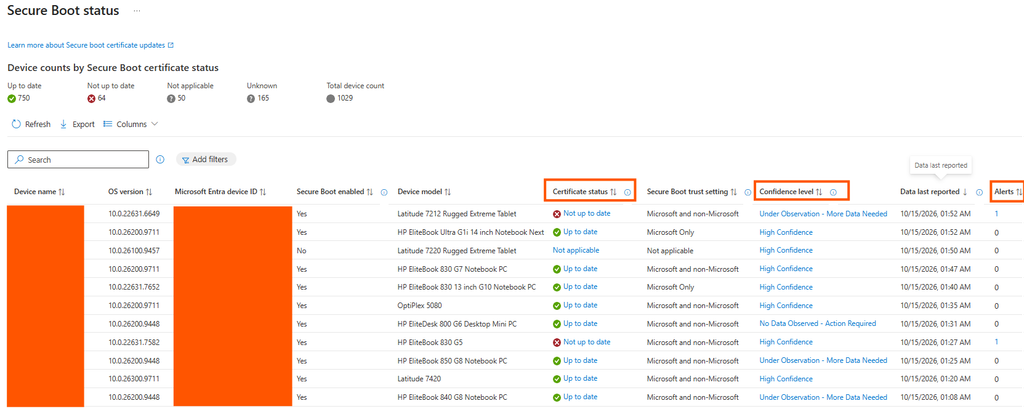
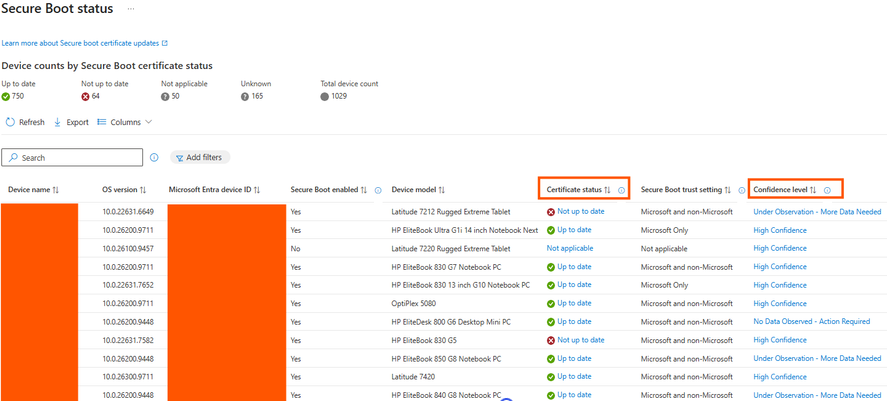
Three columns deserve your attention:
- Certificate status: Up to date, Not up to date or Not applicable. Select the value to see exactly which certificates are missing
- Confidence level: Microsoft’s view, based on similar devices, of whether the update can be applied safely
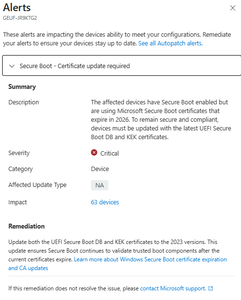
- Alerts: for example non updated devices
A few things to know before you trust it:
- The report runs on Windows diagnostic data. The tenant needs the Data Processor Service for Windows enabled, and devices that haven’t reported for more than 28 days can show up as Unknown
- After an update and a restart, it can take up to 12 hours before the report catches up
- If your scripts and the report disagree, check the Secure Boot trust configuration column first. A device that trusts only Microsoft-signed components doesn’t need the third-party certificates, so it can be Up to date even when they’re missing
- Microsoft Teams Rooms devices aren’t supported
Option 2: A detection script in Remediations
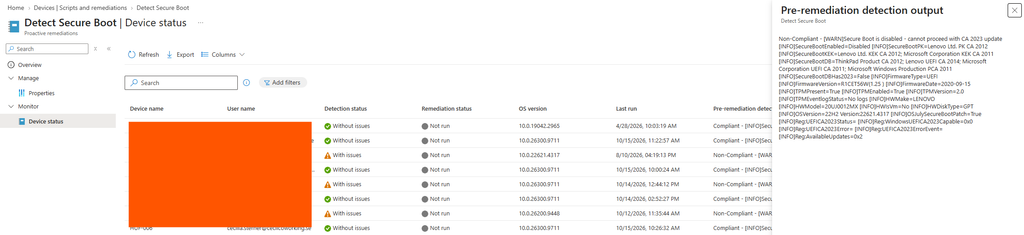
Less than two weeks after my Take 2, Microsoft published its own approach: Monitoring Secure Boot certificate status with Microsoft Intune remediations. It’s detection only. The script reads the Secure Boot registry values, device details and events 1801 and 1808, and reports everything back to Intune as JSON. Nothing changes on the device.
A nice detail: on devices with a Windows update from May 12, 2026 or later, Microsoft’s sample script is already on the disk, in:
%systemroot%\SecureBoot\ExampleRolloutScripts
My own Detect-SecureBoot2023Cert.ps1 does the job in a simpler way: it checks whether Windows UEFI CA 2023 is in the DB. Use whichever you like, but use one.
Option 3: Check one device yourself
In an elevated PowerShell on the device:
# Is Windows UEFI CA 2023 in the DB?
[System.Text.Encoding]::ASCII.GetString((Get-SecureBootUEFI db).bytes) -match 'Windows UEFI CA 2023'

# Is the new KEK in place?
[System.Text.Encoding]::ASCII.GetString((Get-SecureBootUEFI kek).bytes) -match 'Microsoft Corporation KEK 2K CA 2023'
# How far has servicing come?
Get-ItemProperty 'HKLM:\SYSTEM\CurrentControlSet\Control\SecureBoot\Servicing' | Select-Object UEFICA2023Status, UEFICA2023Error, WindowsUEFICA2023Capable
What to look for:
| Signal | Done | Not there yet |
| UEFICA2023Status | Updated | NotStarted or InProgress |
| UEFICA2023Error | Doesn’t exist | Exists, with an error code |
| WindowsUEFICA2023Capable | 2 | 0 or 1 |
| System event log | Event 1808: the new certificates are applied | Event 1801: not applied yet. Event 1795: the firmware didn’t accept the update |
For the record, my own Surface Laptop 7 logged event 1808 on February 6, the same day I published Take 2.
Update Certificates with a policy and a model filter
This is Microsoft’s recommended setup, and it’s mine too:
- In the Intune admin center, go to Devices > Manage devices > Configuration > Create > New policy
- Select Windows 10 and later and Settings catalog
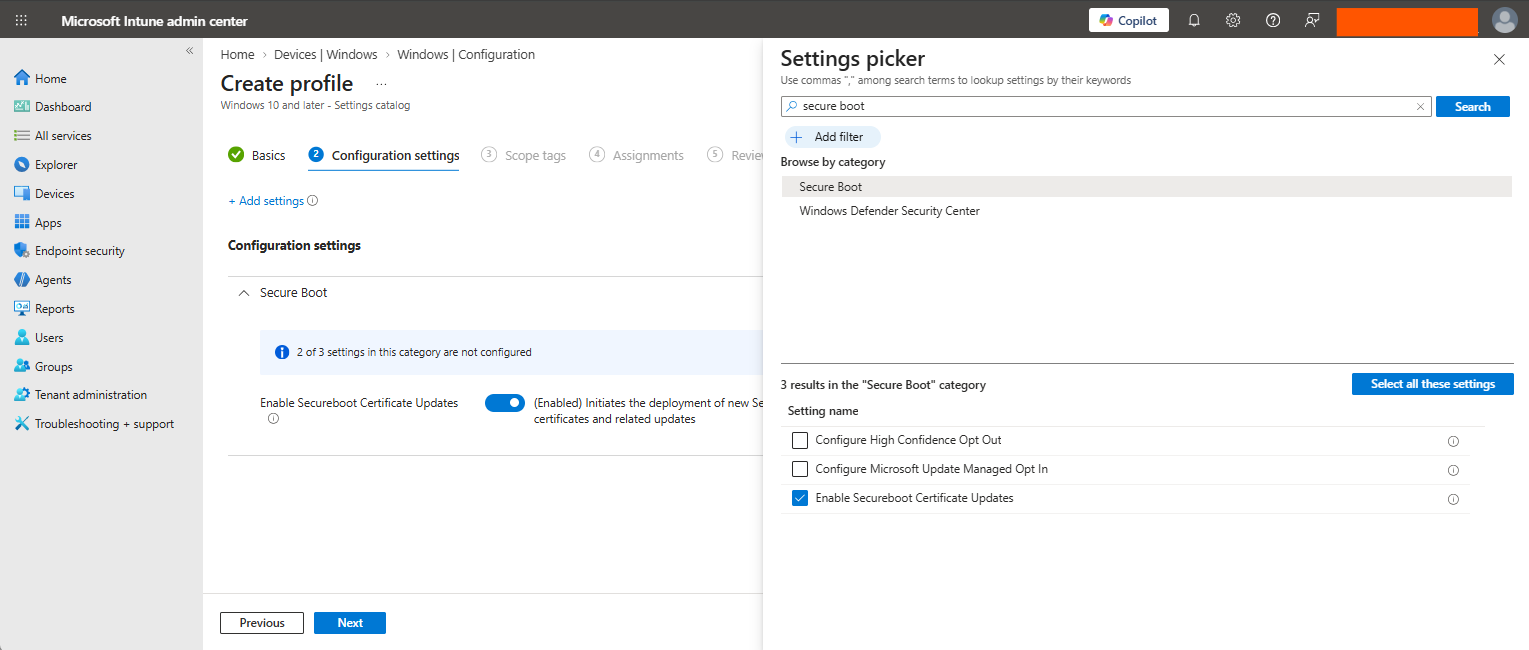
- Search for Secure Boot and add:
Enable Secureboot Certificate Updates - Set it to Enabled
- Give the policy a name that explains itself, like WIN-SecureBoot-CertUpdate
- Go to Tenant administration > Assignment filters and create a filter for the device model you have tested
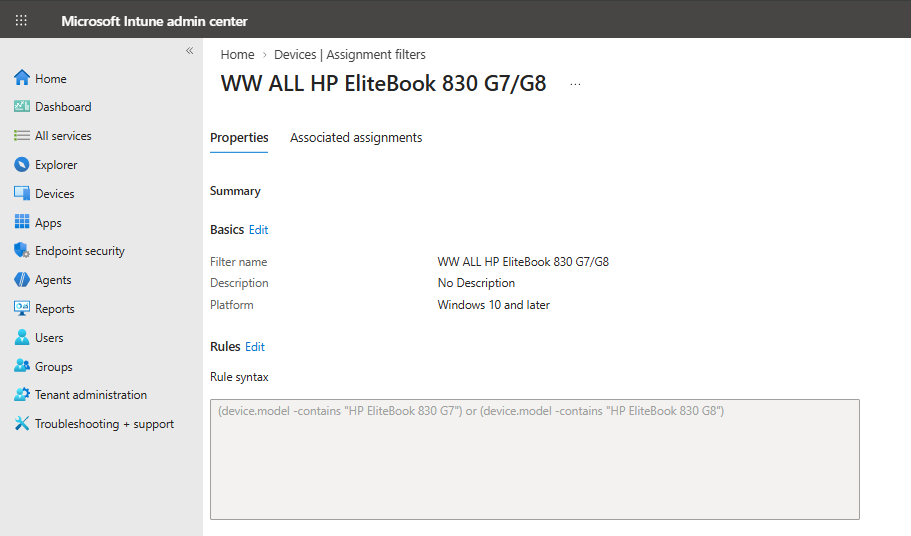
- Assign the policy to All devices, with the filter in Include mode
- When the first model looks good, add the next one to the filter
What to expect:
- The task that processes the setting runs every 12 hours, and a restart may be needed. Microsoft says to allow about 48 hours and one or more restarts
- Once the certificates are in the firmware, Windows can’t remove them. That can only be done in the firmware
- Error 65000 on Windows Pro was a licensing issue that Microsoft fixed in January. Licenses renew every month, so it should be gone by now, but Windows 11 23H2 Pro can still hit it
Bonus: the new deployment plans with rings in Intune (public preview) support Settings catalog policies, so you could also roll this out in rings.
The devices that still need a human
Even if you inventory, set the regkeys, deploy the settings catalog setting, there is always some devices the totally refuse to update. Some examples:
- Old firmware. Some devices need an OEM firmware update before Windows can write the new certificates. Watch for event 1795, which means the firmware didn’t accept the update. Also watch for AvailableUpdates stuck at 0x4104 after several restarts, which means the device can’t get past the new KEK. Both are questions for your OEM
- Temporarily Paused and Not Supported. In the status report, Temporarily Paused means a known issue: don’t deploy, look for OEM firmware and follow Microsoft’s guidance (event 1802). Not Supported – Known Limitation means: exclude the device and document it as an exception
- Secure Boot turned off. These devices don’t get the certificates at all. Turn Secure Boot on and require it in your compliance policy. With the new client-driven compliance evaluation (preview), a device that turns it off gets flagged faster
- Windows versions out of support. Only supported versions of Windows get the certificates
- Windows Server. It has its own playbook, linked below
- VMs, Cloud PCs and AVD. Long-running VMs can be updated through Windows, if their virtual firmware supports Secure Boot updates. Wearing my AVD hat: Windows 365 Cloud PCs and AVD session hosts with Secure Boot are in scope, and so are your custom and golden images. Microsoft has a guide for each
- Dual boot with Linux. These devices depend on the third-party UEFI CA, so check your distribution’s guidance too
Two things your service desk needs to know
BitLocker. On devices with outdated firmware, or where the update doesn’t apply correctly, Microsoft lists BitLocker recovery prompts among the risks, even repeated ones. Make sure every recovery key is escrowed before you push a new model. The last thing you want on Tuesday morning is a queue of users reading 48-digit keys over the phone.
Resetting UEFI to defaults is no longer harmless. If Windows already boots with the 2023-signed boot manager and someone resets the firmware to defaults that don’t include Windows UEFI CA 2023, Secure Boot blocks the boot. The fix is a recovery USB that puts the certificate back. OEM firmware updates also update those defaults, which is one more reason to keep firmware current.
What comes after Monday: your boot media
Updating the certificates is step one. Step two, part of Microsoft’s mitigations for BlackLotus (CVE-2023-24932), is revoking the old Windows Production PCA 2011 by adding it to the DBX. Once that happens on a device, boot media signed with the old certificate won’t start on it anymore. That means USB sticks, WinPE and PXE boot images.
So start rebuilding your boot media now. With Windows ADK 10.1.26100.2454 (December 2024) or later, MakeWinPEMedia with the /bootex switch creates WinPE media signed with Windows UEFI CA 2023. For other media, Microsoft has a guide to updating Windows bootable media, linked below.
Monday-morning checklist
- Open the Secure Boot status report or your Remediation, and count the devices that aren’t up to date, per model
- Make sure BitLocker recovery keys are escrowed for those devices
- Update OEM firmware on the models that need it
- Deploy Enable Secureboot Certificate Updates with a model filter, one tested model at a time, and only one deployment method per device
- Allow about 48 hours and a restart or two, then check again
- List your exceptions (Not Supported, Temporarily Paused, unsupported Windows versions) and document them
- Don’t forget servers, VMs, Cloud PCs, AVD session hosts and golden images
- Start rebuilding your boot media with the 2023-signed boot manager
- Keep Secure Boot on, and require it in compliance
Summary
On Monday nothing breaks, and that’s exactly why it’s so easy to ignore. The old certificates won’t take your devices down. They just stop your devices from getting better. The tools are finally where they should be:
- Report that shows where you stand
- Policy that does the work
- Filter that keeps you in control.
Use them, and keep my scripts for the stragglers. If you find a bug in them, open an issue on GitHub. Even I can make mistakes. That’s why this is Take 3😀
About The Author