Modern Drive and Printer Mapping for Cloud-Native Windows with Intune and PowerShell
Moving to Cloud-native Windows devices solves a lot of old problems, but it also removes some of the assumptions that classic IT automations relied on. Traditional logon scripts, Group Policy-driven mappings, and on-premises management patterns do not translate cleanly into an Intune-first world. Yet many organizations still need the same outcome: users should get the right network drives or printers, based on who they are, with as little friction as possible.
I have done some scripting on this topic before, but have now built a really awesome script (if you ask me)!
You can find them on my Github
Intune/Map-DrivesCloudNative.ps1 at master · Mr-Tbone/Intune
Intune/Map-PrintersCloudNative.Ps1 at master · Mr-Tbone/Intune
What is Cloud Native Windows?
A cloud‑native Windows device is a Windows device that doesn’t rely on on‑prem infrastructure (no traditional domain, no AD dependency) Instead, it is:
- Joined to Microsoft Entra ID
- Managed via Intune
- Deployed with Autopilot
- Configured and secured over the internet
It doesn’t mean the device is in the cloud, it means management, identity, and control come from the cloud, not your datacenter.
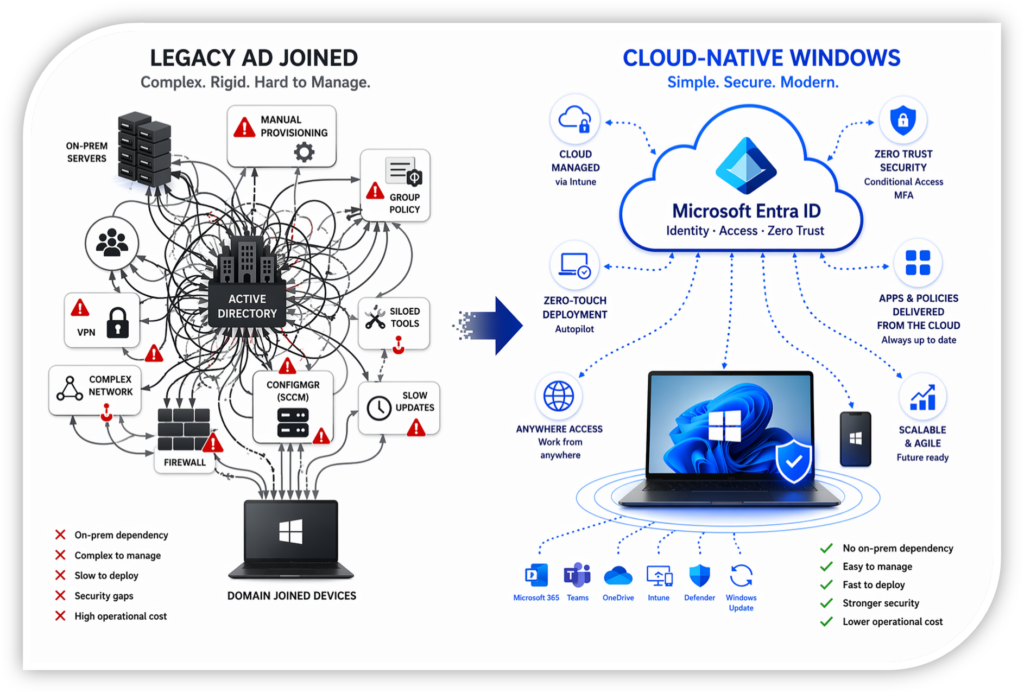
Old world (domain joined):
- Requires domain controllers
- Needs VPN for remote work
- Uses GPO, SCCM, imaging
- Devices depend on corporate network
Cloud‑native world:
- No dependency on on‑prem AD or network
- Everything works over internet + identity
- Policies are delivered dynamically from the cloud
- Devices can be productive anywhere, anytime
We cannot Map Drives and Printers on Cloud Native device!
This is partly true! Cloud Native is a modern desktop that also encourage us to start working in a modern way with files and printers. There are modern alternatives to file and print servers. How about start using modern ways like Teams, SharePoint, OneDrive for files and cloud print services like Universal Print for printing?
If we look at a domain joined device, we can use login-scripts or GPO to map drives and printers. Drives and Printers are mapped based on where the device is, if you’re on the corporate network or VPN, it works. If you’re not, it breaks!
If we look at a Cloud Native device, we can use Teams, SharePoint, OneDrive and Universal Print to access drives and printers. Drives and Printers are available both on and off the corporate network. No need for VPN, File- and Print-servers etc. So a real improvement in productivity!
But I still want to Map Drives and Printers Cloud Native!
Yes, I know! Some users and companies refuse to embrace this new world. So, as I mentioned before, I have just finished a new major update on my script to map drives and printers. There are several enhancements introduced in this update, and I will try to explain them all.
1. Basic file and print mappings
First lets look at the basic feature to map drives. There are now 6 parameters in the top of the script for the execution. I will not go through them all, only the most important once that could be hard to understand.
$MappingVersion = Every time you deploy a new version of the script config, for example to add a new drive, or remove one. Increment the version number to trigger an update
$EndUserGUI = If you want to enable one of my new features, to show a GUI when running it manually.
[CmdletBinding(SupportsShouldProcess)]
param(
    [Parameter(Mandatory = $false, HelpMessage = "Domain to search for AD group memberships (e.g., 'contoso.com')")]
    [String]$DomainName             = "tbone.se",

    [Parameter(Mandatory = $false, HelpMessage = "Mapping configuration version, increment when adding new or changing drive or printer mappings")]
    [version]$MappingVersion        = "3.0.0",

    [Parameter(Mandatory = $false, HelpMessage = "Enable a GUI with mapping results when the user manually executes the script. Default is true.")]
    [Bool]$EndUserGUI               = $true,

    [Parameter(Mandatory = $false, HelpMessage = "Remove stale drive/printer mappings that are no longer in the configuration")]
    [Bool]$RemoveStaleObjects       = $true,

    [Parameter(Mandatory = $false,          HelpMessage = 'Specify how to run the script: Install, Repair or UnInstall')]
    [validateset("Install", "Repair", "UnInstall")]
    [string]$InstallType            = "Install",

    [Parameter(Mandatory = $false, HelpMessage = "Force replace all scripts and scheduled tasks even if version is the same")]
    [Bool]$ForceReplaceAll          = $false,
One of the trickiest things when building a script for cloud native to map drives based on group memberships, is that group memberships is not known by the end user or device. So we need to send a query to Domain Controller to get this information. And if no DC is available, this info cannot be achieved. But on the other hand, if no DC also no Fileserver. So connectivity is required to map anyway.
$MapObjects = The table you populate with objects to map. Can be either drives or printers NOT both! Add the list of drives to map an what AD group you must be member of to map it. If you leave the “ADGroups” blank, all users will map the drive:
#region ---------------------------------------------------[Modifiable Parameters and defaults]------------------------------------
#IMPORTANT! When adding new Drivers make sure to also increment Version in $MappingVersion above.
# Add Objects to Map here either Printers or Drives (Not Both) with the following syntax
#Printers:  $MapObjects += @{PrinterName="PrinterName"  ;Default=$true      ;Path="\\printserver\printerName"   ;ADGroups="My Group"}
#Drives:    $MapObjects += @{Letter="X"                 ;Persistent=$true   ;Path="\\fileserver\fileshare"      ;ADGroups="My Group"    ;Label="My drive"}
$MapObjects = @()
$MapObjects+=@{Letter="S";Persistent=$true;Path="\\t-bone-file.tbone.se\Sales"	        ;ADGroups=	"Sales"	        ;Label="Sales folder"   }
$MapObjects+=@{Letter="H";Persistent=$true;Path="\\t-bone-file.tbone.se\HR"             ;ADGroups=	"HR"            ;Label="HR"             }
$MapObjects+=@{Letter="W";Persistent=$true;Path="\\t-bone-file.tbone.se\Consultants"	;ADGroups=	"Consultants"   ;Label="Consult"        }
$MapObjects+=@{Letter="V";Persistent=$true;Path="\\t-bone-dc1.tbone.se\netlogon"	;ADGroups=	""              ;Label="Netlogon"       }
#endregion
With this above config, you are ready to deploy and map! But there is of course some more features under the hood!
2. New feature: Add Remove Programs
I have previously done wrappers to wrap Always On VPN to Add Remove Programs. I have also a generic wrapper that can wrap most scripts and executables and show them in Add Remove Programs. (I know, it is called only “Apps” in todays Settings, but I´m old!) So I decided to add the Map Drive and Map Printer also to Add Remove Programs.
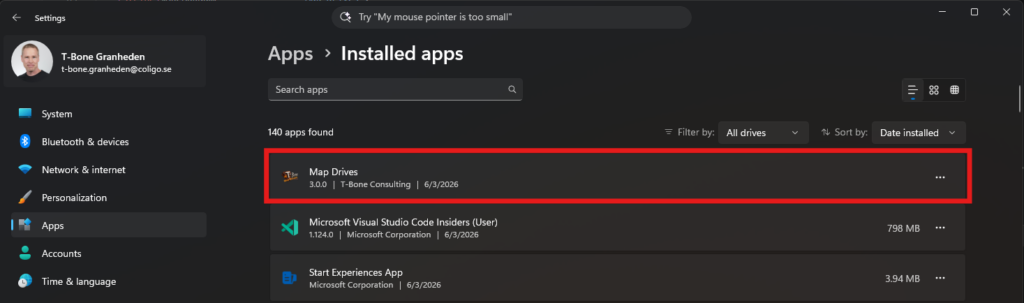
Now IT can see if Map Drives is installed and what version it has by looking in Settings / Apps
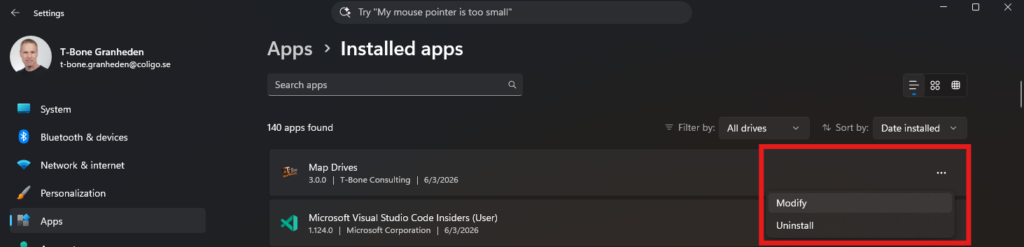
Of course with a fully working Modify option for admins to Repair the installation and Uninstall to Uninstall the app!
3. New feature: End User GUI
The end users sometimes need to trigger a manual “Map Drive”. either to t-shoot or hmmm – just map! So i decided to add this in a user friendly way.
    [Parameter(Mandatory = $false, HelpMessage = "Enable a GUI with mapping results when the user manually executes the script. Default is true.")]
    [Bool]$EndUserGUI               = $true,

    [Parameter(Mandatory = $false,          HelpMessage = 'Create an All-Users Desktop shortcut (targets ARPAppUserStartFile when set, otherwise the deployed wrapper script)')]
    [bool]$ARPAppShortcutOnDesktop  = $true,

    [Parameter(Mandatory = $false,          HelpMessage = 'Create an All-Users Start Menu shortcut (targets ARPAppUserStartFile when set, otherwise the deployed wrapper script)')]
    [bool]$ARPAppShortcutInStart    = $true,
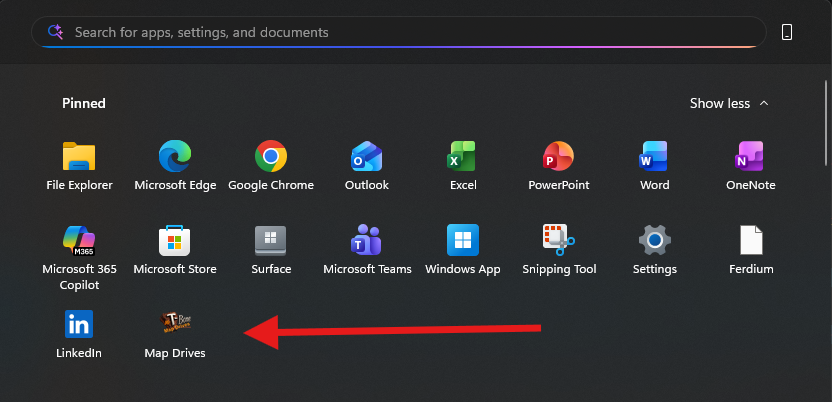
If these are enabled, the end user will get a shortcut on desktop and/or in startmenu. Easy to find, and easy to execute.
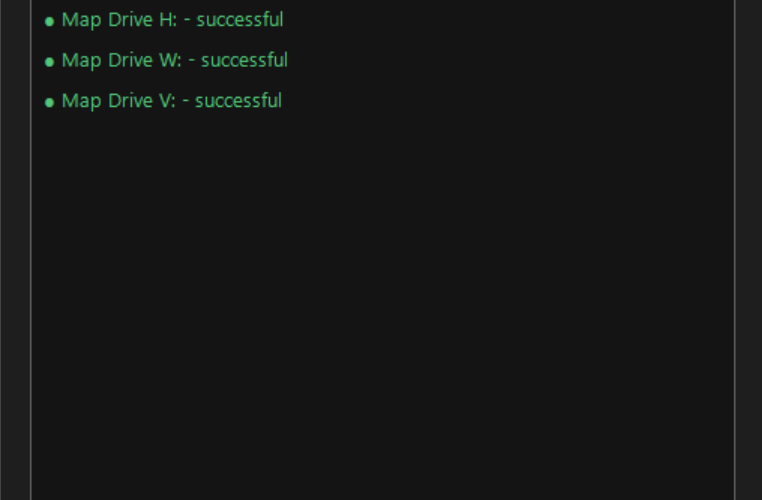
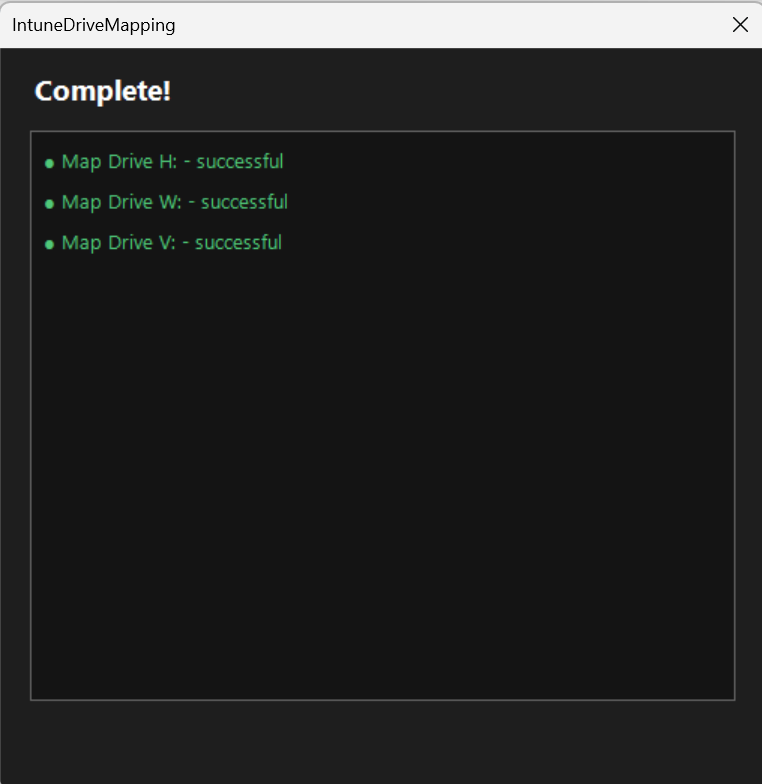
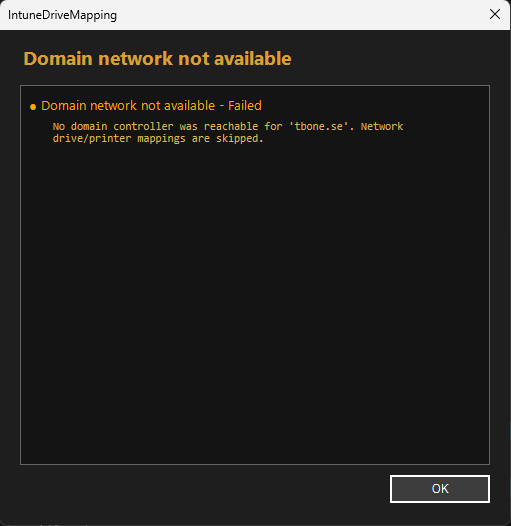
If the user run the “Map Drive” in start menu and all is success, the GUI just show green and is closed automatically. If it experience issues with network connectivity or just one or more drives, it will report this in GUI and require user to press OK button.
4. New Feature: Chameleon that knows how the script is running
I have been working on a new idea that I probably will use in many scripts for Intune. A script that can adapt to the environment and know what logic to use. So now this script can be directly used in Intune Remediation (same script for both detect and remediate) or as an Intunewin, or just manually. It can detect the CTXMode, if the script is triggered from different sources, like:
- Detection script
- Remediation script
- Platform script
- Intunewin app
- SCCM / Task Sequences
- GPO
- Azure Automation / Functions
- CI/CD (GitHub, Azure DevOps, GitLab)
- Manual runs
- Scheduled tasks
- Remote sessions
- VS Code / ISE debugging
It can also detect CTXIdentity, if running as System, Admin or User, to determine if it can remediate or install. And I added a whole lot more to it as well:
.SYNOPSIS
    Detects how the script is being executed and (optionally) validates it against requirements; can auto-relaunch in 64-bit.
.DESCRIPTION
    Inspects environment variables, the script path, parent/ancestor processes, identity, and architecture and returns a PSCustomObject with the following properties:
    - CTXMode           : WinPE, AzureAutomation, AzureFunction, GitHubActions, GitLabCI, AzureDevOps, TaskSequence,
                              Remediation, Detection, PlatformScript, Intunewin, SCCM, GPO, or Standalone
    - CTXPath           : ProgramFiles, ProgramFilesX86, IMEContent, ProgramData, AppDataRoaming, AppDataLocal,
                              IMECache, CCMCache, SystemRoot, or Other
    - CTXSource         : Managed (set for any non-Standalone CTXMode), or one of
                              Manual, ScheduledTask, RemoteSession, VSCodeDebug, ISE, Explorer, Batch, Interactive
    - CTXIdentity       : System, LocalService, NetworkService, ServiceAccount, Admin, or User
    - CTXArchitecture   : x64 or x86
    - CTXPSVersion      : Version object from $PSVersionTable.PSVersion (e.g. 5.1.19041.0)
    - CTXOSBuild        : Integer Windows OS build number (0 on non-Windows)
    - CTXPendingReboot  : Boolean; $true when a reboot is pending (CBS / Windows Update / PendingFileRenameOperations)
    - CTXNoGUISupport   : Boolean; $true when a GUI (WinForms) cannot be shown — non-Windows or non-interactive session

    When any of -CTXReqIdentity / -CTXReqArchitecture / -CTXReqMode / -CTXReqPSVersion / -CTXReqOSBuild / -CTXAbortIfPendingReboot is provided, the detected context is validated:
    On success the context object is returned, on failure $null is returned (and an error is written).
.NOTES
    Version: 1.1.0

    Version History:
    1.0 - Initial version
    1.0.1 - Fixed some edge cases in detection logic
    1.1.0 - Added reqirements parameters and validation logic, and auto-relaunch to x64 if required and running x86
#>
Remediation
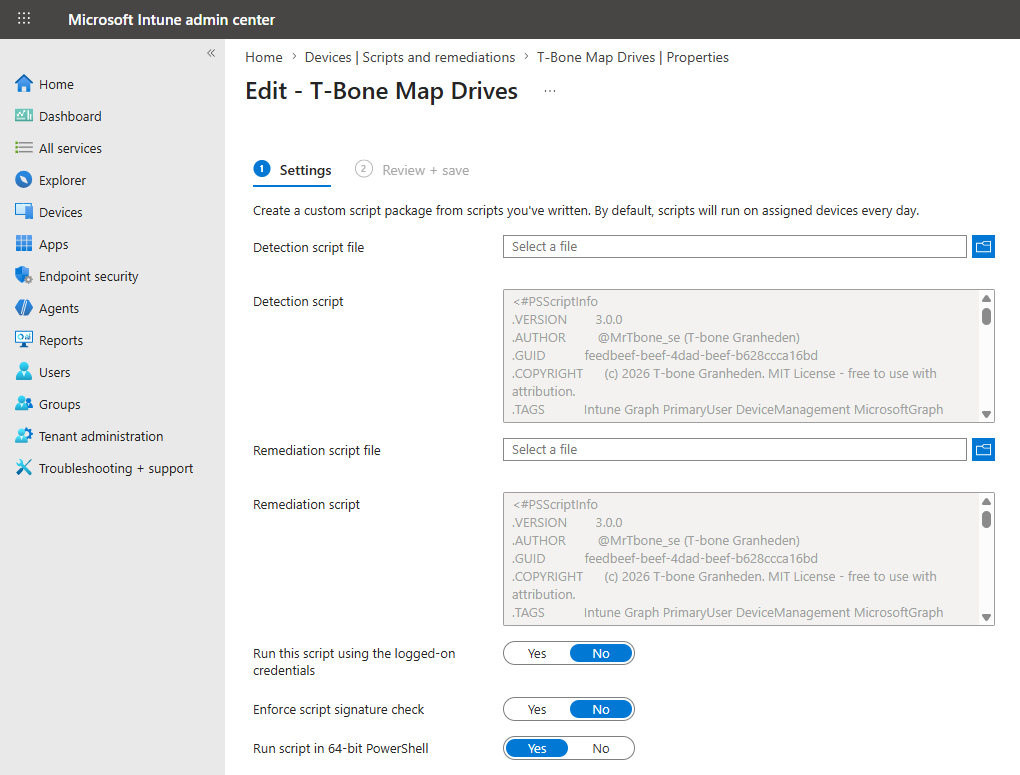
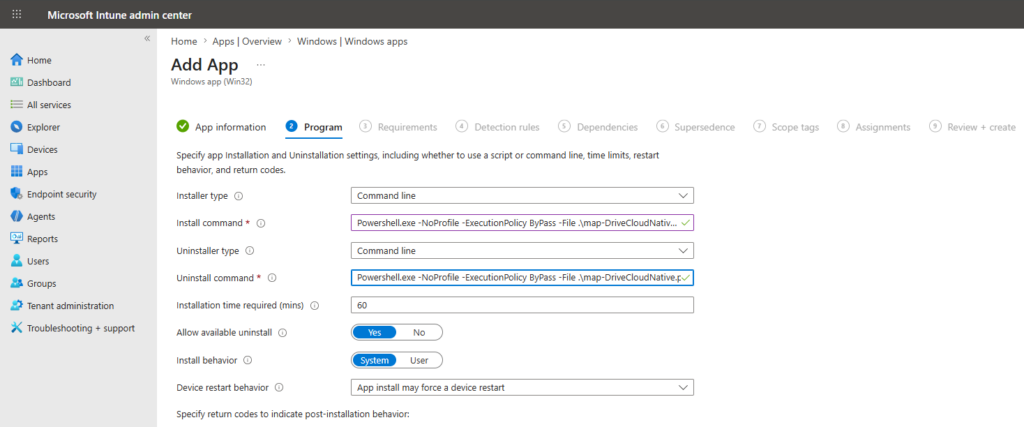
Intunewin
Another nice thing, is that you can detect the intunewin as any other MSI app with the GUID (did not succeed with version check due to complex MSI check):
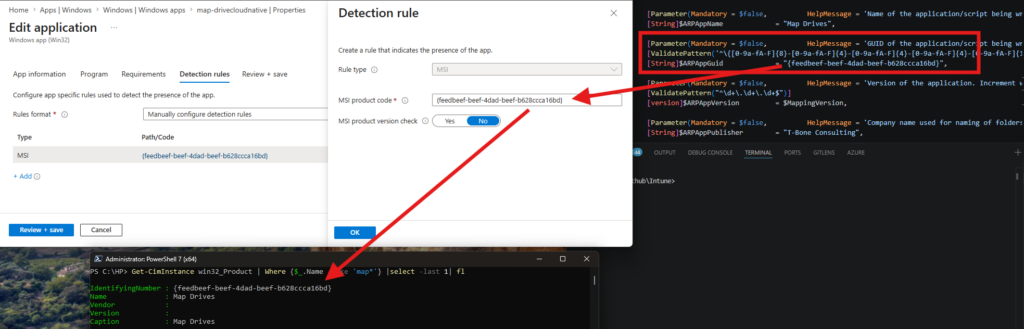
Make sure to use a unique GUID for each app you register. For example one for Drives and another one for Printers.
5. Previous Feature: Logging to event log, disk, or just in host
All my scripts that I build today has my Invoke-TboneLog function that can catch all write- messages and show them in host, save to disk or put into event log. For this Map Drive or Printer script, I have set the default to log in Event log. It´s the most convenient place to find logs and t-shoot. Default event Ids is 11001-11003:
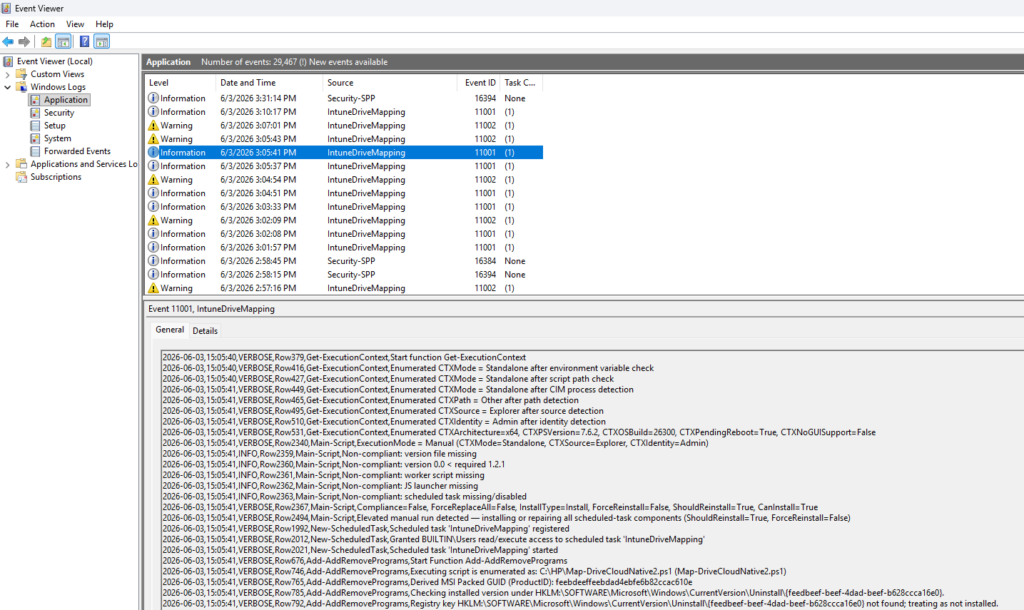
Please test it out and report issues so that it can be improved
This script provides a full cloud-native mapping framework for Windows devices managed by Intune. It supports both drive mapping and printer mapping, can run as an Intune Win32 app, an Intune remediation, a scheduled task, or a manual execution, and it includes packaging, repair, uninstall, logging, user experience handling, and application registration in Add/Remove Programs. In other words, it is not just a “map a drive” script. It is an operationally complete solution for deploying and maintaining user-context resource mappings on modern managed devices.
You can find them on my Github
Intune/Map-DrivesCloudNative.ps1 at master · Mr-Tbone/Intune
Intune/Map-PrintersCloudNative.Ps1 at master · Mr-Tbone/Intune
About The Author