Intune Surface Management Portal The Hidden Gem
In my recent post on DFCI I wrote about the spreadsheet called BIOS_passwords_FINAL_v3.xlsx. In a lot of Surface environments, that spreadsheet has a sibling in the same folder. It is called something like Surface_warranty_export_2024.xlsx. It was correct the day somebody exported it, and it has been drifting away from reality ever since.
Then a Surface breaks. A cracked screen, a dead Type Cover, a dock that simply stopped docking. Someone has to dig out the serial number, figure out if the device is still covered, find the right support site, fill in the forms, and then hope the replacement does not show up as a complete stranger to Autopilot.
Here is the thing. If you manage your Surface devices with Intune, Microsoft has already built a place for all of that. It is called the Surface Management Portal. It lives inside the Intune admin center, it costs nothing extra, and it fills itself with data. It is also tucked away well enough that a lot of admins have never clicked on it.
So here is the tour: what is actually in the portal, the role combination that locks people out, the hidden gem inside the hidden gem, and the use cases where it earns its bookmark.
What is the Surface Management Portal?
The Surface Management Portal is a workspace inside the Microsoft Intune admin center. It pulls together data and insights about your enrolled Surface devices in one place:
- Compliance
- Warranty
- Protection plan coverage
- Support cases
- Repairs
- Carbon emission estimates
Everything that is Surface specific sits right next to the management tool you already use every day. Three things make it a hidden gem:
- It is already paid for. You need a valid Microsoft Intune or Microsoft 365 E3/E5 subscription and Surface devices enrolled in Intune. There is no separate license for the portal. The Copilot part needs Security Compute Units, but more on that later.
- It fills itself. Information from your Intune-enrolled Surface devices flows into the portal automatically when users sign in for the first time. No connector, no agent, no import.
- It is hidden. It sits under All services, and you need at least one Surface device enrolled before you can access it.
It is also where Surface support is heading. Microsoft is moving Surface support off the old Support for Business experience. Instead, it points customers to the Surface Management Portal and its sibling, the Surface Support Portal.
Where to find it
- Sign in at https://intune.microsoft.com
- Navigate to Devices
- Navigate to Partner Portals
- Select Surface Management Portal (as you can see, there are other vendors to)
How to let people in!
At least one admin role has to be assigned before anyone can work in the portal. Global Administrator works, but Microsoft explicitly discourages it for Surface tasks, and so do I. The recommended role is Microsoft Hardware Warranty Administrator, but you can also be the Microsoft Hardware Warranty Specialist
Now the part that trips people up. On the Surface Management Portal, they need more than that, to get in and see anything, they also need Global Reader! Assign the warranty role on its own, and your colleague ends up outside a locked door wondering what they did wrong.
This is my take on the roles:
| Role | What it can do | My take |
| Microsoft Hardware Warranty Administrator (+ Global Reader) | View all service requests, create and manage device replacement requests, add, edit and delete ship-to addresses | The role for whoever owns the Surface fleet |
| Microsoft Hardware Warranty Specialist (+ Global Reader) | View own service requests, create and manage device replacement requests | Perfect for the service desk. They can file repairs without an Intune administrator role |
What is acculy in that portal?
The landing page gives you the big picture, and you can drill down into all of it:
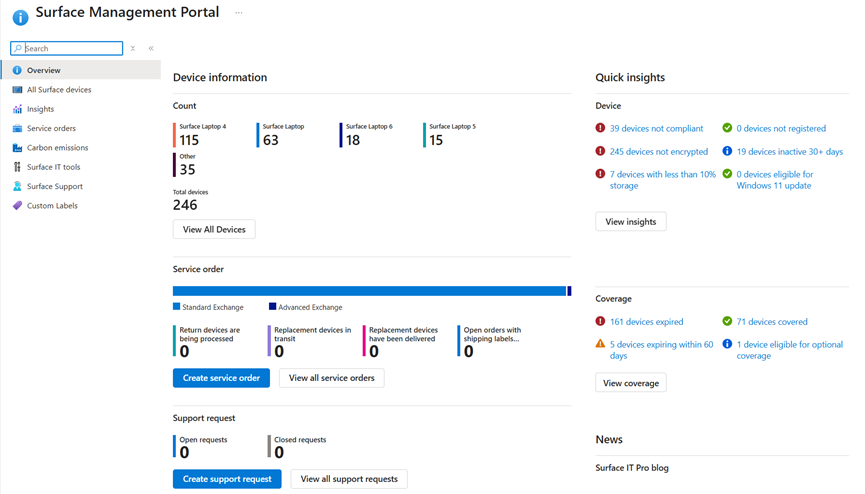
- Count: the number of enrolled Surface devices per model, with View report for full list
- Quick Insights: notifications about compliance, hardware and device activity
- Service order active and closed service orders
- Support request: Active and closed support requests
- Coverage: Warranty covered and expired devices and devices eligible for coverage.
- News: Surface news from the Microsoft Surface IT blog
Start with the count per model. If it does not match what you think you own, you already have your first finding.
Insights: a Surface health dashboard you did not have to build
The Insights tab shows each insight as a card. You can pin, rearrange and expand the cards. Select a card title to see device names, dates and available actions.
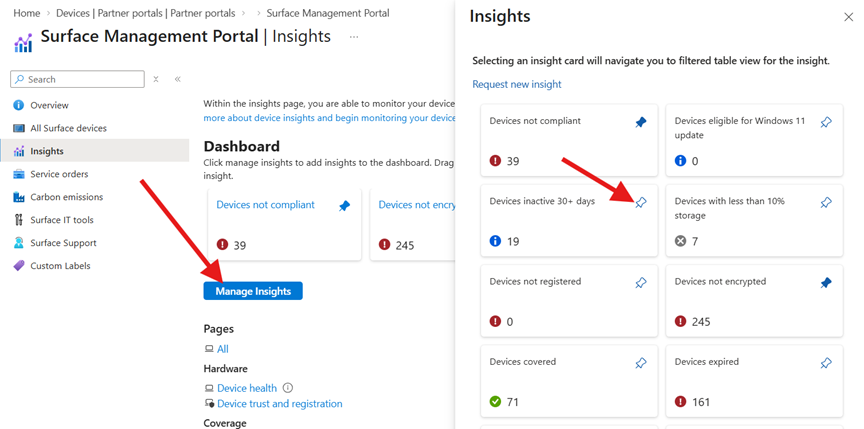
A quick list of what’s in the insights:
| Insight | What it shows | My take |
| Devices not compliant | Devices that fail your compliance policies, such as missing updates or security requirements | The same truth as in Intune, scoped to your Surface fleet |
| Devices inactive 30+ days | Devices that have not been active for more than 30 days | The drawer devices. Hardware you paid for, with a warranty that keeps ticking |
| Devices not registered | Devices that have not been registered | Find out why before one of them breaks |
| Devices covered | Devices covered by warranty or support programs | The feel-good card |
| Devices expiring within 60 days | Warranty or support coverage that ends within 60 days | The most valuable card on the page. Get known issues fixed while they are still covered |
| Devices eligible for optional coverage | Devices that qualify for optional coverage plans but are not enrolled | Bring this one to whoever buys your hardware |
| Devices expired | Warranty or support coverage has expired | Your refresh shortlist |
| Devices not encrypted | Devices without drive encryption | On a laptop fleet this should be zero. If it is not, stop reading and fix that first |
| Devices with less than 10% storage | Devices running low on disk space | Low disk space and feature updates are not friends. Reach out before the next one fails |
| Devices eligible for Windows 11 update | Devices eligible for Windows 11 that have not been upgraded | Windows 10 reached end of support in October 2025. Anything in this card is a to-do list |
Service orders: repairs and exchanges, even in bulk
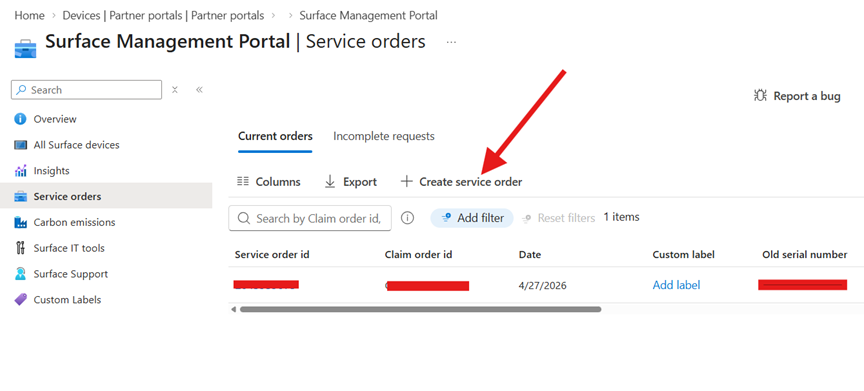
This is where the sibling spreadsheet comes in. A simple place to not only create service orders, but also to view status and keep track of them.
- If a device need service, select Service orders and Create a new service order
- Choose between:
- Serialized Device / Accessory (for example Type Covers and docks)
- Non-serialized Accessory (for example a mouse or power supply)
- Add your shipping and billing address
- Add the devices: select them from your tenant, enter a serial number, or use Add devices in bulk with a CSV template, (up to 100 at a time if you have a massive fault)
- Select the issue type and the service offer
- Advanced Exchange
- Same Unit Repair
- Standard Exchange
- Review and Submit
You get a service order ID, an email confirmation, and a shipping label when applicable.
Carbon emissions: the fleet-level version of my Laptop 7 fact check
Earlier this year I fact-checked my own Surface Laptop 7 sustainability recommendation using the Eco Profile for one single laptop. The Carbon emissions tab does that kind of math for your whole fleet:
- Product age selection: filter the data by the age of your devices
- Total emissions estimate: estimated emissions from production and usage
- Emissions lifecycle: the split between production, transportation, usage and end of life
In the example in Microsoft’s documentation, production accounts for 86.10% of the emissions and usage for 13.88%. Transportation and end of life are close to zero.
My take: more than 85% of the footprint is locked in before the device is even unboxed. That makes the greenest Surface the one you keep running longer, which brings us straight back to Same Unit Repair in the previous section. And whoever writes your sustainability report will thank you for showing them this tab.
Surface IT Tools and the Surface IT Toolkit
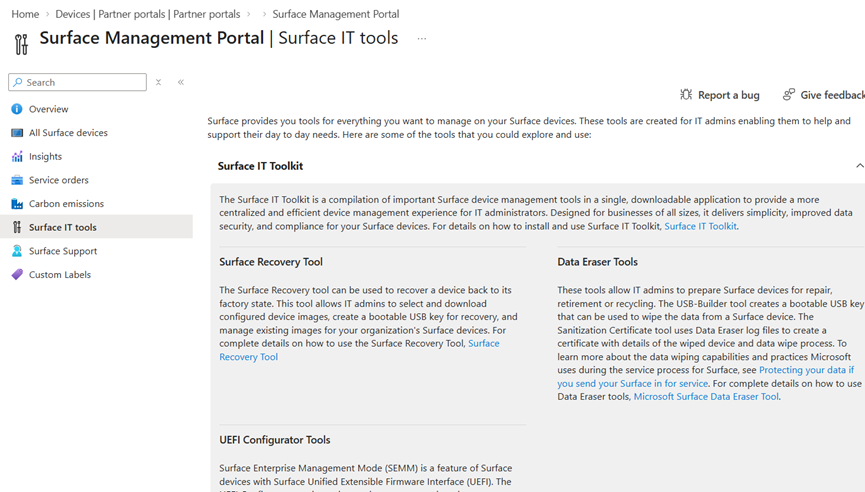
The Surface IT Tools section links to the tools around the portal. The big one is the Surface IT Toolkit, a downloadable app for IT admins:
| Tool | What it does | My take |
| Data Eraser | Builds a USB that securely erases Surface SSDs, and creates a certificate of sanitization | Your answer when security asks for proof |
| UEFI Configurator | Prepares UEFI configuration packages for Surface devices | For cloud-managed fleets I still prefer DFCI. This is for when DFCI is not an option |
| Recovery Tool | Downloads and builds a USB that restores a Surface to factory state | Keep one ready for each model you run |
| Tool Library | Installers for Asset Tag, UEFI Assemblies, Diagnostics App Console and Brightness Control | Worth a browse, see below |
From the Tool Library, Asset Tag is a command-line tool to view, assign and modify an asset tag stored in the device UEFI. Since it lives in the firmware, your inventory number stays with the device even when Windows is reinstalled. Pretty awesome!
Diagnostics App Console handles remote diagnostics and log capture. Brightness Control adjusts brightness for kiosk and always-on scenarios to save power.
In other words: Some really cool tools for Surface!
Support requests: open a case without hunting for serial numbers
The Support tab tracks open and closed requests, and lets you create new ones:
- Select Support > New support request
- Select the Product and the Device model
- Select one or more devices from the list of devices registered to your tenant, by device name and serial number
- Select a Category: Technical support, Warranty and Service, or Product Safety Concern
- Pick the symptom, describe the issue, and attach files if you have them
- Add your contact details and preferred contact method, phone or email
- Review and Submit
You get a case ID, and a Microsoft representative contacts you the way you asked. Every request is tracked under View all support requests, including who filed it, when, and for which device.
But hey, before you file a technical case, go and try out the Surface Diagnostic Toolkit and try to solve it with Surface Repair Tool. Many service requests is due to human error, so I always test the devices and try to solve it myself before filing a request. If it cannot solve the problem, you at least have something useful to attach.
The hidden gem inside the hidden gem!
This applies to device exchange service orders placed directly with Microsoft. Microsoft checks every Surface for Autopilot registration and deregisters it from your tenant. It also makes sure the replacement device is registered in Windows Autopilot when it comes back to you.
Anyone who has chased a hardware hash for a replacement device knows exactly what that is worth. So does anyone who has found a long-gone device still sitting in the Autopilot list. One caveat: if you return devices through a partner, the partner handles the Autopilot deregistration and registration, not Microsoft.
Two more things before a device leaves the building:
- If your security team wants proof of a wipe, the Data Eraser in the Surface IT Toolkit can create a certificate of sanitization for an erased Surface SSD.
- If the device is DFCI-managed, the exit matters. I covered it in the “Getting back out again” section of my DFCI post.
Warranty and coverage: retire the spreadsheet!
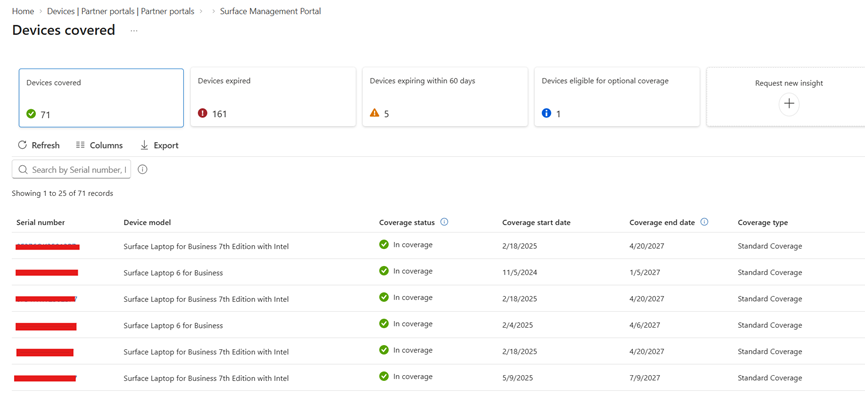
This is where the sibling spreadsheet goes to die. If you open up the insights of covered devices. The coverage status sorts your Surface warranties into four buckets. Select any of them to drill down to the actual devices:
- Covered: devices still under warranty
- Expiring: devices approaching the end of their warranty
- Expired: devices with an expired warranty
- Eligible: devices eligible for optional coverage
Coverage means the applicable warranty or protection plan, whichever is longer, so any extended coverage you have bought is part of the picture. The tab also links to warranty, customer service and support resources. Microsoft positions it for planning new devices and support requests. In other words: budget season.
Security Copilot in the Surface Management Portal
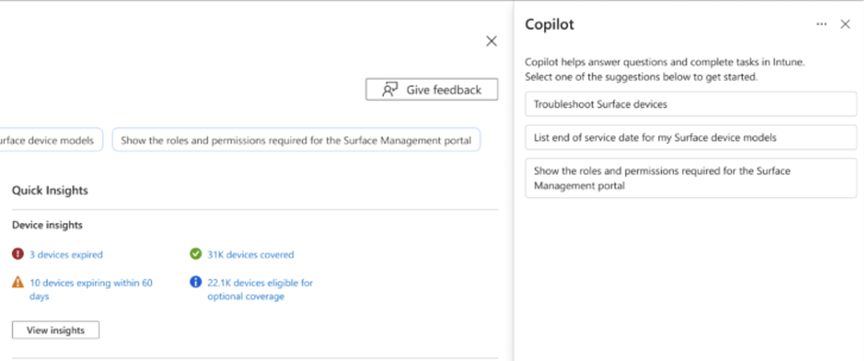
Security Copilot has been generally available in the Surface Management Portal since July 2025. You ask questions in plain language, and as you type, it matches your question to built-in prompts and suggests options. A Check documentation option takes you straight to the relevant Microsoft documentation.
Microsoft’s sample prompts:
- Troubleshoot Surface devices.
- List all my Surface device models end of service date.
- Generate a warranty coverage report for all devices.
- What are the best practices for protecting Surface devices?
At general availability, examples like these were also used:
- Which devices are out of compliance and out of warranty?
- Show devices with TPM disabled and BitLocker off.
- Estimate carbon emissions from our Surface fleet.
To turn it on:
- Sign in to the Security Copilot portal
- In the prompt bar, select Sources
- In Manage sources, turn on the Surface Management Portal plugin
Only certain roles can enable plugins, so you might need your Security Copilot owner for this step.
About the cost: Copilot for the Surface Management Portal is included with Security Copilot without any other license, but you need Security Compute Units (SCUs). Here is the good news. Microsoft 365 E5 and E7 customers now get Security Copilot included, with 400 SCUs per month for every 1,000 paid user licenses, up to 10,000 SCUs per month. The rollout started on November 18, 2025. So if you are on E5, the Copilot part may well be “already paid for” too.
My take: start with the end of service prompt. It turns “when does this model stop getting firmware and driver updates?” into a list you can actually plan against.
Use cases
- The Monday morning check. Five minutes with your pinned insights: not encrypted, not compliant, less than 10% storage. Small fixes before they turn into tickets.
- The cracked screen. The service desk creates an exchange service order straight from the portal. Microsoft handles the Autopilot deregistration and registration, and the user gets a replacement that is already registered in Autopilot.
- The bad batch. When a whole batch of docks or Type Covers misbehaves, one service order with a CSV of up to 100 devices beats a hundred separate cases.
- The drawer devices. Cross-check inactive 30+ days with warranty status to find hardware that sits idle while its warranty runs out. Reassign it while it is still covered.
- The sustainability report. The Carbon emissions tab gives you a fleet-level estimate instead of a guess.
Things to know before you rely on it
- Only Intune-enrolled Surface devices show up. Devices outside Intune are invisible here.
- No sign-in, no data! Device information flows in when users sign in for the first time, so a device still in its box is not in the portal yet.
- The warranty roles also need Global Reader. Otherwise, no access and no data!
- The warranty experience may vary by region and product. That is Microsoft’s own footnote, not mine.
- Partner exchanges work differently. The partner owns the Autopilot deregistration and registration, not Microsoft.
- Copilot needs SCUs and the plugin. SCUs are included with Microsoft 365 E5 and E7. Your first 30 minutes in the portal
Summary
If you run Surface devices in Intune, you already own this portal. It costs nothing extra and it fills itself with data. It replaces at least one spreadsheet, a couple of support websites and a fair amount of phone queue. It will not change your life on day one. It will change the day a Surface breaks, the day the budget is due, and the day someone asks what your fleet emits.
About The Author